" height="26.80529977783203px" id="tymKb8bqC" width="128.00300311279295px"/><path d="M 0 2.417 L 0 0 L 12.909 0 L 12.909 2.417 Z" fill="rgb(126, 78, 253)" height="2.417099999999998px" id="aYr4em6zK" transform="translate(128.341 22.325)" width="12.908999999999992px"/></svg>)

"/><stop offset="1" stop-color="rgb(118, 37, 250)"/></linearGradient></defs><g d="M 19.242 21.22 L 19.362 6.204 L 19.272 6.204 L 13.757 21.22 L 10.161 21.22 L 4.796 6.204 L 4.706 6.204 L 4.825 21.22 L 0 21.22 L 0 0 L 7.283 0 L 12.109 13.607 L 12.229 13.607 L 16.844 0 L 24.247 0 L 24.247 21.22 Z M 26.421 26.113 L 26.421 23.445 L 41.407 23.445 L 41.407 26.113 Z" fill="transparent" height="26.112508199679183px" id="DvfaAIHYn" width="41.40731898311435px"><path d="M 19.242 21.22 L 19.362 6.204 L 19.272 6.204 L 13.757 21.22 L 10.161 21.22 L 4.796 6.204 L 4.706 6.204 L 4.825 21.22 L 0 21.22 L 0 0 L 7.283 0 L 12.109 13.607 L 12.229 13.607 L 16.844 0 L 24.247 0 L 24.247 21.22 Z" fill="rgb(46, 46, 46)" height="21.220180016149442px" id="pLsxRCobd" width="24.247352589074694px"/><path d="M 0 2.668 L 0 0 L 14.986 0 L 14.986 2.668 Z" fill="url(%23yD9d4I5GR-3279285344-linear-gradient)" height="2.6675085048549647px" id="yD9d4I5GR" transform="translate(26.421 23.445)" width="14.986002836263765px"/></g></svg>)
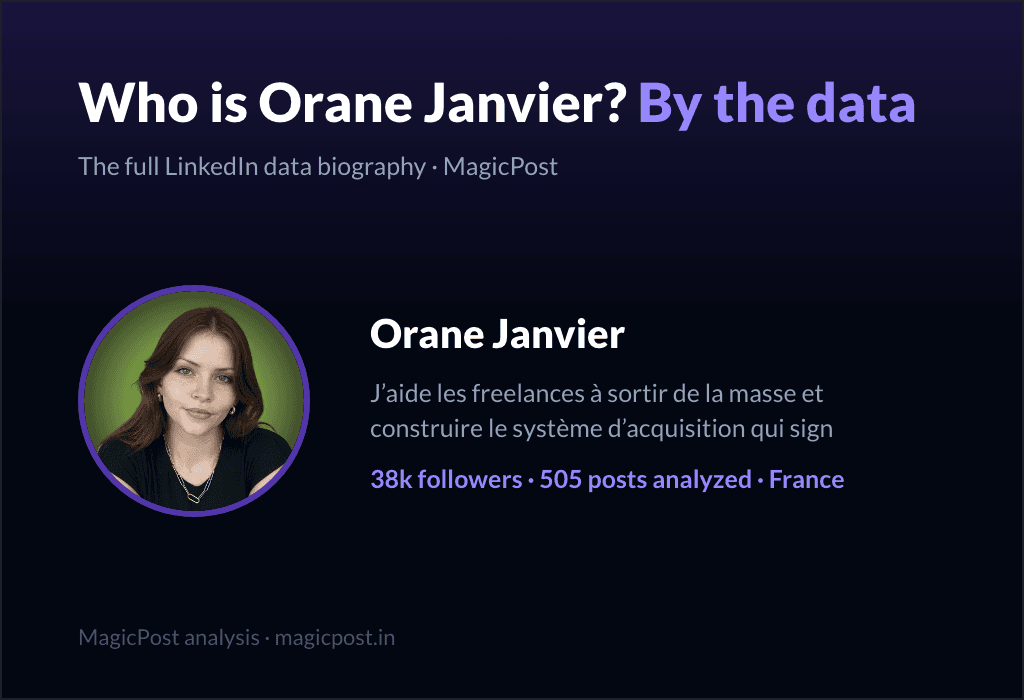
Who Is Orane Janvier? The Freelance Coach LinkedIn Quietly Copies (2026)
Who is Orane Janvier? MagicPost analyzed 505 of their LinkedIn posts: topics, timing, signature moves and the writing fingerprint behind their growth.
...read more
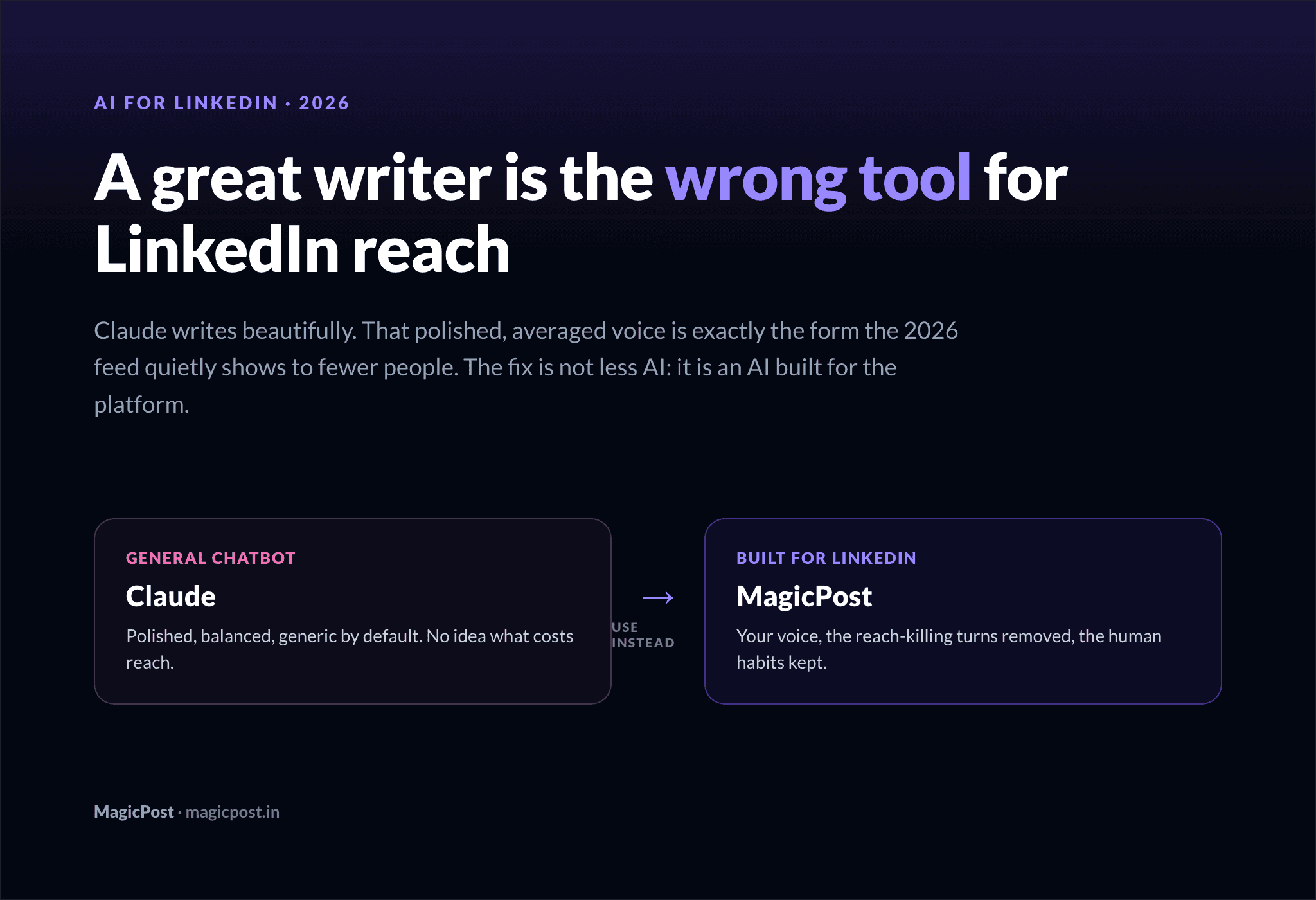
Why You Should Not Use Claude for LinkedIn Posts
Claude is a great writer, but raw Claude output is the wrong tool for LinkedIn reach in 2026. Here is what it costs you and what to use instead.
...read more
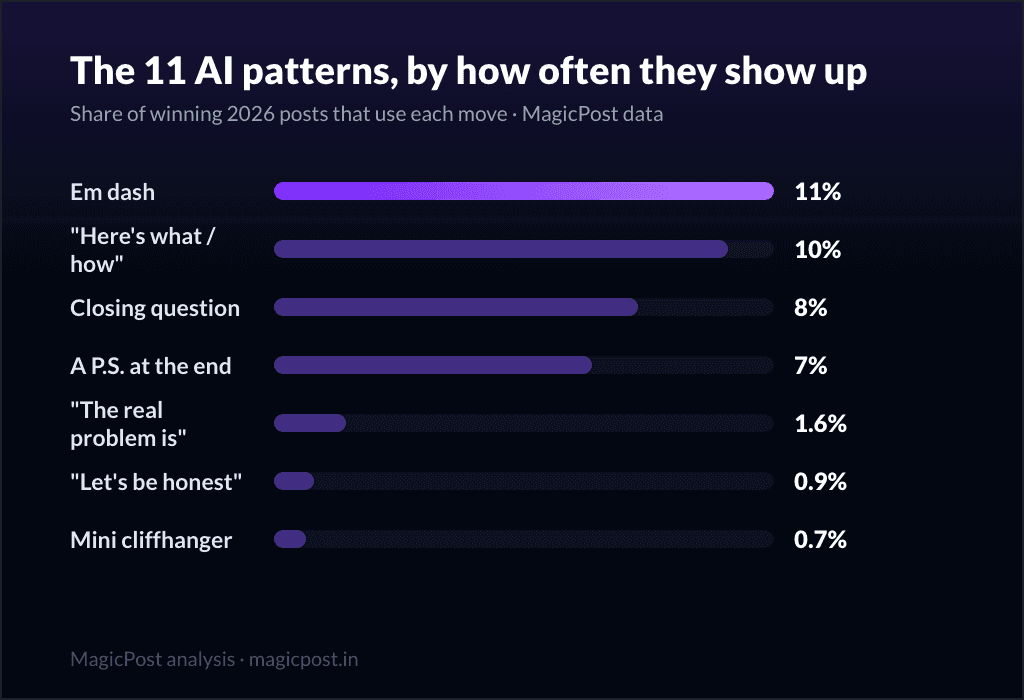
11 Patterns to Spot an AI-Written LinkedIn Post in 2026
We analyzed 46,000 posts to find the 11 patterns that help you spot an AI-written LinkedIn post. Here are the four that now measurably cost you reach.
...read more

11 Best Buffer Alternatives for LinkedIn Growth (2026)
Buffer is a great scheduler, but it stops at publishing. These 11 Buffer alternatives do AI writing, content planning, and LinkedIn-focused automation better.
...read more
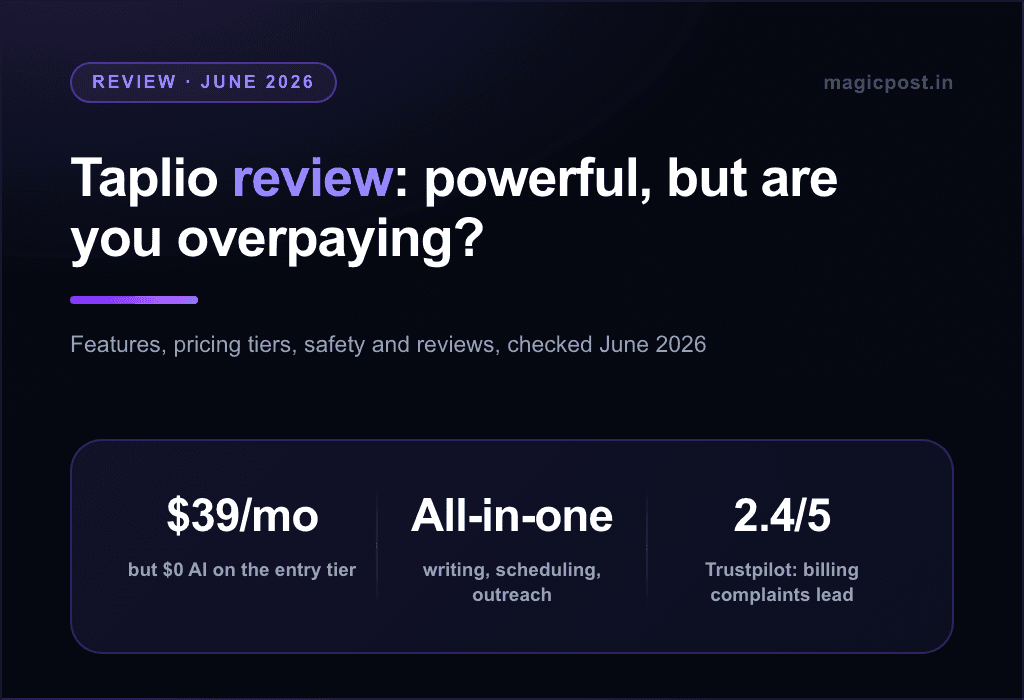
Taplio Review: Powerful, But Are You Overpaying? (2026 Update)
Taplio combines AI post writing, scheduling, and LinkedIn outreach in one platform. But is it worth it for your use case? This Taplio review has the answer.
...read more