" height="26.80529977783203px" id="tymKb8bqC" width="128.00300311279295px"/><path d="M 0 2.417 L 0 0 L 12.909 0 L 12.909 2.417 Z" fill="rgb(126, 78, 253)" height="2.417099999999998px" id="aYr4em6zK" transform="translate(128.341 22.325)" width="12.908999999999992px"/></svg>)

"/><stop offset="1" stop-color="rgb(118, 37, 250)"/></linearGradient></defs><g d="M 19.242 21.22 L 19.362 6.204 L 19.272 6.204 L 13.757 21.22 L 10.161 21.22 L 4.796 6.204 L 4.706 6.204 L 4.825 21.22 L 0 21.22 L 0 0 L 7.283 0 L 12.109 13.607 L 12.229 13.607 L 16.844 0 L 24.247 0 L 24.247 21.22 Z M 26.421 26.113 L 26.421 23.445 L 41.407 23.445 L 41.407 26.113 Z" fill="transparent" height="26.112508199679183px" id="DvfaAIHYn" width="41.40731898311435px"><path d="M 19.242 21.22 L 19.362 6.204 L 19.272 6.204 L 13.757 21.22 L 10.161 21.22 L 4.796 6.204 L 4.706 6.204 L 4.825 21.22 L 0 21.22 L 0 0 L 7.283 0 L 12.109 13.607 L 12.229 13.607 L 16.844 0 L 24.247 0 L 24.247 21.22 Z" fill="rgb(46, 46, 46)" height="21.220180016149442px" id="pLsxRCobd" width="24.247352589074694px"/><path d="M 0 2.668 L 0 0 L 14.986 0 L 14.986 2.668 Z" fill="url(%23yD9d4I5GR-3279285344-linear-gradient)" height="2.6675085048549647px" id="yD9d4I5GR" transform="translate(26.421 23.445)" width="14.986002836263765px"/></g></svg>)

Camelia Khadraoui
Creating LinkedIn content now means thinking about both what you write and how your post looks in the feed.
For marketers, founders, and SaaS teams, previewing a LinkedIn post before publishing has become essential.
This is why AI-powered LinkedIn post mockups have become a key part of today’s marketing workflows. AI-driven LinkedIn post mockups let users make realistic previews of their content without having to publish anything.
Teams use these mockups for demos, landing pages, ads, and client presentations. This helps them visualize, test, and improve content before sharing it publicly.
In Short:
AI-powered LinkedIn post mockups allow you to visualize how your posts will appear before publishing them.
These tools assist marketers and teams:
Check formatting,
Collaborate more effectively,
Build a stronger brand,
Create better marketing materials like landing pages and demos.
Tools like BrandBird and MediaModifier simplify the process of creating realistic LinkedIn-style previews.
What is a LinkedIn Post Mockup?
A LinkedIn post mockup is a visual preview that closely resembles a real LinkedIn post.
It includes details such as the profile photo, name, formatting, spacing, and engagement icons so that the post appears just like it would in the LinkedIn feed.
These mockups are crafted to align with LinkedIn’s distinctive style and professional appearance, unlike generic social media mockups. People frequently utilize them to:
Preview posts prior to publishing
Showcase examples on landing pages
Create marketing visuals for AI tools
Present content ideas to clients or teams
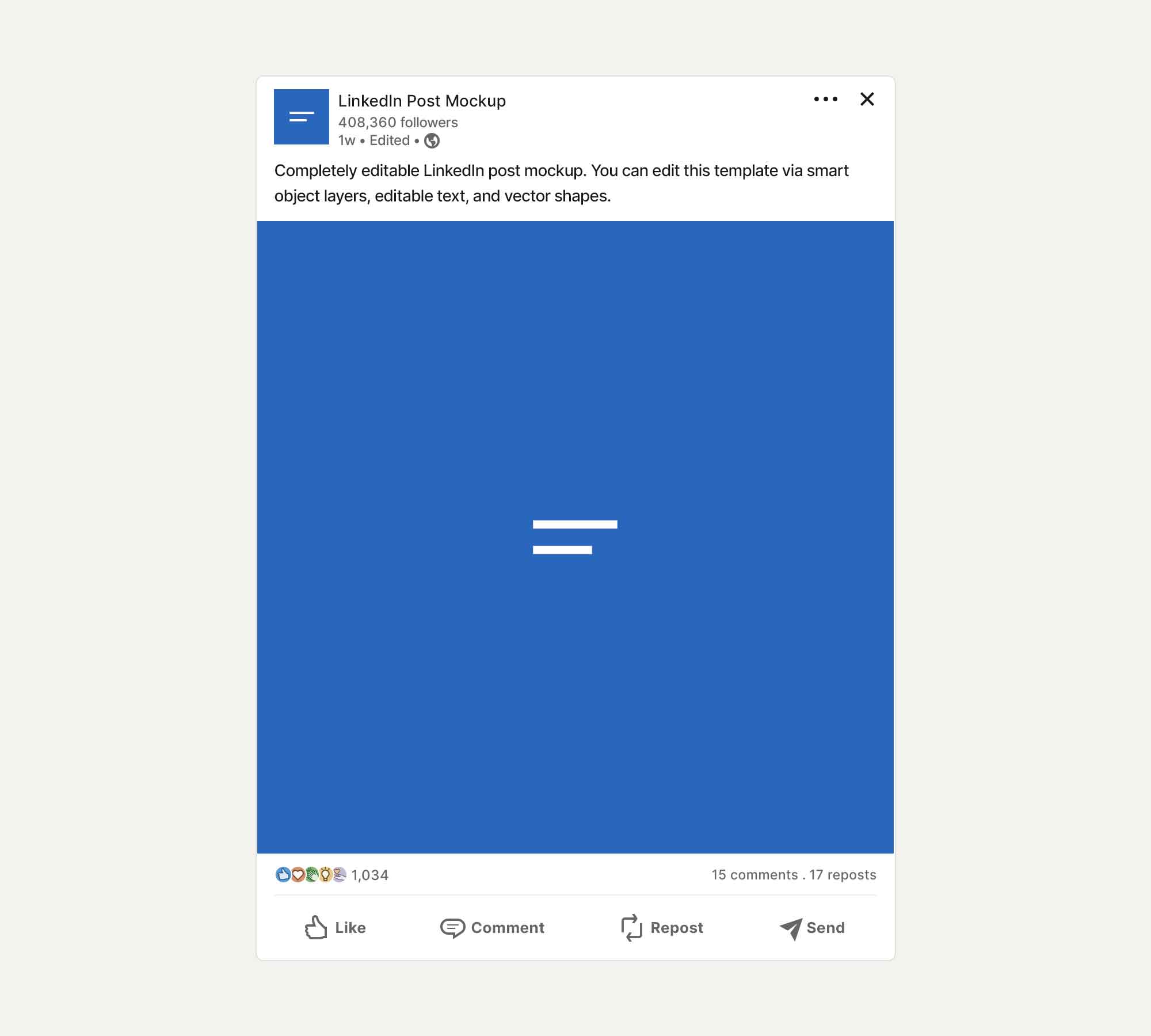



Benefits of Using LinkedIn Post Mockups in Marketing
LinkedIn post mockups provide marketing teams and creators valuable ways to enhance their work and strategy.
1. Better visual storytelling
With LinkedIn post mockups, you can see exactly how your post will appear in the LinkedIn feed.
Instead of merely describing an idea, you can present it visually, making your message clearer and more impactful.
This aids in storytelling as layout, spacing, and formatting all influence how audiences perceive your content on LinkedIn.
2. Faster content validation
Mockups allow you to test your ideas before publishing them.
You can quickly assess whether a post is engaging, easy to read, and aligns with your objectives.
This eliminates guesswork and helps you avoid posting content that underperforms due to poor formatting or structure.
3. Improved collaboration across teams
When everyone reviews the same mockup, feedback is clearer and easier to implement.
Marketing teams, clients, and stakeholders can align more quickly by looking at an actual preview, not just a draft.
This minimizes back-and-forth and accelerates approvals.
4. Stronger and more professional branding
Mockups help maintain your formatting, tone, and appearance uniform across all your LinkedIn posts.
Being consistent strengthens your brand’s credibility and makes your LinkedIn presence appear more professional.
Over time, this aids brands and creators in standing out and becoming more recognizable in the LinkedIn feed.
For AI platforms, LinkedIn post mockups are also a robust product feature. They allow users to instantly visualize what their content will appear like, making the tool’s value evident from the outset.
By presenting real results rather than just ideas, mockups help users feel more confident, satisfied, and more inclined to convert.
Top 2 LinkedIn Post Mockup Platforms
These two LinkedIn post mockup examples highlight how visual previews help turn simple ideas into polished, ready-to-publish content.
1. BrandBird
BrandBird is a user-friendly tool that helps you quickly create polished LinkedIn posts.
With BrandBird, you can create fully styled post visuals that meet professional branding standards, and you don’t need any design skills.
This tool is especially helpful for social media managers, content creators, and marketers who want LinkedIn post visuals that catch people’s attention.
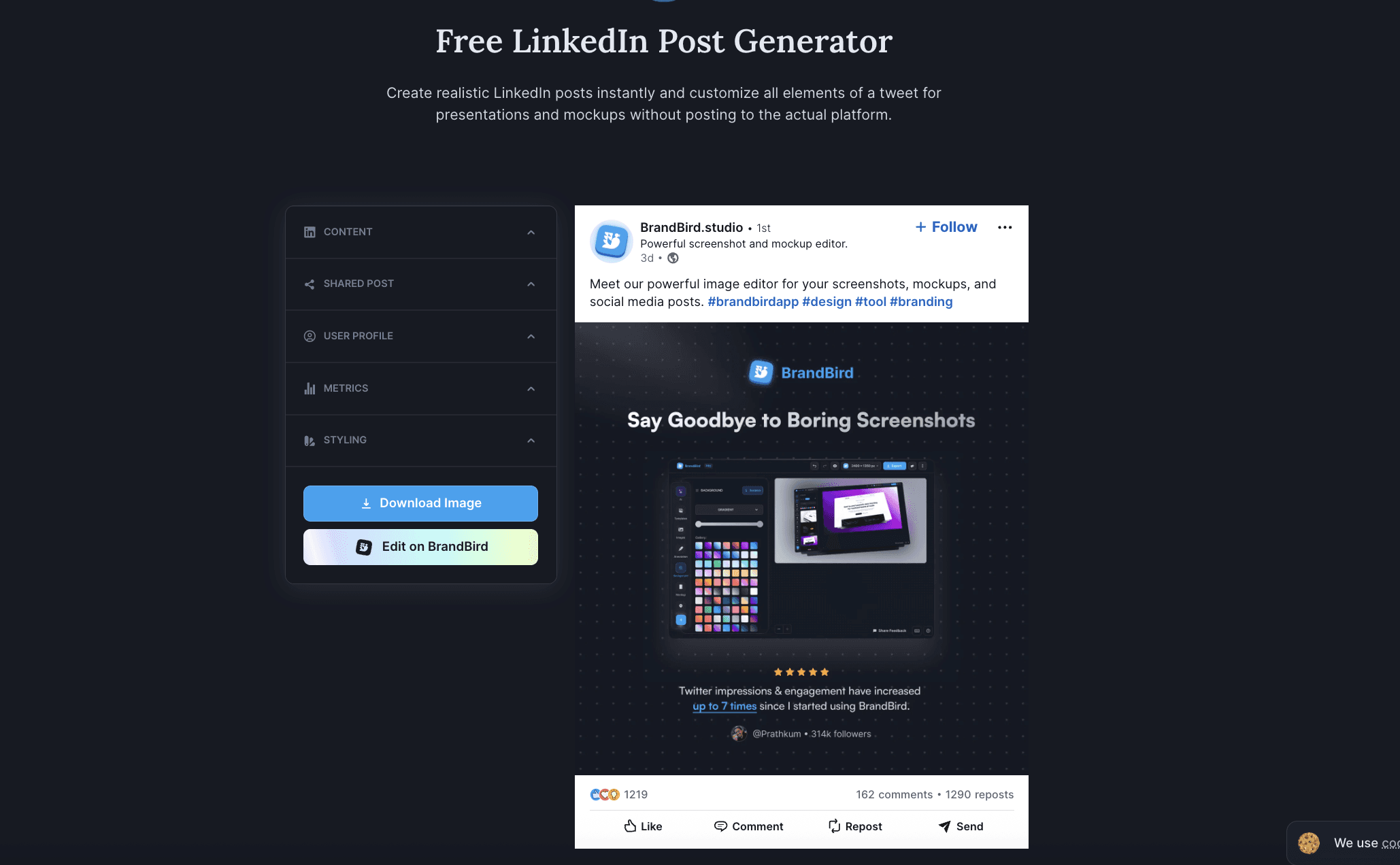
How to use BrandBird’s LinkedIn Post Generator
Start by navigating to BrandBird’s LinkedIn Post Generator page.
You’ll see a simple interface where you can start customizing your post right away.
First, choose a template or layout that matches your content style.
BrandBird has several pre-designed options, including simple text layouts and more visual, image-based designs.
Next, move to the text editor.
Type or paste your LinkedIn post copy into the designated field.
BrandBird automatically fits your text into the design, but you can change the font size, weight, and alignment if you want more control.
If your post includes visuals, upload an image or graphic.
You can resize or move the image to make sure it looks balanced and appealing.
Customize the brand elements.
Add your logo, change the colors to match your brand, or adjust the background to fit your style.
When you’re satisfied with your design, click Download. You can choose PNG or SVG formats, depending on where you want to use the visual, such as LinkedIn, a blog, or other marketing materials.
2. MediaModifier
MediaModifier is an online mockup generator that allows you to create realistic LinkedIn post previews in just a few clicks.
It’s designed for marketers, content creators, and SaaS teams who want to visualize LinkedIn posts before publishing or reuse them as marketing assets.
The tool runs directly in the browser and doesn’t require design skills or external software.
Once the template loads, you’ll see a central preview area displaying a LinkedIn-style post, and an editing panel on the right.
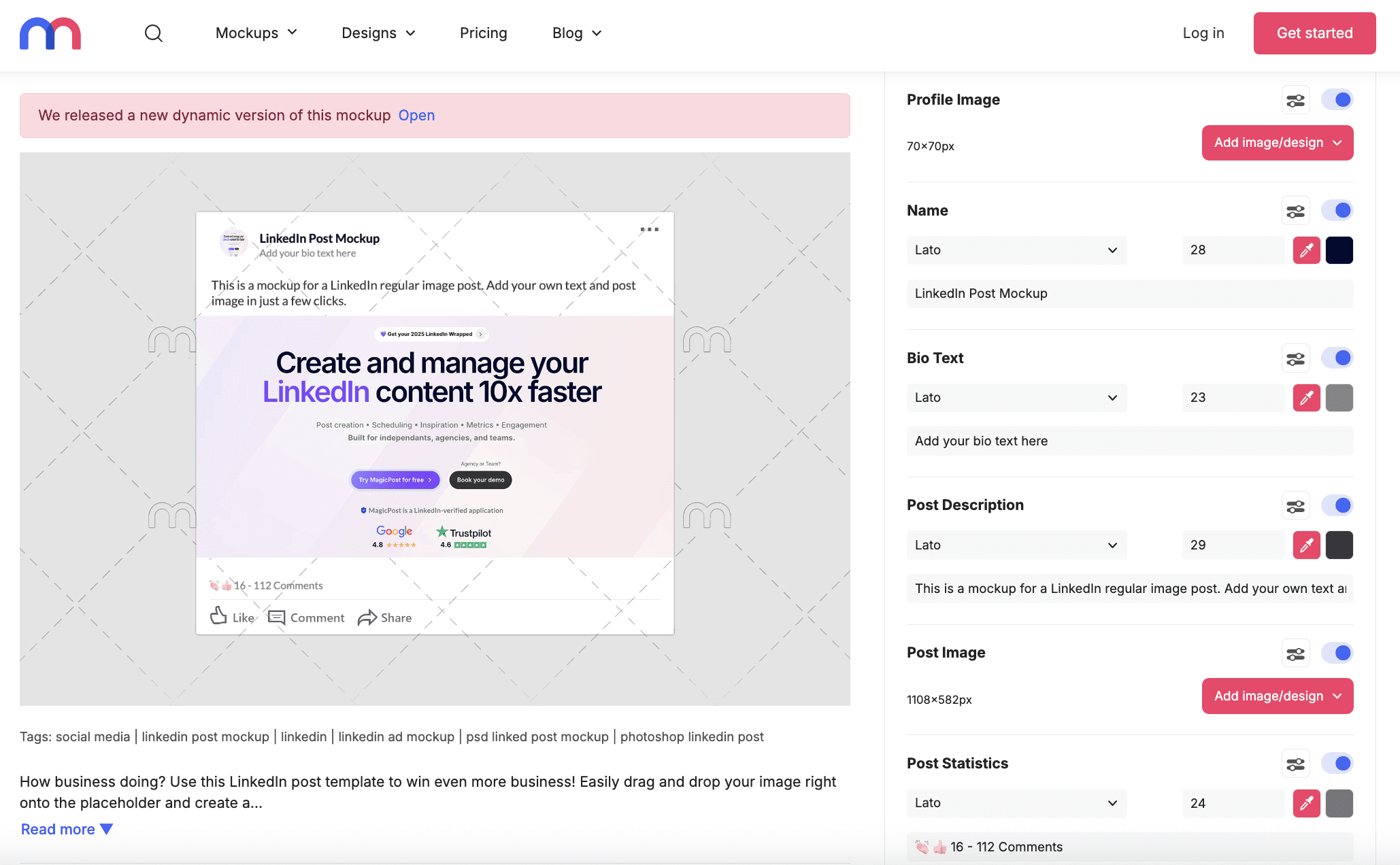
How to use MediaModifier LinkedIn Post Generator
Start by customizing the name and bio text.
Enter the profile name you want to display and adjust the font, size, and color if needed. You can also add a short bio or headline to match how LinkedIn profiles appear in-feed.
Then, move on to the post description. Insert the text of your LinkedIn post exactly as it would appear on the platform.
After that, upload the post image.
Drag and drop your visual into the post image placeholder, typically sized around 1100×582 pixels.
You can also enable and adjust post statistics.
Toggle likes, comments, and engagement numbers to simulate social proof and make the mockup more convincing.
Once everything looks right, choose your export format.
MediaModifier lets you download the mockup as a PNG or JPEG.
You can also edit the template further or download the PSD if you prefer working in Photoshop.
Finally, download the mockup and reuse it across your marketing assets.
It can be used in blog articles, landing pages, presentations, onboarding flows, or AI product demos.
Wrapping Up
AI-powered LinkedIn post mockups have become an essential tool for today’s marketers and content teams.
By combining AI-generated copy with realistic LinkedIn previews, businesses can create, test, and showcase content more effectively, without the risk of publishing too early.
Since LinkedIn is still a leader in professional content marketing, tools that offer accurate, AI-powered LinkedIn post mockups will help brands stand out, work faster, and achieve better results.
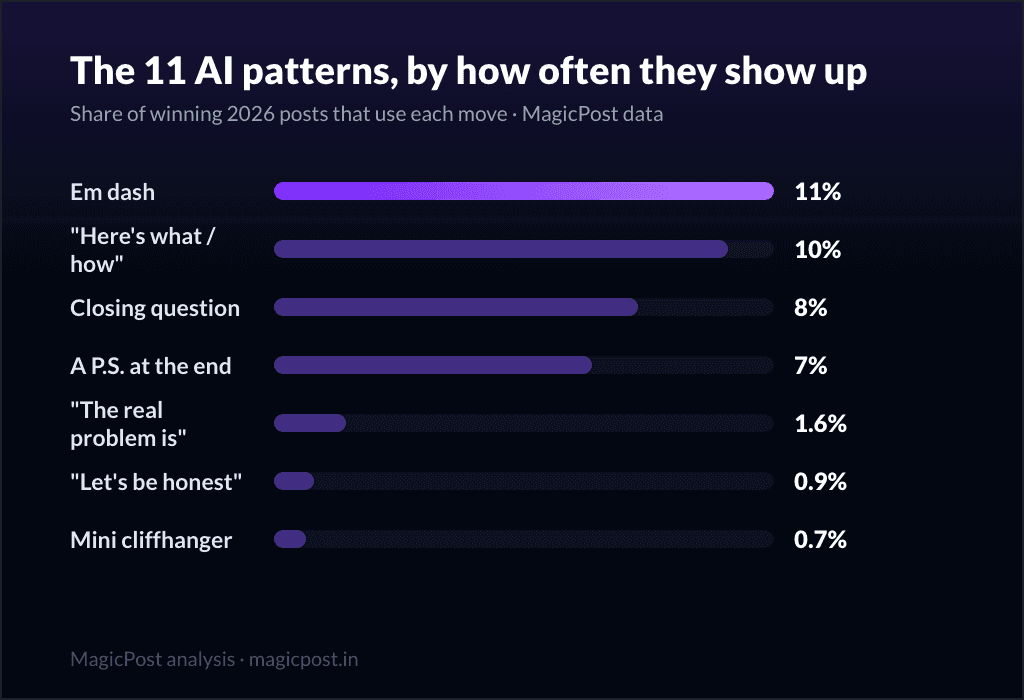
How to Spot an AI-Written LinkedIn Post: 11 Patterns (We Analyzed 46,000 Posts)
We analyzed 46,000 LinkedIn posts to find the 11 patterns that make a post read as AI in 2026, with real examples from top creators and how to fix each.
How to Embed a LinkedIn Post on Your Website (and When You Cannot)
How to embed a LinkedIn post on your website: the three-dot menu, Embed this post, copy the iframe. Plus when embedding is not possible.
LinkedIn Post Drafts: Where They Live, How to Find Them, and Their Limits
Where are your LinkedIn drafts? Reopen the composer to find them, on desktop and mobile. How drafts work, their limits, and a better workflow.
How to Post on LinkedIn (Desktop and Mobile): the Complete 2026 Walkthrough
How to post on LinkedIn, step by step: desktop, mobile, every composer option, visibility settings, tagging, and what happens in the first hour.
The Holiday LinkedIn Post: How to Not Sound Like a Corporate Card (Examples + Templates)
The holiday LinkedIn post: how to not sound like a corporate card. Real examples, 3 templates, and why seasonal posts should be scheduled early.
The Work Anniversary LinkedIn Post: Beyond the Auto-Generated Badge (Examples + Templates)
The work anniversary LinkedIn post: beyond the auto-badge. Real examples, 3 templates, and the reframe that turns a date into a story.
The Graduation LinkedIn Post: Real Examples, Templates, and How to Make Yours Count
The graduation LinkedIn post: real examples (up to 19,038 likes), 3 templates, and how to make your first professional post count.