" height="26.80529977783203px" id="tymKb8bqC" width="128.00300311279295px"/><path d="M 0 2.417 L 0 0 L 12.909 0 L 12.909 2.417 Z" fill="rgb(126, 78, 253)" height="2.417099999999998px" id="aYr4em6zK" transform="translate(128.341 22.325)" width="12.908999999999992px"/></svg>)

"/><stop offset="1" stop-color="rgb(118, 37, 250)"/></linearGradient></defs><g d="M 19.242 21.22 L 19.362 6.204 L 19.272 6.204 L 13.757 21.22 L 10.161 21.22 L 4.796 6.204 L 4.706 6.204 L 4.825 21.22 L 0 21.22 L 0 0 L 7.283 0 L 12.109 13.607 L 12.229 13.607 L 16.844 0 L 24.247 0 L 24.247 21.22 Z M 26.421 26.113 L 26.421 23.445 L 41.407 23.445 L 41.407 26.113 Z" fill="transparent" height="26.112508199679183px" id="DvfaAIHYn" width="41.40731898311435px"><path d="M 19.242 21.22 L 19.362 6.204 L 19.272 6.204 L 13.757 21.22 L 10.161 21.22 L 4.796 6.204 L 4.706 6.204 L 4.825 21.22 L 0 21.22 L 0 0 L 7.283 0 L 12.109 13.607 L 12.229 13.607 L 16.844 0 L 24.247 0 L 24.247 21.22 Z" fill="rgb(46, 46, 46)" height="21.220180016149442px" id="pLsxRCobd" width="24.247352589074694px"/><path d="M 0 2.668 L 0 0 L 14.986 0 L 14.986 2.668 Z" fill="url(%23yD9d4I5GR-3279285344-linear-gradient)" height="2.6675085048549647px" id="yD9d4I5GR" transform="translate(26.421 23.445)" width="14.986002836263765px"/></g></svg>)

Yasmina Akni Ebourki
Did you schedule a LinkedIn post and have no idea where it went?
Whether you scheduled it or submitted it to a group, it may feel like your LinkedIn pending post just vanished.
However, you can find your list of pending posts on LinkedIn with just a few clicks.
This guide shares how to track down your posts and easily manage them.
The Difference Between LinkedIn Pending Posts and Drafts
Is there any difference between LinkedIn pending posts and drafts?
A LinkedIn pending post is a completed post for which you’ve chosen a date and time to be published automatically, so you don’t have to do it manually.
A draft is an unfinished version of content you started writing but haven’t scheduled to go live.
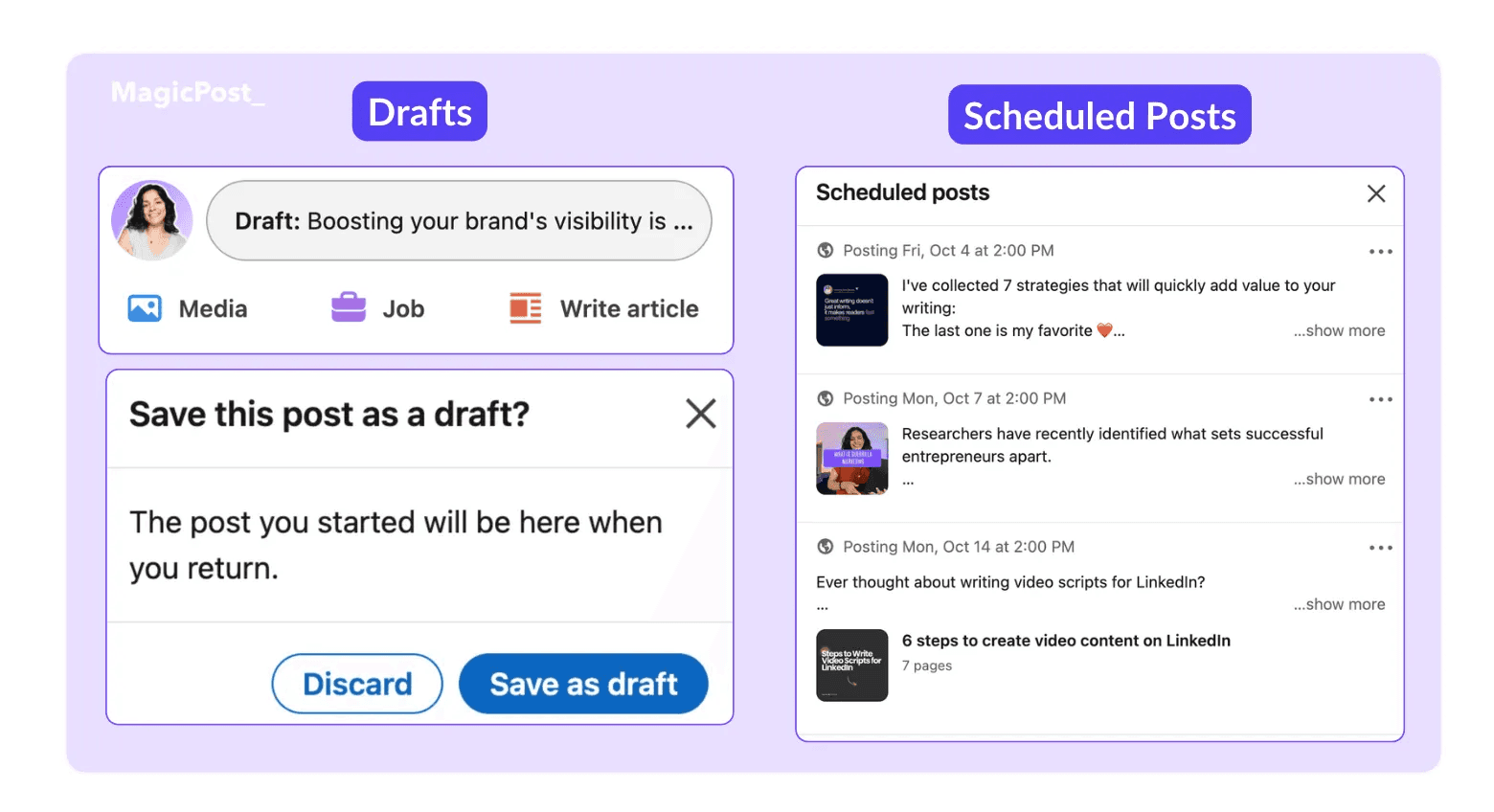
Understanding what they are and how you can use them in your LinkedIn content strategy will help you move faster and achieve posts that deliver better results.



How LinkedIn Handles Drafts and Scheduled Posts
At the outset, LinkedIn did not permit us to edit scheduled posts once they were set; we could only modify the timing and view them.
Nonetheless, LinkedIn has implemented some minor adjustments to how drafts and scheduled posts function.
Now, you can preview your post before it is published on your account.
Although the visibility is not yet perfect, LinkedIn has been steadily working on improvements.
You can now see a chronological list of titles, preview images, and even check the number of photos that will appear in a carousel.
How to Find Your LinkedIn Pending Posts
LinkedIn has made it easier to schedule posts, but finding them later isn’t always obvious, especially the first time.
Here’s how you can easily find your LinkedIn pending posts:
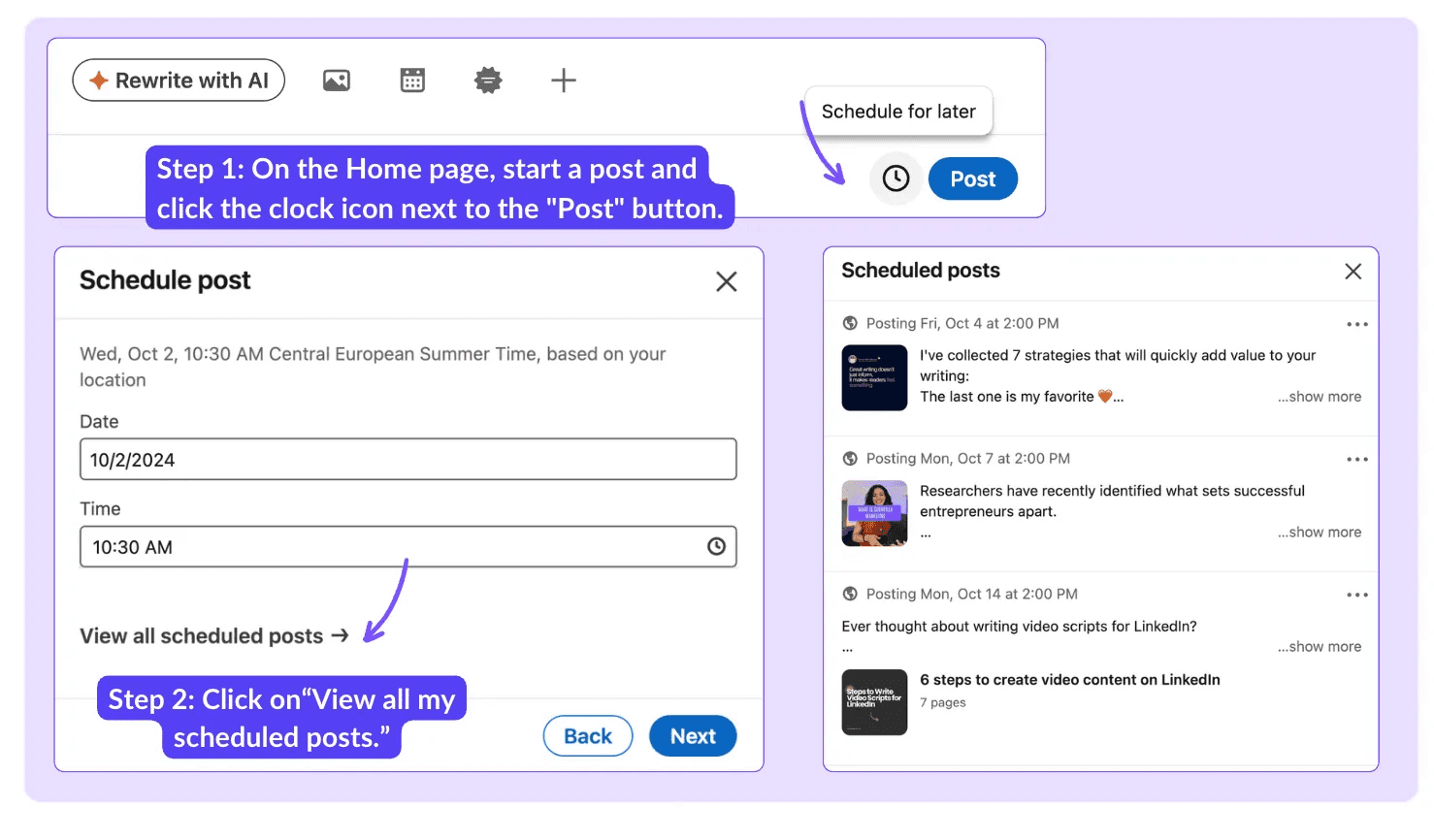
On the Home page, start a post and find the clock icon in the bottom right corner next to the “Post” button.
Click the clock icon, and a small pop-up will appear with the dates to schedule your post.
Below the list, you’ll see the option to “View all my scheduled posts.”
This allows you to view all your scheduled posts for the week or month, along with the posting times and other relevant details.
Though these steps may seem numerous at first, you'll soon realize that organizing and scheduling your content will save you a lot of time.
Can’t find one of your scheduled posts? Chances are LinkedIn saved it as a draft. Here’s how you can check:
How to Find LinkedIn Post Drafts
First and foremost, you should know that for traditional posts, drafts and scheduled posts are not in the same place.
Here's how to find your LinkedIn drafts:
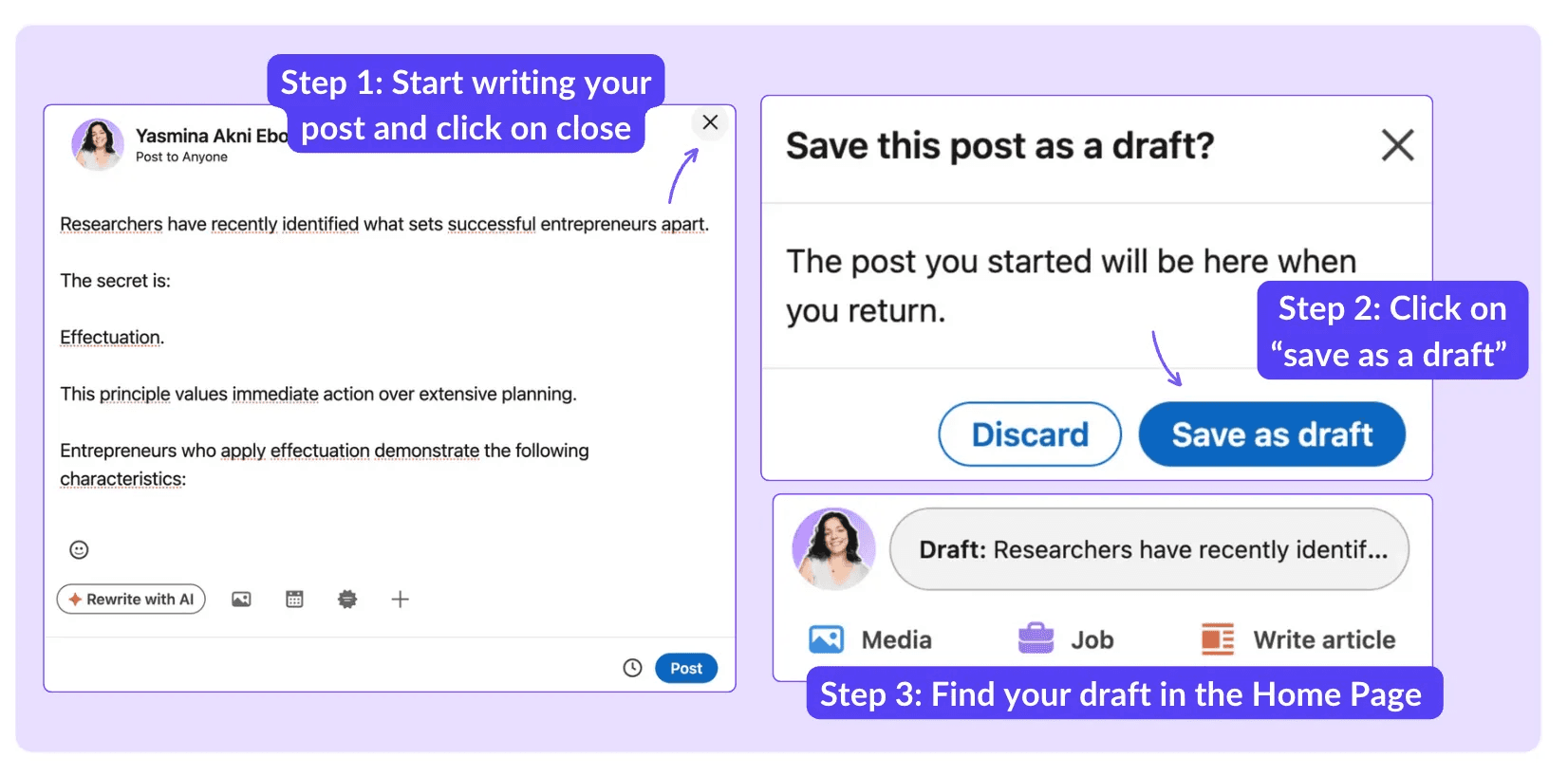
Go to the Home page and click on “Start a Post.”
Begin writing your post. If you decide to stop, click the “X” to close the window.
LinkedIn will prompt you with the option to save your post as a draft.
Unfortunately, LinkedIn allows you to save only one draft at a time.
However, you can always use external tools like Notion or your phone’s notes app to store additional drafts.
Currently, the only type of posts where you can save multiple drafts are articles.
How to Access Drafts on Desktop vs Mobile
There is a subtle difference between accessing drafts on desktop and mobile:
When creating a simple post on desktop or mobile:
Start typing your post.
If you decide to stop, click the “X” to close the window.
LinkedIn will prompt you to save the post as a draft. Confirm by selecting “Save as draft.”
Keep in mind that, just like on desktop, LinkedIn only allows you to save one draft at a time for traditional posts, whether you’re using the desktop or mobile version.
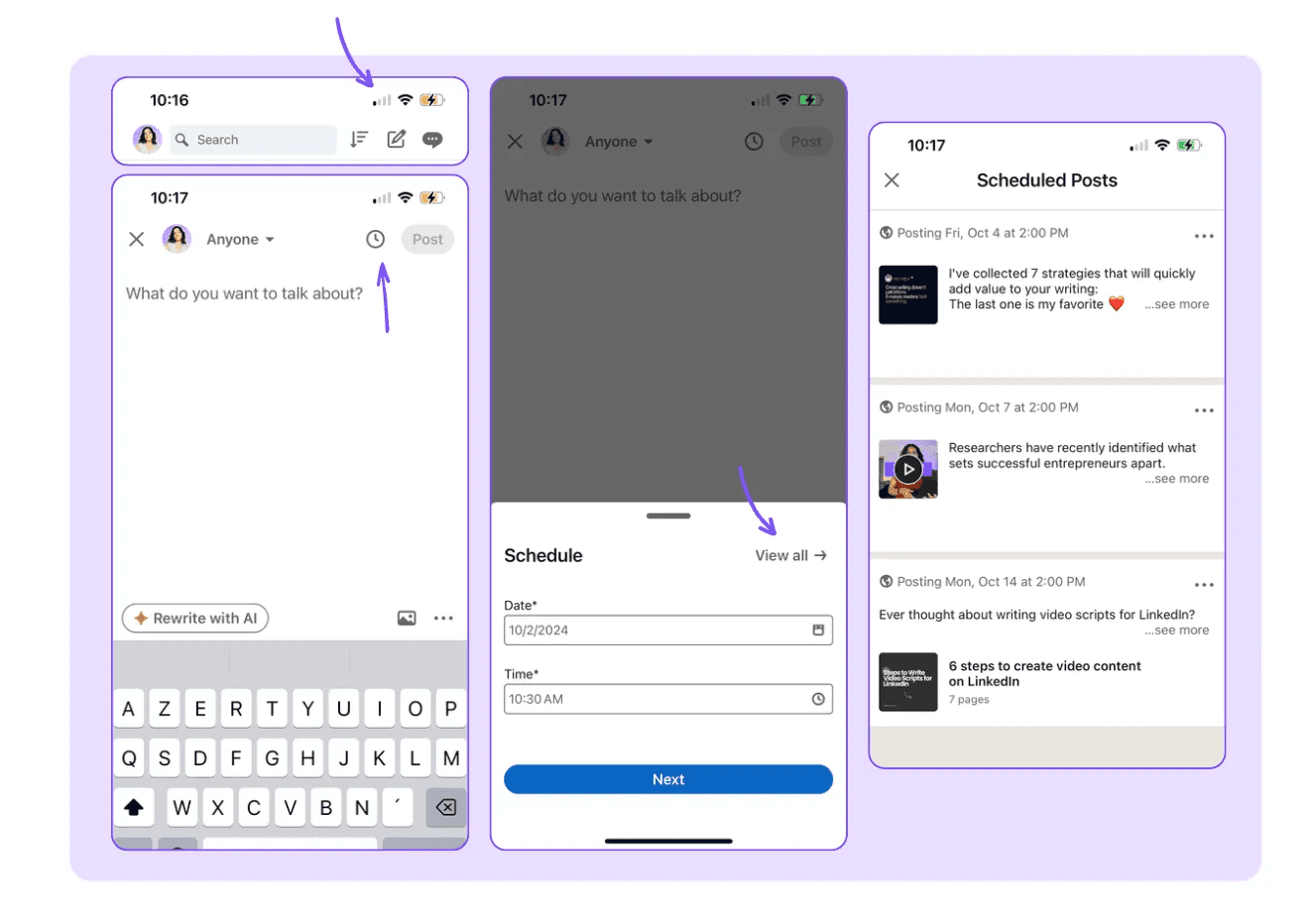
Lastly, to find your scheduled posts, you can also view them directly on your phone by following the same steps we covered earlier.
कैसे किसी लिंक्डइन समूह में लंबित पोस्ट ढूंढें
यदि आपने लिंक्डइन समूह में एक पोस्ट सबमिट की है, तो उसे ढूंढना थोड़ा मुश्किल हो सकता है।
लिंक्डइन समूह की पोस्टें शेड्यूल की गई पोस्ट पृष्ठ में नहीं दिखती हैं।
तो, आप लिंक्डइन समूहों में अपनी लंबित पोस्ट कैसे ढूंढ सकते हैं?
एक बार जब आप एक पोस्ट सबमिट करते हैं, तो आपको एक नोटिफिकेशन मिलेगा जो यह दर्शाता है कि यह प्रशासक स्वीकृति की प्रतीक्षा कर रही है। अपने सबमिट किए गए पोस्ट को देखने के लिए, पोस्ट देखें पर क्लिक करें। यह आपको लंबित पोस्ट पर ले जाएगा जहां आप इसे संपादित या हटाकर कर सकते हैं।
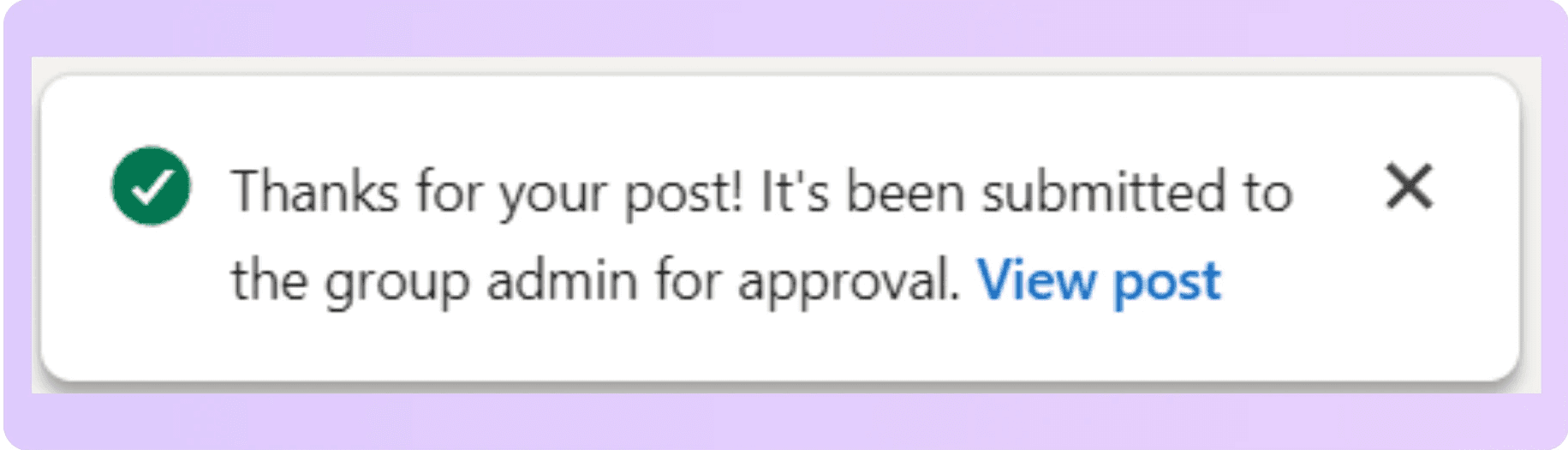
यदि आप लिंक्डइन नोटिफिकेशन बंद कर देते हैं, तो आप अपने पोस्ट को संपादित या हटाने में सक्षम नहीं होंगे जब तक कि यह लाइव न हो जाए।
अब, अगर आप अपना मन बदलते हैं और नहीं चाहते कि आपकी पोस्ट लाइव हो, तो आपको समूह के प्रशासकों से संपर्क करना चाहिए। वे लंबित पोस्ट का प्रबंधन कर सकते हैं और आपकी पोस्ट को हटा सकते हैं।
यदि आपकी लिंक्डइन समूह पोस्ट 14 दिनों तक लंबित है, तो इसे स्वचालित रूप से हटा दिया जाता है।
Frequently Asked Questions
How can I edit scheduled posts on LinkedIn?
To edit a scheduled post on LinkedIn, start writing a new post then click the clock icon, select “View all scheduled posts" and click the three dots to edit.
Can I delete LinkedIn pending posts?
Yes, you can delete, edit, or reschedule your pending posts.
How do I find post drafts on LinkedIn?
The easiest way to find your LinkedIn post drafts is to go to the drafts page. There, you can continue writing, schedule your posts, or publish them instantly.
How many posts can I schedule on LinkedIn?
LinkedIn doesn’t have a clear limit on how many posts you can schedule. However, managing a large number of scheduled posts can be difficult.
If you’re planning to schedule content in bulk, using a LinkedIn automation tool helps you stay organized.

How to Find and Manage Your LinkedIn Saved Posts (2026)
LinkedIn saved posts are more useful than most people realize, both for the algorithm and for you. Here’s how to find, manage, and use them effectively.

How to Find Your Pending LinkedIn Posts and Manage Them
Learn how to easily find and manage your LinkedIn pending posts, step by step. Check out tips to save time and improve your LinkedIn workflow!