" height="26.80529977783203px" id="tymKb8bqC" width="128.00300311279295px"/><path d="M 0 2.417 L 0 0 L 12.909 0 L 12.909 2.417 Z" fill="rgb(126, 78, 253)" height="2.417099999999998px" id="aYr4em6zK" transform="translate(128.341 22.325)" width="12.908999999999992px"/></svg>)

"/><stop offset="1" stop-color="rgb(118, 37, 250)"/></linearGradient></defs><g d="M 19.242 21.22 L 19.362 6.204 L 19.272 6.204 L 13.757 21.22 L 10.161 21.22 L 4.796 6.204 L 4.706 6.204 L 4.825 21.22 L 0 21.22 L 0 0 L 7.283 0 L 12.109 13.607 L 12.229 13.607 L 16.844 0 L 24.247 0 L 24.247 21.22 Z M 26.421 26.113 L 26.421 23.445 L 41.407 23.445 L 41.407 26.113 Z" fill="transparent" height="26.112508199679183px" id="DvfaAIHYn" width="41.40731898311435px"><path d="M 19.242 21.22 L 19.362 6.204 L 19.272 6.204 L 13.757 21.22 L 10.161 21.22 L 4.796 6.204 L 4.706 6.204 L 4.825 21.22 L 0 21.22 L 0 0 L 7.283 0 L 12.109 13.607 L 12.229 13.607 L 16.844 0 L 24.247 0 L 24.247 21.22 Z" fill="rgb(46, 46, 46)" height="21.220180016149442px" id="pLsxRCobd" width="24.247352589074694px"/><path d="M 0 2.668 L 0 0 L 14.986 0 L 14.986 2.668 Z" fill="url(%23yD9d4I5GR-3279285344-linear-gradient)" height="2.6675085048549647px" id="yD9d4I5GR" transform="translate(26.421 23.445)" width="14.986002836263765px"/></g></svg>)

Alice Malby
क्या आपने कभी LinkedIn पर कुछ पोस्ट किया है और फिर बाद में जब आप इसे फिर से साझा करना चाहते थे या यह देखना चाहते थे कि यह कैसे प्रदर्शन कर रहा है, तो आप इसे नहीं ढूंढ पाए? आप अकेले नहीं हैं। LinkedIn का इंटरफ़ेस नेविगेट करना मुश्किल हो सकता है, खासकर जब आप अपने पुराने पोस्ट लोकेट करने या अपने एनालिटिक्स में खुदाई करने की कोशिश कर रहे हों कि वास्तव में क्या काम कर रहा है।
बात ये है: अपने LinkedIn पोस्ट ढूंढना केवल आपकी फ़ीड के माध्यम से अंतहीन स्क्रॉल करना नहीं है, उम्मीद करते हुए कि आप उन पर ठोकर खा जाएंगे। चाहे आप अपने लैपटॉप पर हों या अपने फोन पर स्क्रॉल कर रहे हों, एक बहुत सरल तरीका है।
लेकिन रुको, यहाँ यह दिलचस्प हो जाता है। एक बार जब आप जान लेते हैं कि अपने पोस्ट कहां ढूंढना है, तो आप अंतर्दृष्टियों और एनालिटिक्स के एक नए स्तर को अनलॉक कर सकते हैं जो आपको दिखाएगा कि कौन सा कंटेंट गूंजता है, कौन जुड़ रहा है, और अपने रणनीति को बेहतर परिणामों के लिए कैसे परिष्कृत किया जाए।
इस गाइड में, हम आपको डेस्कटॉप और मोबाइल पर अपने LinkedIn पोस्ट को खोजने के ठीक तरीके से चलेंगे, साथ ही आपको दिखाएंगे कि LinkedIn के एनालिटिक्स का उपयोग कैसे करें ताकि आपका कंटेंट एक विकास इंजन में परिवर्तित हो सके।
चाहे आप पीसी का उपयोग कर रहे हों या मोबाइल डिवाइस का, आपके पोस्ट को एक्सेस करना सीधा है। यह गाइड आपको आसानी से अपने LinkedIn पोस्ट खोजने और बेहतर अंतर्दृष्टियों के लिए LinkedIn एनालिटिक्स का लाभ उठाने के कदमों के माध्यम से ले जाती है।
आइए हम इसमें गहराई में उतरते हैं।
TL;DR: Log in to LinkedIn, go to your profile, scroll to the "Activity" section, and click on "Show all posts" to view your posts. Use LinkedIn analytics to refine your content strategy.
How to See Your Posts on LinkedIn from a PC
Accessing your LinkedIn posts on a laptop or PC is quite simple. Here’s how you can do it:
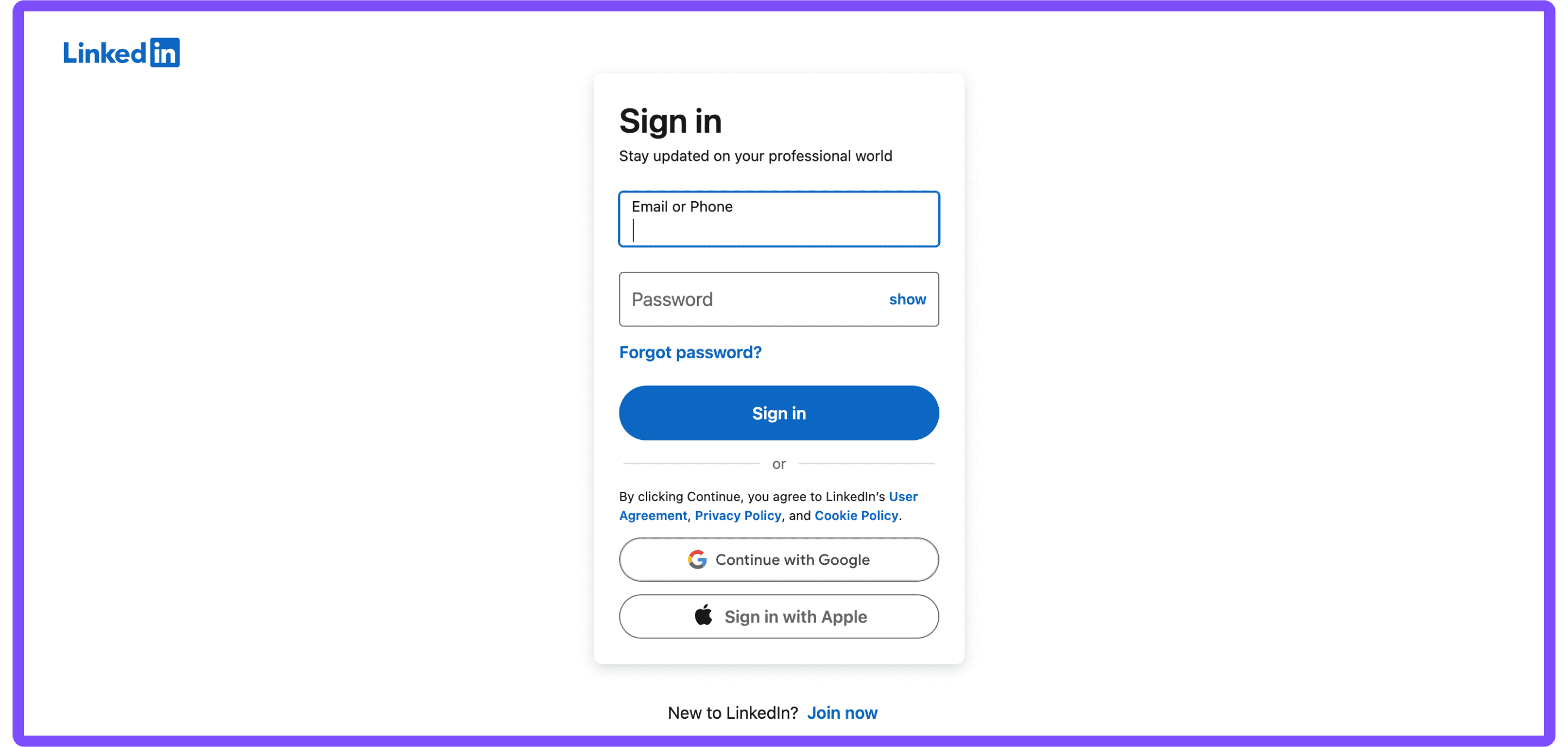
Step 1: Log in to your LinkedIn account.
The first step is easy. Open your web browser and go to LinkedIn's website. Enter your credentials to log in.
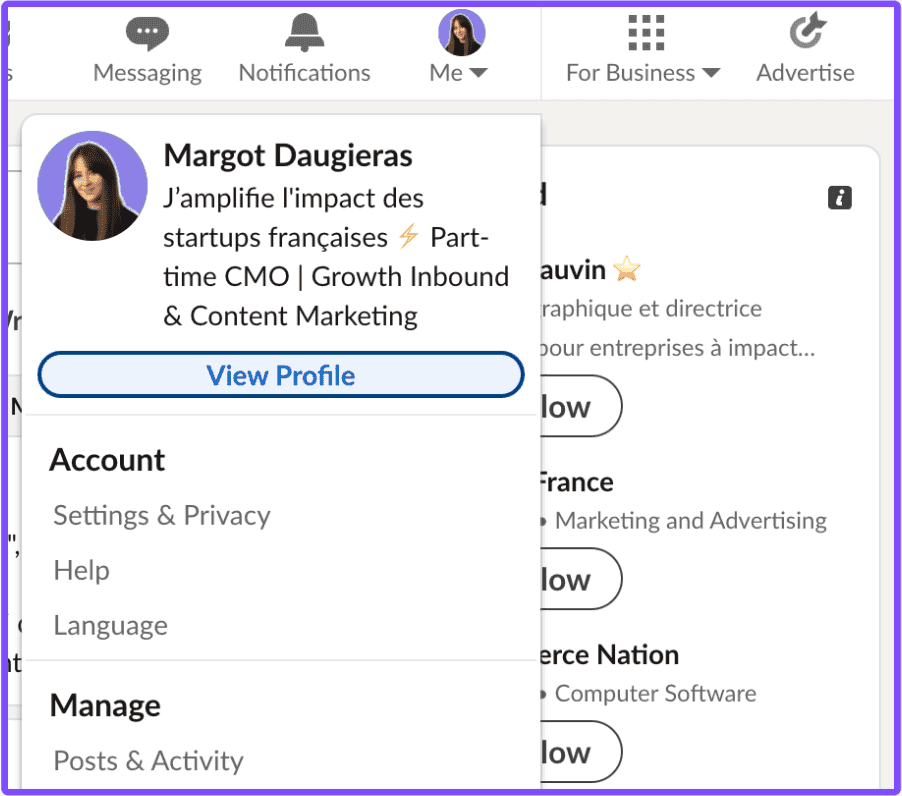
Step 2: Go to your profile by clicking on your profile picture.
Once logged in, click on your profile picture or your name at the top of the homepage to navigate to your profile.
Step 3: Scroll down to the “Activity” section.
On your profile page, scroll down until you reach the “Activity” section. This section displays your recent activity on LinkedIn.
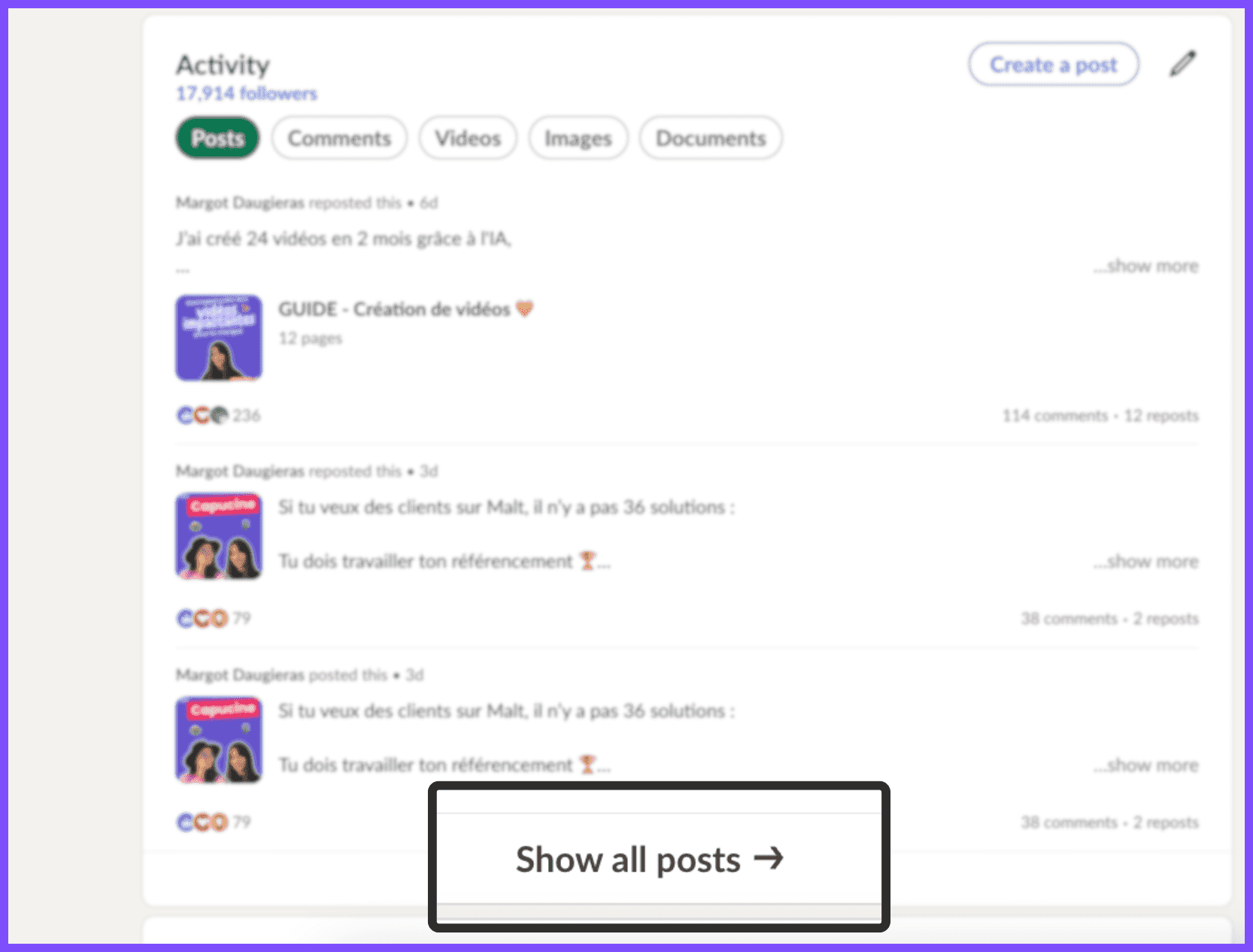
Step 4: Select the “Posts” tab then click “Show all posts”.
In the “Activity” section, select the “Posts” tab. You’ll see your last 2 posts. Underneath those two posts, click on “Show all posts”. You’ll be taken to a new page that links to all your existing posts.
There you have it - as you can see there’s nothing too complicated.



How to See Your Posts on LinkedIn from a Mobile
But what about accessing your posts via your smartphone? Once again, the process is very simple:
Step 1: Open the LinkedIn app on your mobile device.
Launch the LinkedIn app from your mobile device’s home screen or app list.
Step 2: Access your profile by clicking on your profile picture.
In the LinkedIn app, tap on your profile picture at the top left corner of the screen. A side menu will open up and you then need to tap on your name or profile picture again.
Step 3: Scroll down to the “Activity” section.
Scroll down your profile page until you find the “Activity” section showing your recent LinkedIn interactions.
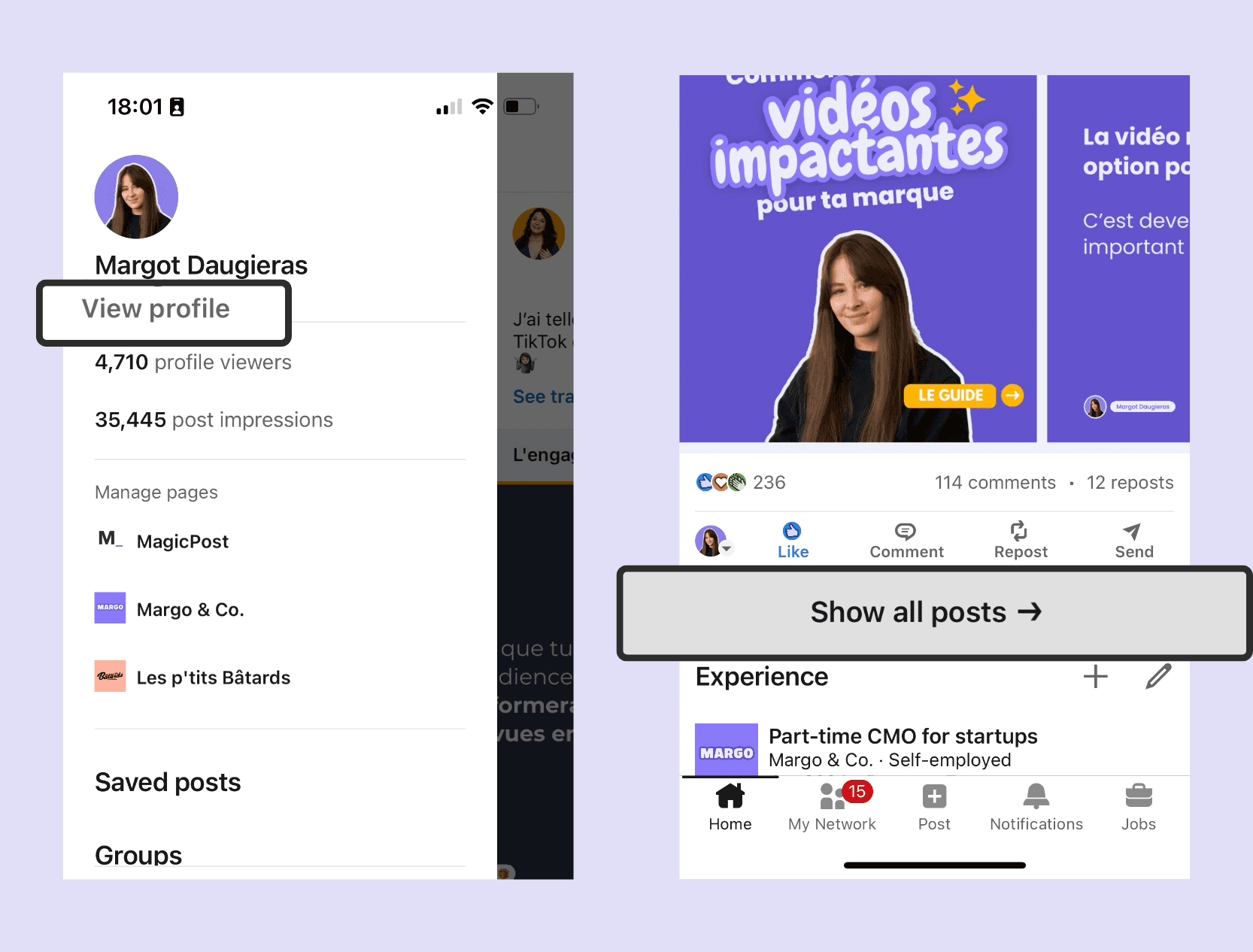
Step 4: Tap on “Posts” and then select “Show all posts”.
In the “Activity” section, tap on “Posts.” It may already be selected by default. Then scroll down a little more and tap on “Show all posts” to see all the posts you’ve shared.
Using LinkedIn Analytics for Better Insights
Understanding your LinkedIn analytics isn't just about satisfying curiosity, it's about turning your content into a strategic growth engine.
When you know which posts drive profile views, which ones convert viewers into followers, and what content sparks genuine professional conversations, you stop guessing and start growing purposefully.
Your analytics tell you whether you're building entertainment or authority, whether you're reaching the right people or just collecting vanity metrics, and most importantly, which content is actually moving your career or business forward.
Accessing LinkedIn Analytics is Simple:
Navigate to your LinkedIn profile.
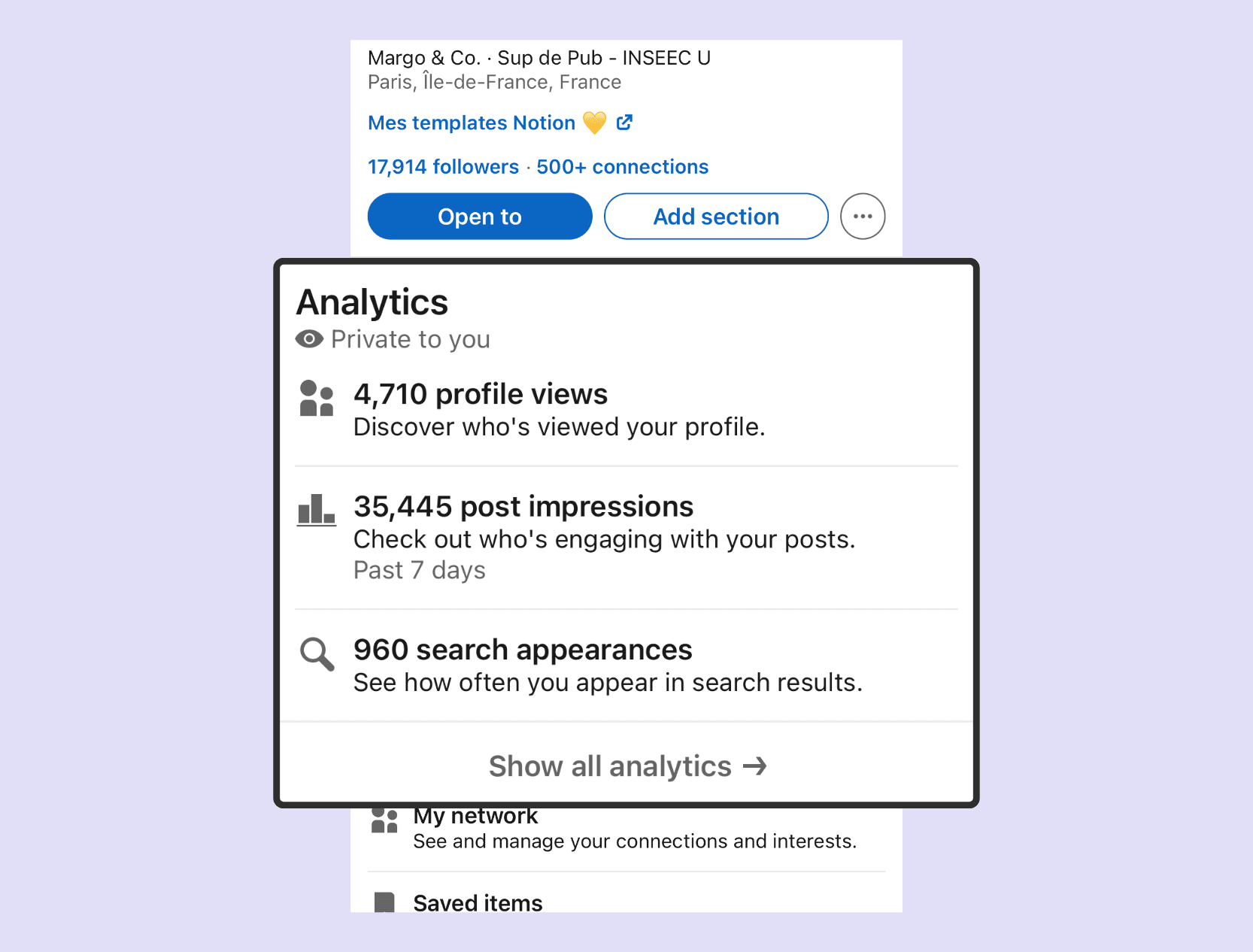
Scroll down to find the "Analytics" section, then click or tap “Show all analytics”
You will then access a page with all your profile analytics
If you click on “Post impressions,” you will get more detailed insights into your post statistics.
Alternatively, if you’re looking for analytics specific to a post, simply navigate to said post as we explained in the previous section. At the bottom of the post, you will find the number of impressions. There is also a “View” option that will allow you to access more detailed statistics for that post.
Content Strategy Optimization
By regularly checking LinkedIn analytics, you can see which posts get the most engagement and which topics resonate with your audience. Use this data to adjust your content strategy for better engagement and reach.
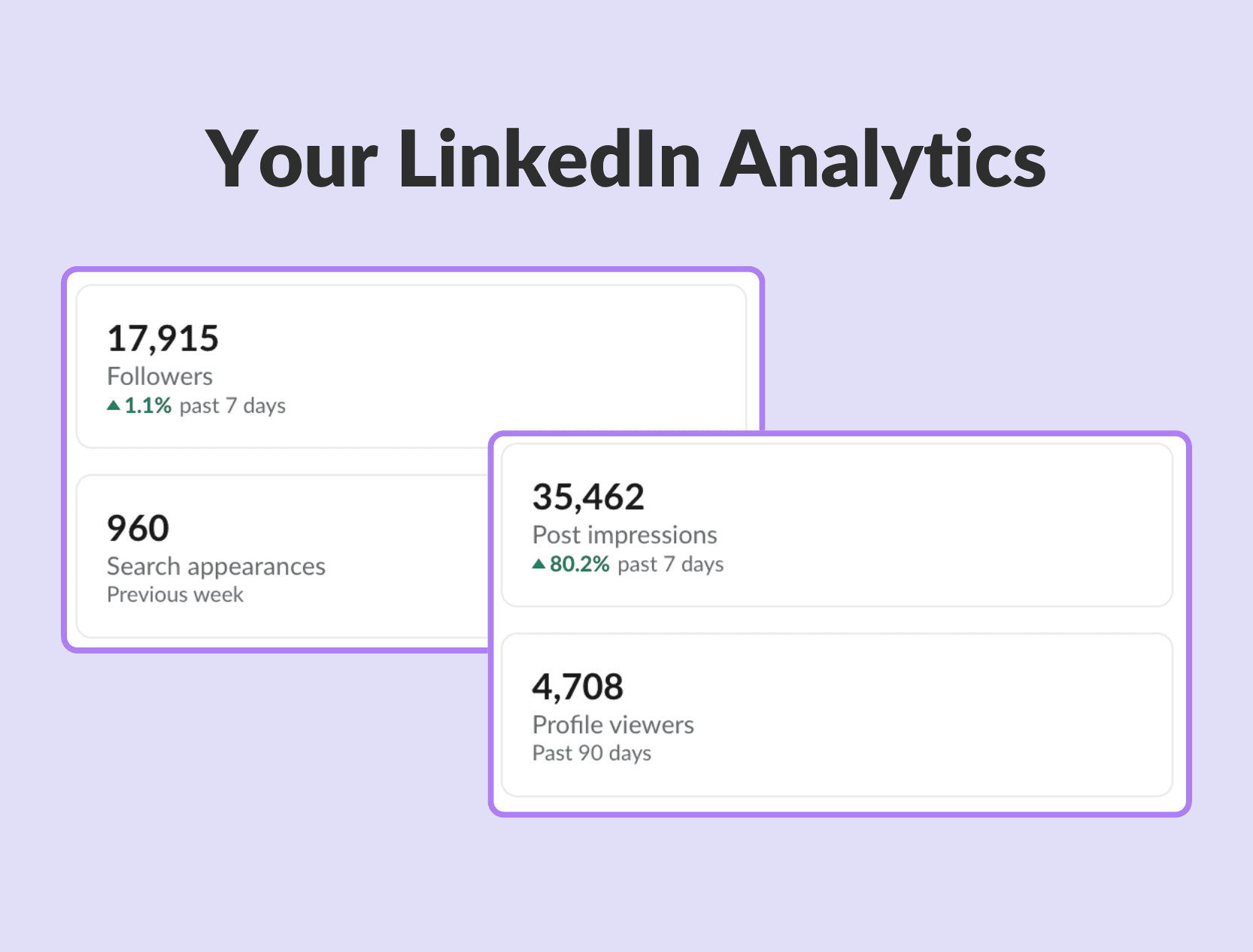
Here are some of the top reasons you should be tracking your analytics:
Measure Engagement: See how many people are viewing, liking, commenting on, and sharing your posts. This helps you understand what content resonates with your audience and sparks conversation.
Identify Trends: Track engagement over time to identify patterns. Are certain types of posts consistently performing better? Use this data to inform your future content strategy.
Optimize Your Approach: Analytics can reveal which demographics are most engaged with your content. Tailor your voice and topics to better connect with your target audience.
Track Reach and Visibility: See how many impressions your posts are generating. Are you reaching the right people? This data can help you refine your targeting strategy.
Discover Top-Performing Content: Identify your most successful posts and analyze what made them stand out. Replicate these elements in future content for even better results.
💡 For a step-by-step guide on leveraging LinkedIn Analytics, check out our comprehensive guide.
Start Tracking Smarter, Not Harder
Finding your LinkedIn posts is straightforward. But here's what distinguishes people who post occasionally from those who genuinely build influence: they monitor what works and do more of it.
Your posts aren't just content; they're data.
Each one provides you with valuable insights about your audience, your positioning, and what resonates in your industry. When you begin paying attention to patterns, you stop guessing and start growing strategically.
Are your how-to posts driving more profile views than your thought leadership pieces? Do your Monday morning posts consistently outperform Friday afternoon content? Are personal stories generating deeper conversations than data-driven insights?
These aren't random questions—they're the foundation of a content strategy that genuinely works.
You now possess all the tools you need: you know where to find your posts, how to access detailed analytics, and what metrics truly matter in 2026.
The only remaining question is whether you'll utilize this knowledge or let it go unused.
Start today.
Check your last five posts and identify your top performer. Analyze what made it successful. Then create more content like that. Track your results weekly. Adjust monthly.
Don't just post and hope for the best. Track, learn, adapt, and watch your LinkedIn presence transform from random updates into a strategic asset.
The data is already available. Now it's time to utilize it.
8 Best Employee Advocacy Examples to Follow in 2026
Employee advocacy examples to follow in 2026. See how top companies turn employees into growth channels and drive reach, trust, and pipeline.
LinkedIn Content Strategy Agency: What Do They Actually Do?
Looking for a LinkedIn content strategy agency? Before you hire one, understand what a strategy involves, what agencies do, and when to skip them.
LinkedIn Employee Branding: How to Attract Top Talent (2026)
LinkedIn employee branding is a recruitment strategy. Here's how to turn your team's LinkedIn presence into a measurable talent attraction engine in 2026.
5 Best Shield Analytics Alternatives for LinkedIn (2026)
Shield Analytics is shutting down. Here are the 5 best Shield Analytics alternatives for LinkedIn in 2026, with honest pros, cons, and pricing for each.
Does LinkedIn Show Who Viewed Your Profile? (2026)
Does LinkedIn show who viewed your profile? Learn what others see, how to browse anonymously, and the differences between free and premium accounts.
How to Export LinkedIn Contacts and Connections (2026)
Your connections are an asset. Here’s how to export LinkedIn contacts to CSV in a few clicks, the data you’ll get, and what to do when email addresses are missing.
Taplio Review: Powerful, But Are You Overpaying? (2026 Update)
Taplio provides AI posts, scheduling, and lead generation all in one place, but is it worth it in 2026? This Taplio review will assist you in determining if it fits your workflow.