Hoe werkt het affiliateprogramma van MagicPost?
 |
The MagicPost affiliate program pays you a commission on each payment made by the people who subscribe to MagicPost through your link. The person you refer gets a discount on their MagicPost plan. The program runs on the Dub partner platform and is open to every MagicPost account, with or without a subscription.
The MagicPost affiliate program lives in the Affiliate program tab of the Referrals and affiliate program page, which you open from the profile menu. The Referrals tab of the same page is a different offer, reserved for customers with an active subscription: the friend gets a discount for life, and you get a free month for each friend who stays subscribed.
A free month earned through MagicPost referrals is one month of your subscription, or one seat's month when your plan has several seats. It is granted after your friend's second monthly invoice, or 14 days after your friend pays an annual plan.
There is no limit on the number of free months you can earn through MagicPost referrals: each friend who stays subscribed adds one more. You must have an active subscription when the month is credited to you.
What you earn and what your referral gets
A commission for you. The MagicPost affiliate commission applies to each payment of a referral, not only to the first one. The program page in MagicPost describes it as a lifetime commission.
A discount for your referral. A person who subscribes through a MagicPost affiliate link pays less for their MagicPost plan.
This article does not quote the commission rate or the size of the discount, because both can change. MagicPost shows the current values in the Affiliate program tab of the Referrals and affiliate program page. The discount attached to a link can also differ from one partner to another, in size and in duration.
Which profile menu entry opens the program
The MagicPost profile menu shows a single entry for referrals and the affiliate program: Earn money. The label is the same for every account. The tab it opens depends on your account:
An account with an active subscription of its own: the entry opens the page on the recommended tab, or on Referrals when there is no recommendation.
A Dub partner, whether the application is approved or still pending, and a former member of the MagicPost ambassador program: the entry opens the Affiliate program tab.
Every other account, such as a free account, a free trial, or a subscription set to end: the entry opens the Affiliate program tab.
A MagicPost member whose seat is paid by an organization does not have the entry. The entry is also absent from the MagicPost profile menu in the admin view of an organization. The old /affiliates address of MagicPost leads to the Affiliate program tab.
How to join the MagicPost affiliate program
Open the profile menu at the bottom of the MagicPost sidebar and select Earn money. With an active subscription, the page can open on Referrals: select the Affiliate program tab.
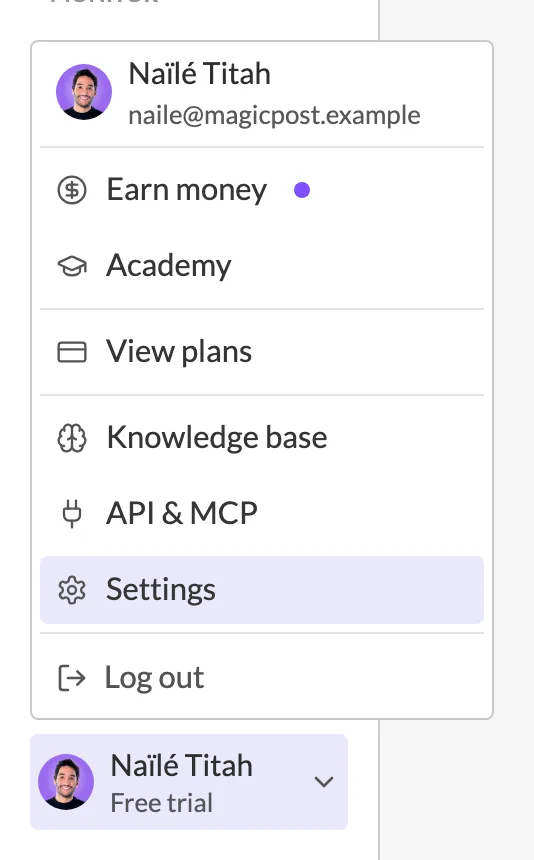
Earn money, in the MagicPost profile menu, opens the referrals and affiliate program page. In the Affiliate program tab, click Join the program. MagicPost opens its partner portal on Dub in a new tab: partners.dub.co/magicpost.
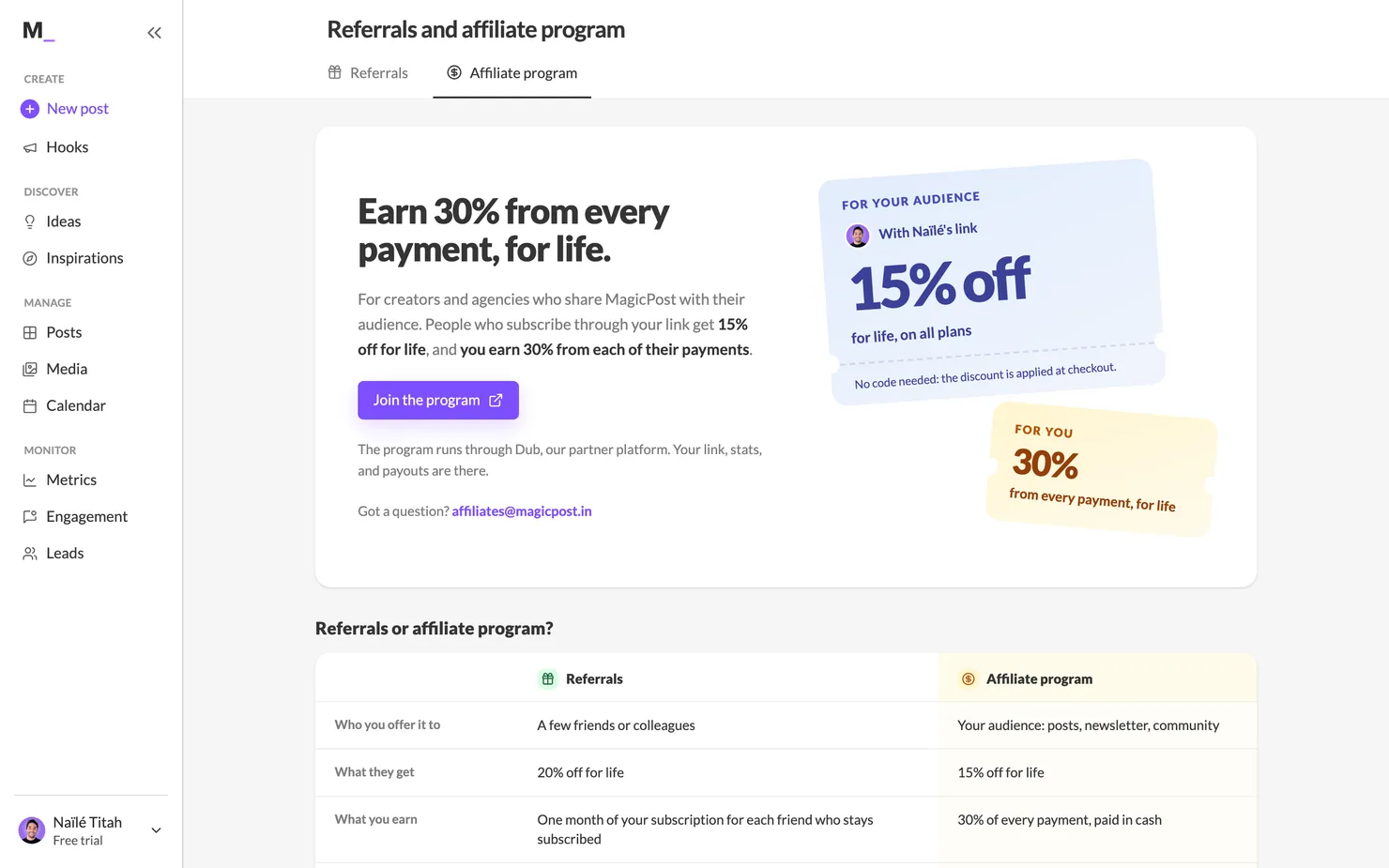
The Affiliate program tab of MagicPost before you apply. Click the image to see it full size. Create your partner account on Dub. Until Dub approves it, the MagicPost tab shows Application submitted and states that your link and stats will appear once your partner account is approved. If Dub rejects your application, the tab goes back to the offer and its Join the program button.
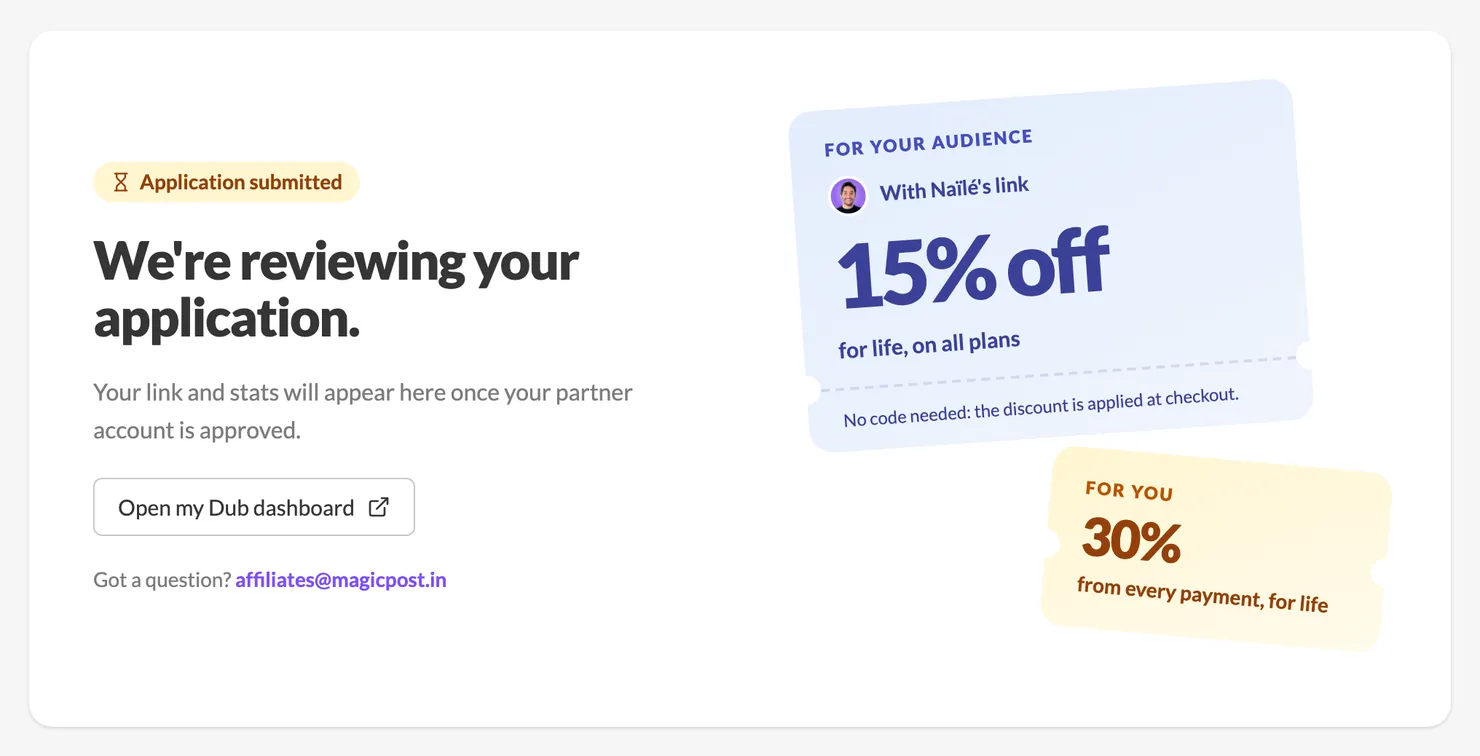
While Dub reviews your application, the MagicPost tab shows Application submitted.
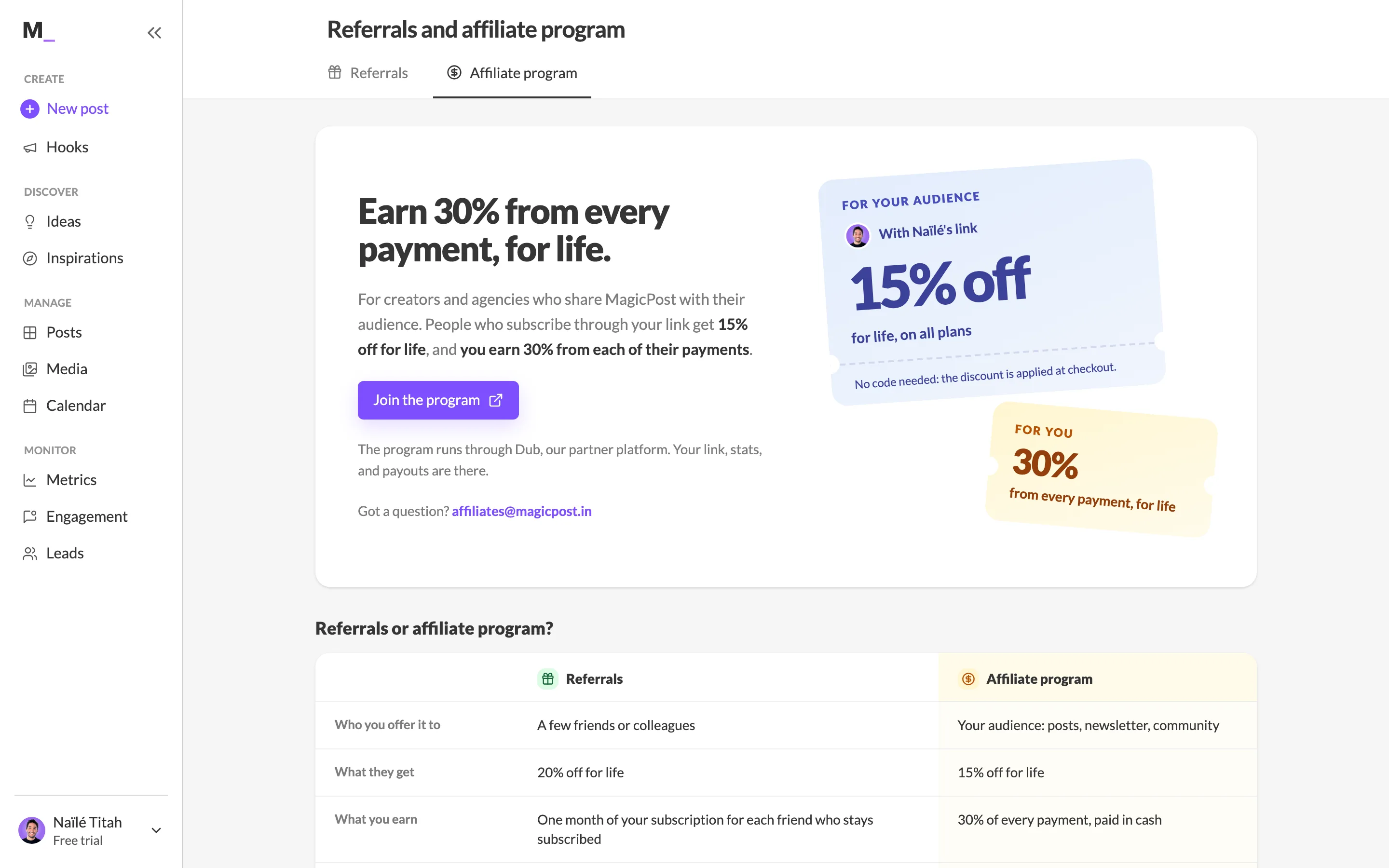
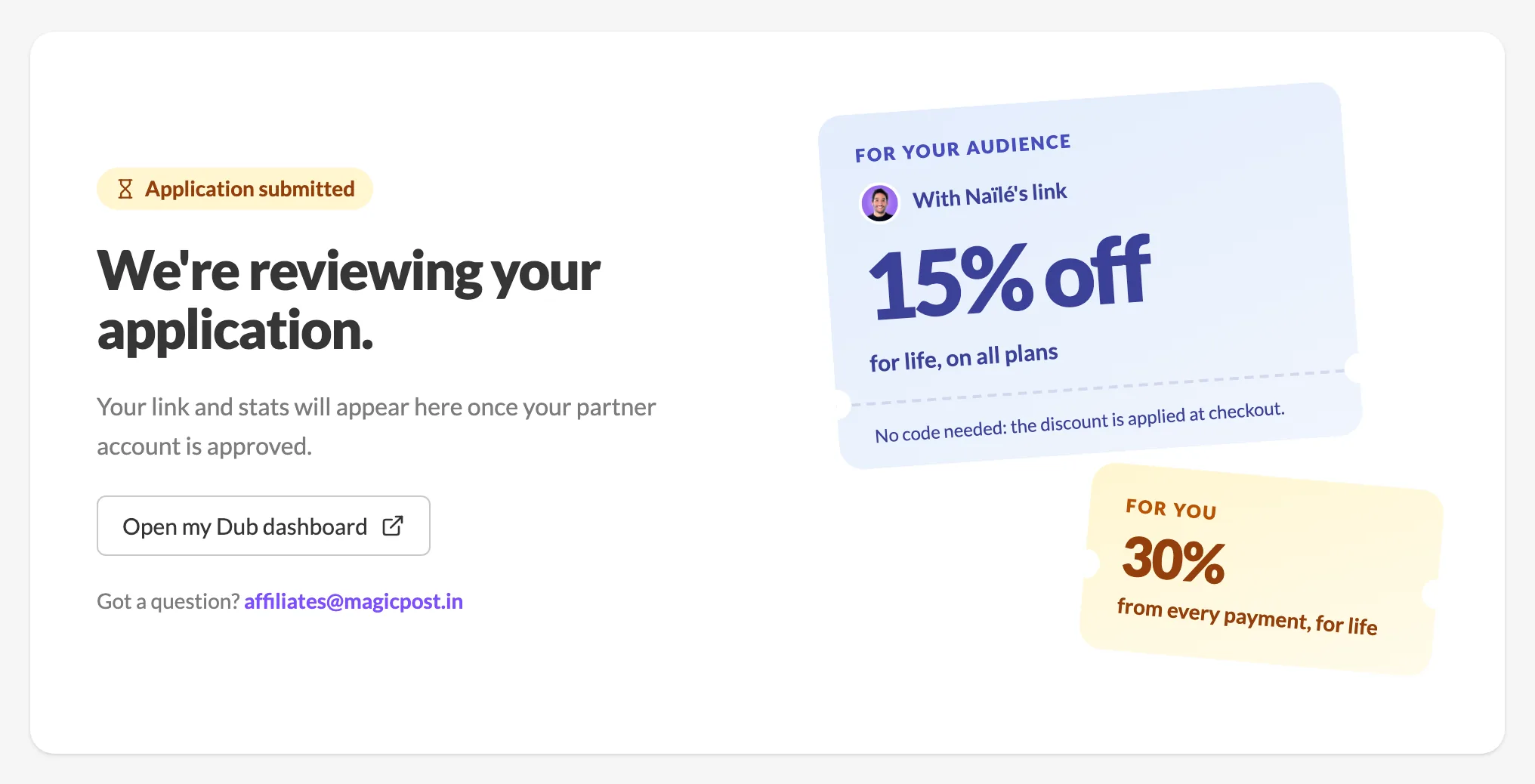
With the MagicPost interface in French, Join the program opens the French version of the Dub portal.
Referrals or affiliate program: the comparison and the recommendation
Until you apply, the MagicPost Affiliate program tab shows the offer, the Join the program button and a Referrals or affiliate program? table.
The MagicPost comparison table covers who you offer each program to, what they get, what you earn, who it's for, and where you track your earnings. Referrals are for subscribed customers and pay you in free months. The affiliate program is open to everyone and pays a commission in money.
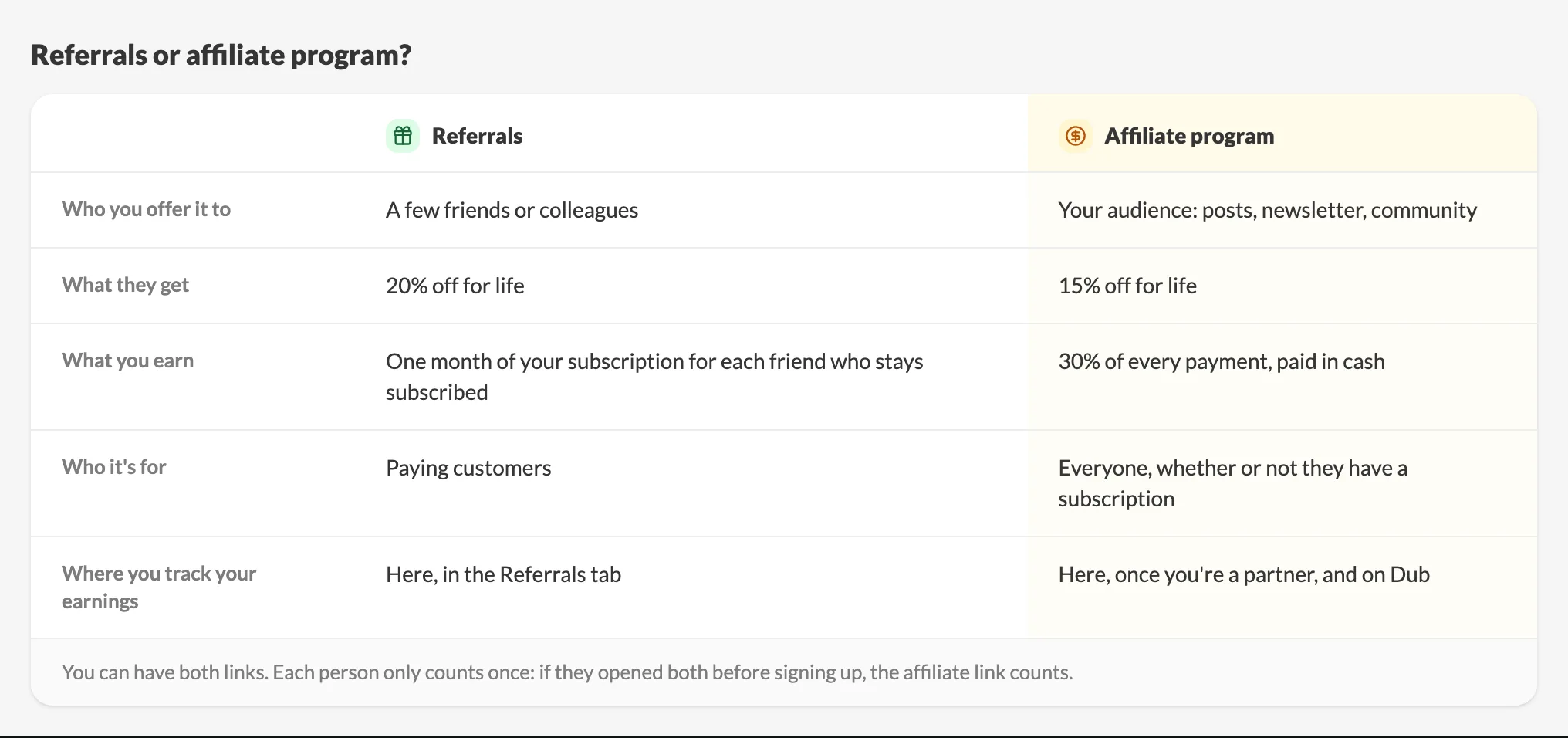
For a subscribed MagicPost customer who is neither a Dub partner nor a former ambassador, MagicPost recommends one of the two programs. Its tab gets a Recommended badge. In the Affiliate program tab, its column of the table shows Recommended for you, and a sentence under the table explains the choice. The page opens on the recommended tab.
MagicPost recommends the affiliate program when your connected LinkedIn profile has both a large follower count and high engagement, in reactions and comments, on your latest posts. In every other case, MagicPost recommends referrals, including when no LinkedIn account is connected to MagicPost.
Your affiliate dashboard in MagicPost
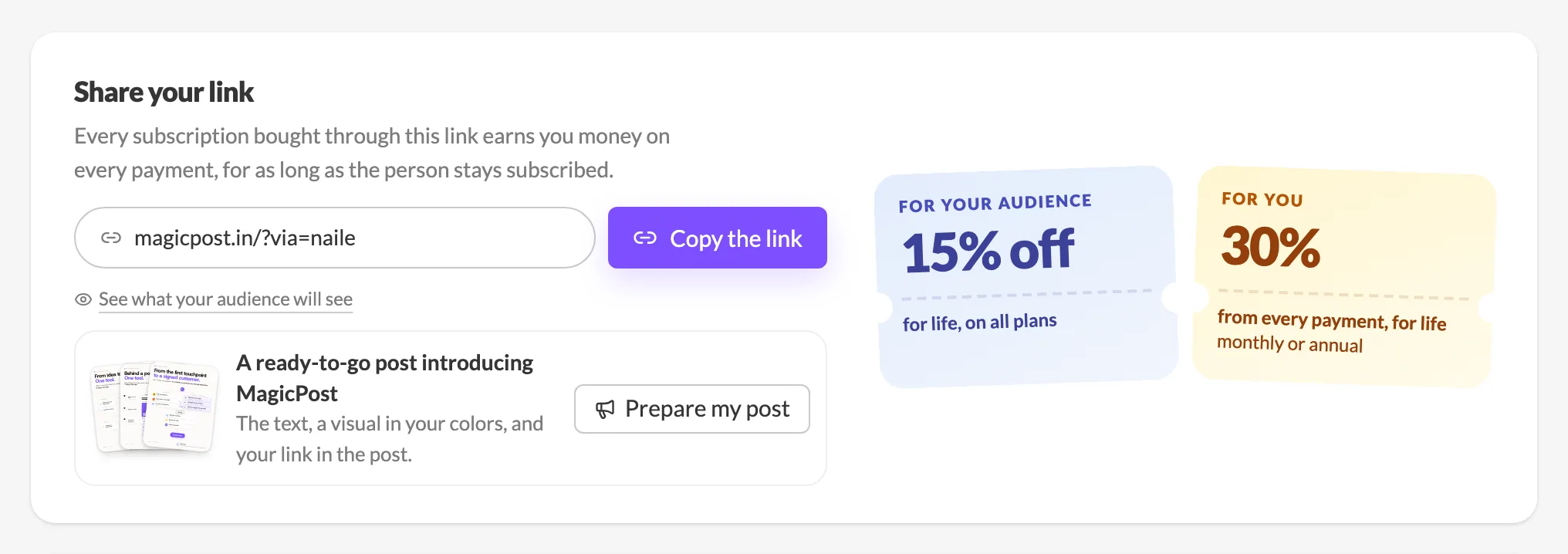
Once Dub approves your partner account, the MagicPost Affiliate program tab becomes your affiliate dashboard. At the top, Share your link shows the affiliate link Dub has assigned you, with a Copy the link button, next to what sharing it earns: the lifetime discount of your audience and your share of each payment, monthly or annual. See what your audience will see previews the sign-up banner that shows your name and the discount. At the bottom of the page, My Dub space: payouts and payout account opens your Dub partner space. MagicPost reads the dashboard figures from Dub directly. Amounts are shown in US dollars, the currency Dub uses.
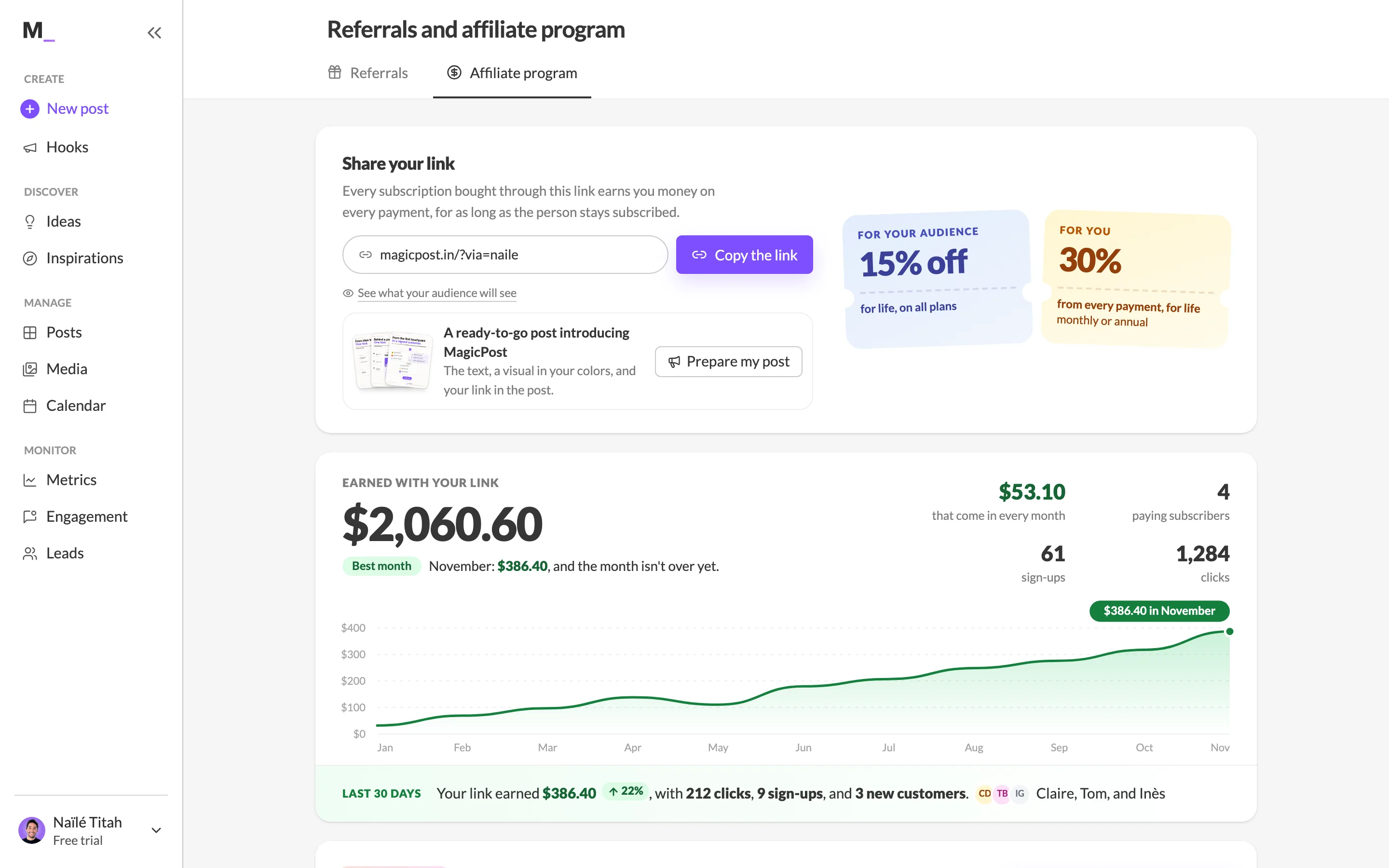
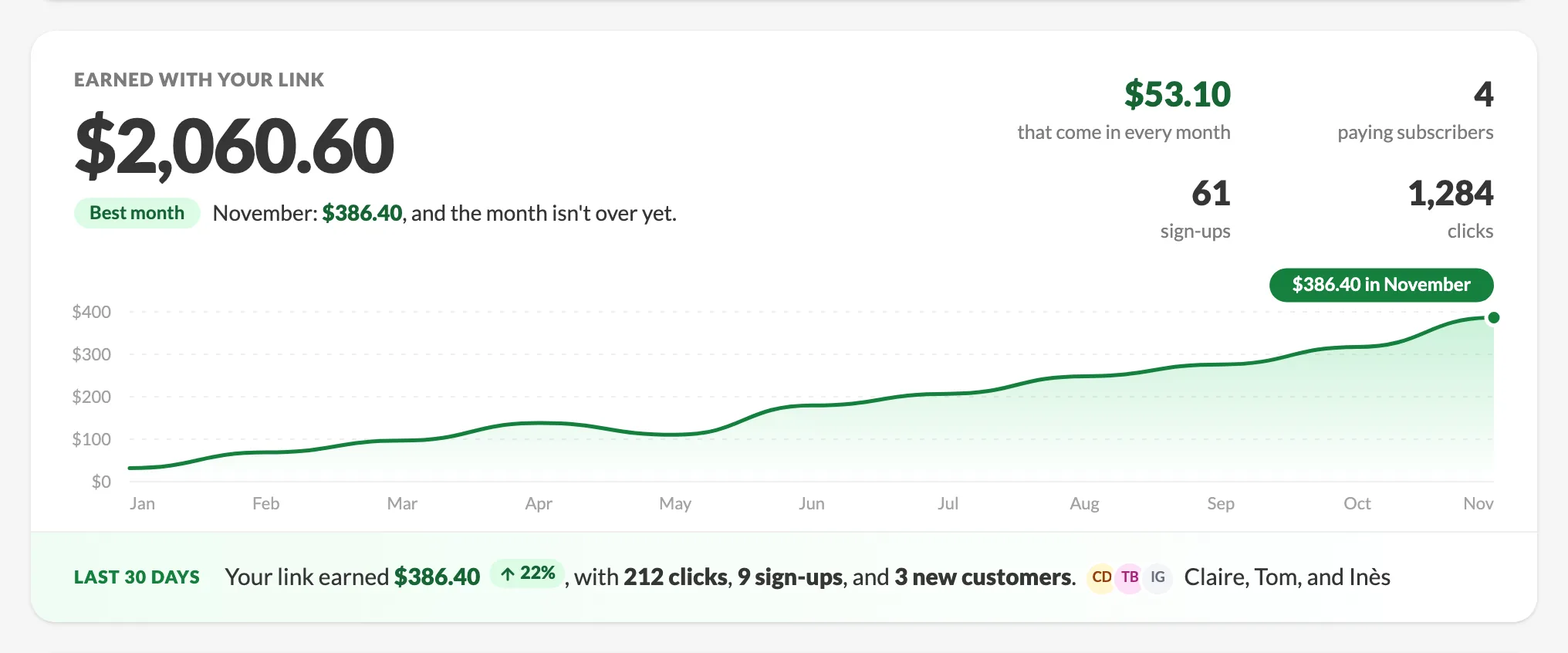
The top of the MagicPost affiliate dashboard shows Earned with your link, your total commissions since you joined. Below it, MagicPost shows what the current month has earned so far, with a Best month badge when the current month has earned more than every month before it.
Next to that total, the MagicPost affiliate dashboard shows four figures: the commissions that come in every month, your paying subscribers, your sign-ups, and the clicks on your link. A chart shows your earnings by month.
The Last 30 days line of the MagicPost affiliate dashboard sums up the past 30 days: what your link earned, with its clicks, sign-ups and new customers. When your earnings went up compared with the 30 days before, the line shows the increase. It also names the people who subscribed in that period.
When nobody signed up with your link in the past 30 days, a reminder above the dashboard says so and tells you how long ago your last sign-up was.
MagicPost recognizes your Dub partner account by the email address of your MagicPost account, so use the same email on Dub.
If MagicPost cannot load your figures from Dub, the Affiliate program tab shows a simpler view: your link and four figures (clicks, sign-ups, customers, commissions) that MagicPost copies from Dub once a day, with the date of the last update. That view has Open my Dub dashboard and View my payouts buttons.
Follow up with people who signed up but have not subscribed
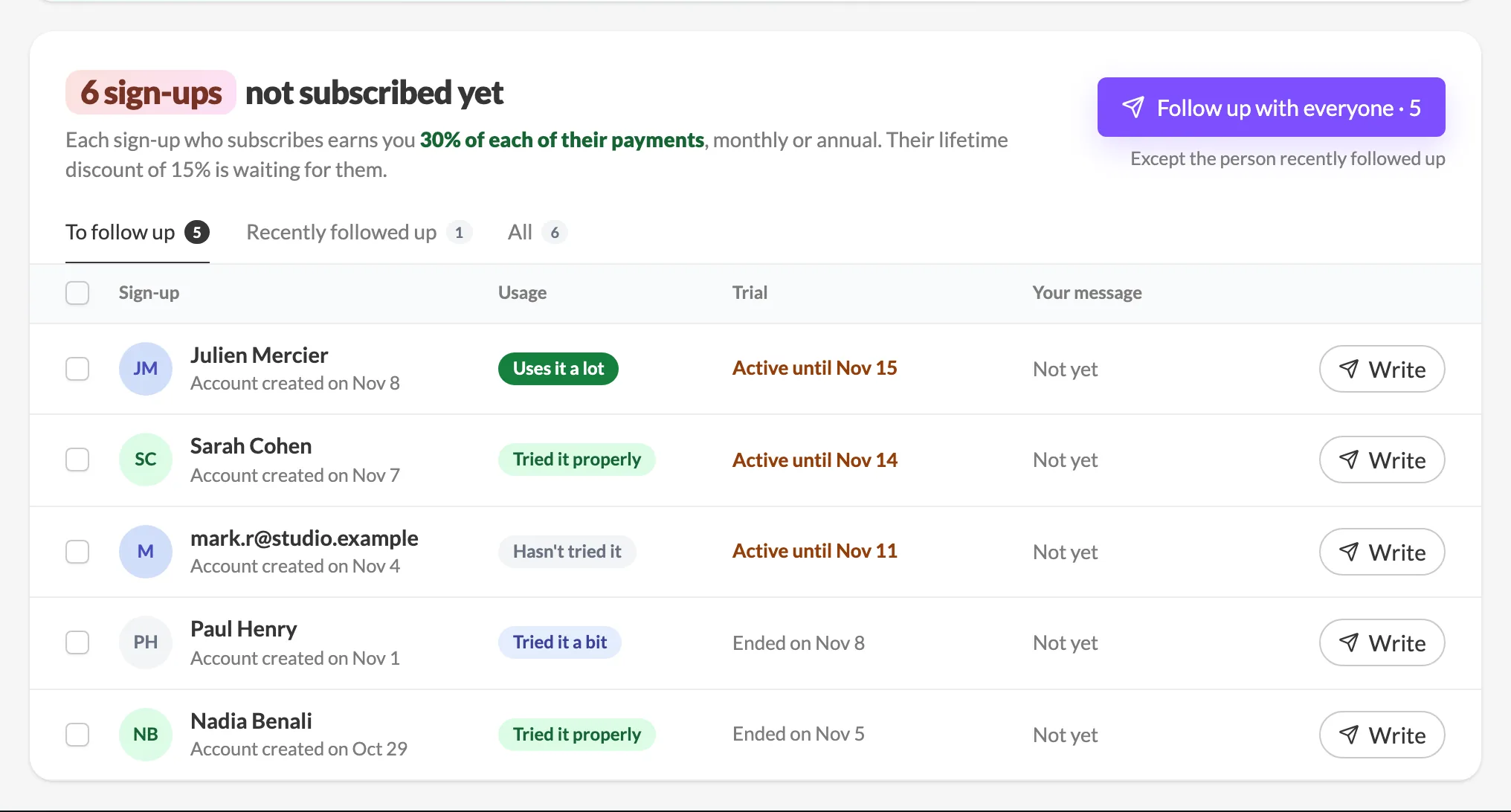
The MagicPost affiliate dashboard lists the people who created a MagicPost account with your link and have not subscribed yet. Three tabs sort them: To follow up, Recently followed up and All. For each person, the table shows their full name, when the account was created, their Usage of MagicPost, the end date of the free trial, and the date of your last message, or Not yet. Each person appears with their LinkedIn photo when they have one, and with their email address in place of a name when they have not connected LinkedIn. Click a name to open that person's LinkedIn profile in a new tab.
The Usage badge counts the posts, hooks and ideas each person generated: Hasn't tried it, Tried it a bit, Tried it properly or Uses it a lot.
To write to these MagicPost sign-ups from the affiliate dashboard:
In the To follow up tab, click Write on a row. To write to several people, check their rows and click Write to them. To write to everyone you can follow up with, click Follow up with everyone.
Edit Your message. The preview next to it shows the exact email the first person receives.
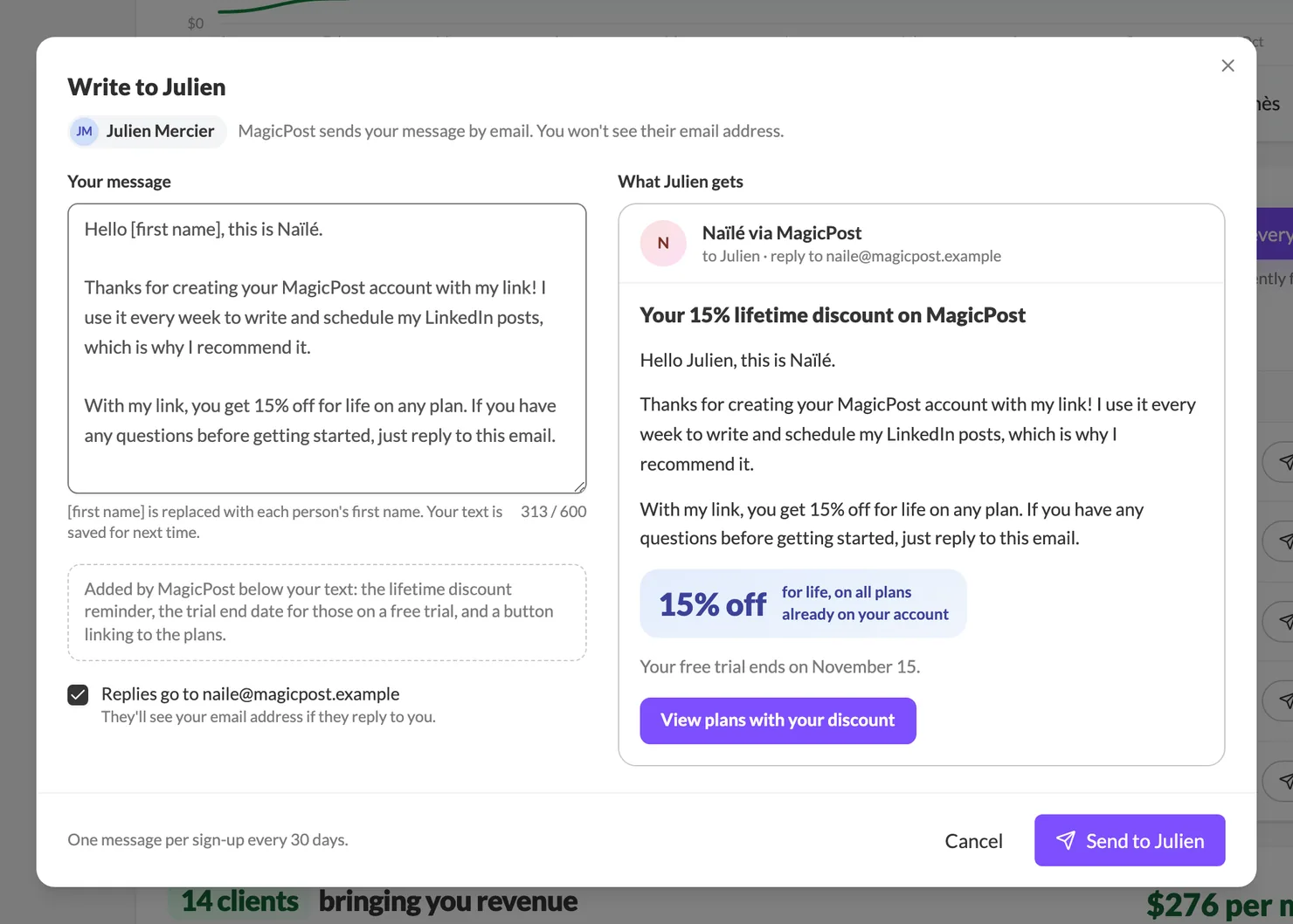
Write on a row opens this MagicPost window, with the exact email the person receives. Click Send to, followed by the person's first name or the number of sign-ups.
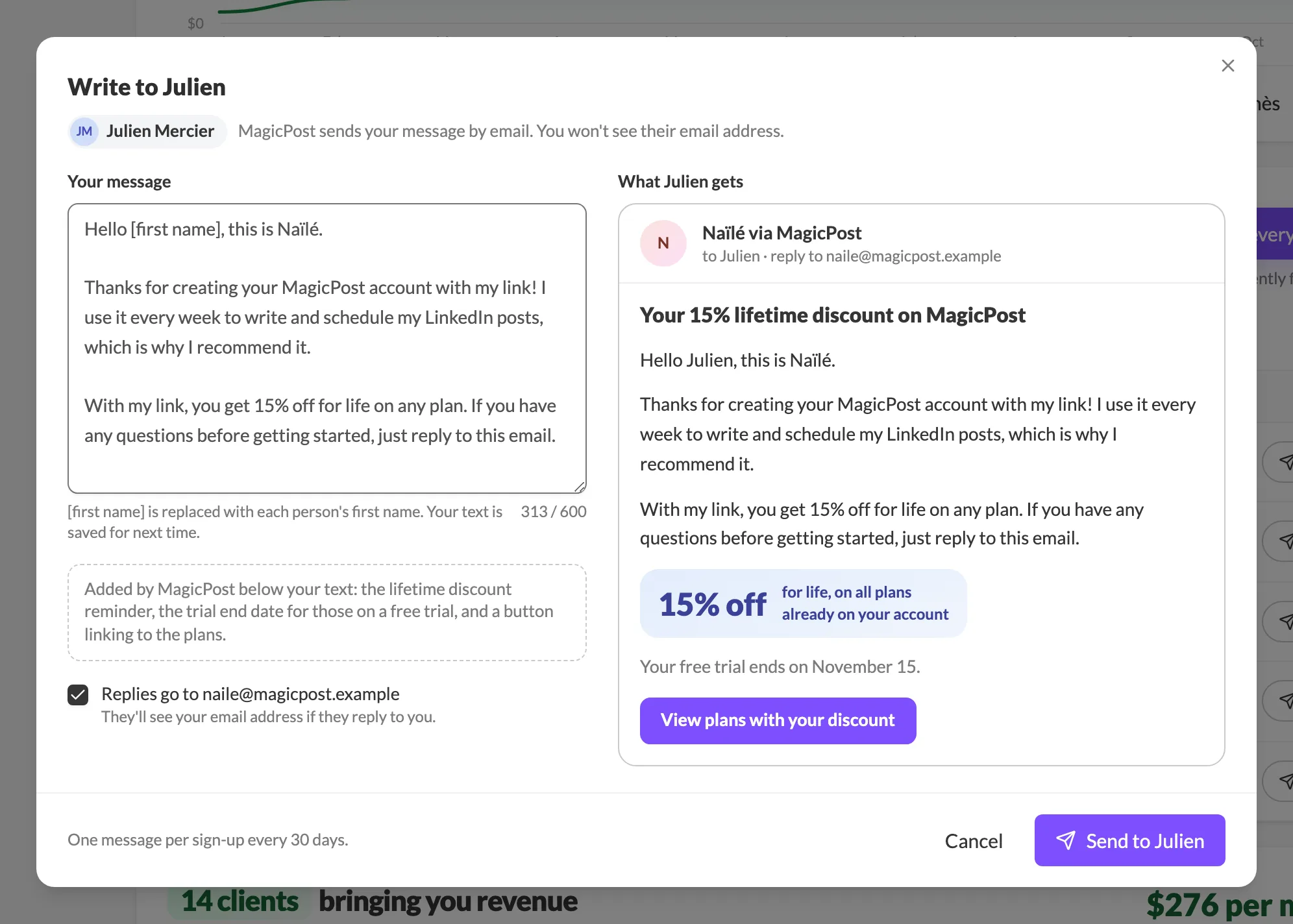
You write the follow-up message yourself. MagicPost suggests a default text in the first person, which you can change. The message is limited to 600 characters, and [first name] is replaced by each person's first name. Links and email addresses are removed when the message is sent. MagicPost keeps your text for the next time.
MagicPost sends the follow-up by email on your behalf, under the sender name "your first name via MagicPost". The email address of the person is not shown in the message. With the Replies go to box checked, which is the default, replies arrive at your email address, and the person sees your address if they reply.
Below your text, MagicPost adds a reminder of the lifetime discount, the trial end date when the person is on a free trial, and a View plans with your discount button.
MagicPost allows one follow-up message per sign-up every 30 days. A person you wrote to recently moves to Recently followed up, and the row shows the date from which you can write again. Follow up with everyone skips these people. Each person can also unsubscribe from these messages, and MagicPost then sets them aside when you send.
Your customers and what each one earns you
The MagicPost affiliate dashboard lists the customers who subscribed through your link, from their first payment, in three tabs: Still subscribed, Canceled and All. The customers who earned you the most come first. As in the sign-ups table, a customer's name opens their LinkedIn profile in a new tab.
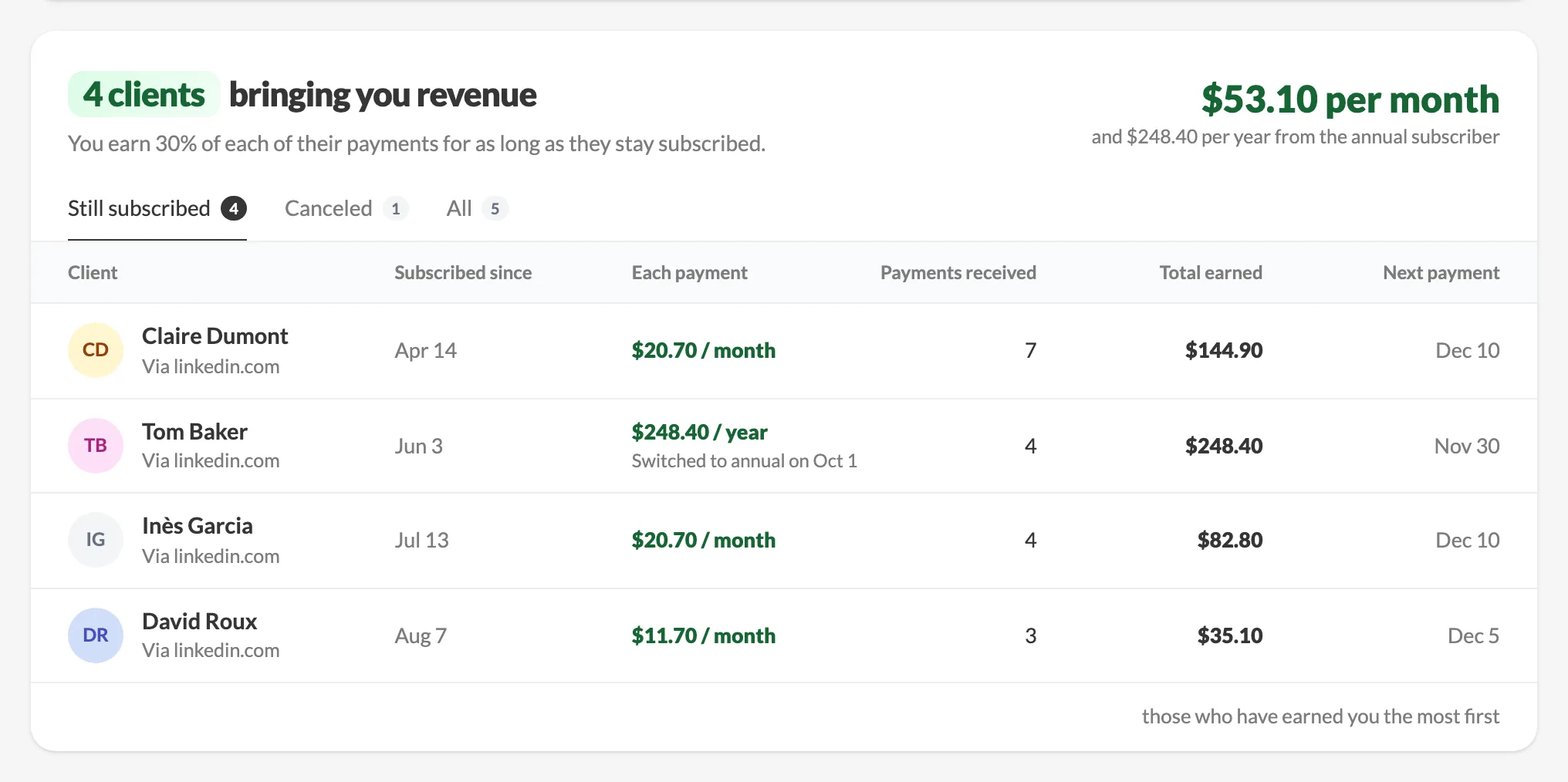
For each customer, the MagicPost affiliate dashboard shows Subscribed since, what Each payment earns you (per month or per year), Payments received, Total earned and the Next payment. When a customer moved from a monthly to an annual subscription, Each payment shows the annual amount with the date of the switch, and Payments received counts the monthly payments made before it. For a customer who canceled, the last column shows the cancellation date, and what you already earned stays counted.
Payouts stay on Dub
Payouts of the MagicPost affiliate program stay on Dub. Dub pays your commissions and keeps your payout account and payment details. At the bottom of the MagicPost Affiliate program tab, My Dub space: payouts and payout account opens your Dub partner space.
Share a ready-made LinkedIn post about MagicPost
MagicPost prepares a LinkedIn post that presents MagicPost with your link. In the Referrals tab, under your referral link, and in the affiliate dashboard, under Share your link, click Prepare my post.
The MagicPost Your post introducing MagicPost window shows a preview of the post on the left, laid out as on LinkedIn: your name, headline and photo, the text folded to three lines with more, then the visual. Click the text to fold it back once it's unfolded. On the right, a single column holds the settings of the post: Text, Visual and Color.
The text. Three angles: My routine (My process with Behind a post, My stack with My stack), Before / after and 3 lessons. Each visual has its own default text for each angle. With My stack, every text names the tools you picked, and a step set to None disappears from the text. The Referrals version speaks to friends, the affiliate version to an audience. The window does not let you edit the text.
The visual. Three layouts: Three lanes, Behind a post and My stack. Hover a layout and click the expand icon to see it full size. Each visual is signed with your LinkedIn name, headline and photo, or your initials when the photo can't be loaded. With My stack, you pick the sales tool you use for each step, or None, and MagicPost sits on the LinkedIn side.
The color. By default the visual uses Your color: the main color of your LinkedIn profile photo, or the color you picked for your charts in Metrics. When that color is too dark, too pale or too grey to read as a color, the visual uses MagicPost purple. You can pick one of the suggested colors or a Custom color, and a Light or Dark background.
MagicPost always ends the post with the offer sentence, whether the text is a default text or written in your style. The sentence says what your link gives and ends with your own referral or affiliate link, so the link is in the post itself.
Write the post in your own style
Next to the angles, the My style button (its tooltip reads Write in my own style) has the MagicPost post generator write the post for the selected visual and angle, with your active writing style. Writing the share post in your style uses no credit. MagicPost saves the written post in your drafts, and the window shows Written in your style for this visual.
Once MagicPost has written the share post, clicking My style again writes a new version and deletes the previous draft. Default text goes back to the default text of the angle and deletes the draft. A draft you already sent to scheduling is never deleted.
In the MagicPost share window, each combination of visual and angle keeps its own written text until you reload the page. A visual or angle you have not written for shows its default text, and coming back to one you wrote for brings your written text back.
MagicPost limits the number of share posts each account can write in its style over 24 hours. When the limit is reached, a message says Daily writing limit reached. The default text is still available.
Schedule the post or publish it yourself
Schedule post, the main button at the bottom of the MagicPost share window, creates the post as a draft with the text, your link included, and the visual attached. It then opens the scheduling drawer, where you pick the date, as for any scheduled post.
To publish the MagicPost share post yourself, Text copies the post with its offer sentence and your link, and Image downloads the visual as a PNG file to add to your LinkedIn post. Your choice of visual, angle, tools, color and background is kept in your browser for the next time.
What your referral sees
A person who opens MagicPost through an affiliate link usually sees a banner on the MagicPost sign-up page. The banner names the partner and the discount, and adds "Create your account, your discount applies at checkout." The discount is attached to the link: your referral has to arrive through your link before creating the MagicPost account.
The Previous program tab for former ambassadors
MagicPost ran an ambassador program before the affiliate program moved to Dub. A former ambassador whose old link earned revenue sees a third tab, Previous program, on the Referrals and affiliate program page. The tab shows the earnings of the old link: Total earned, Already paid and To be paid. Total earned and To be paid are amounts excluding VAT.
The MagicPost Previous program tab also lists the people who signed up with your old link, with a Payments only filter. MagicPost pays these commissions against an invoice: send it to finance@magicpost.in with the billing information shown in the tab. The amount due becomes payable once it reaches the minimum shown under To be paid.
FAQ
Do I need a paid MagicPost plan to become an affiliate?
No. The MagicPost affiliate program is open to every account, including free accounts, and the Join the program button works without a subscription. The partner account itself is created on Dub. A customer with an active subscription can join too, from the Affiliate program tab.
Where do I see my MagicPost affiliate earnings and payouts?
Your earnings, sign-ups and customers are in the MagicPost Affiliate program tab once Dub approves your partner account. Payouts and your payout account are on Dub: My Dub space: payouts and payout account, at the bottom of the tab, opens your Dub partner space.
Can I see the email address of the people who signed up with my MagicPost link?
Only for people who have not connected LinkedIn to MagicPost: the dashboard shows their email address in place of a name. Everyone else appears with their name and, when they have one, their LinkedIn photo. A person sees your address only if they reply while Replies go to is checked.
How often can I write to someone who signed up with my MagicPost link?
Once every 30 days per person. Until then, the row shows the date from which you can write again. A person who subscribed or unsubscribed from these messages is set aside.
Can I use MagicPost referrals and the affiliate program at the same time?
Yes, a MagicPost customer with an active subscription can have both links. Each person only counts once: if they opened both links before signing up, the affiliate link counts.
Why is the Referrals tab locked on my MagicPost account?
MagicPost referrals are reserved for customers with an active subscription. Without one, the Referrals tab shows For subscribers and a View plans button. With a subscription set to end, the button is Manage my subscription: reactivate the subscription and your referral link comes back. The affiliate program stays open in the meantime.
I was a MagicPost affiliate before the program moved to Dub. What changes?
The Earn money entry of your MagicPost profile menu opens the Affiliate program tab. If your old link earned revenue, the Previous program tab shows your earnings, your referrals and the invoice details, and MagicPost keeps paying those commissions on invoice.
Does my referral have to do anything to get the discount?
Your referral has to open MagicPost through your affiliate link, then create the account. The MagicPost sign-up page confirms the discount in a banner and states that the discount applies at checkout.
Who do I contact with a question about the MagicPost affiliate program?
Email affiliates@magicpost.in. The address is also shown in the Affiliate program tab of MagicPost, next to the program offer.
Need help?
Reach out via the in-app chat, or book a 30-minute onboarding call: https://cal.com/magicpost/book-a-call