
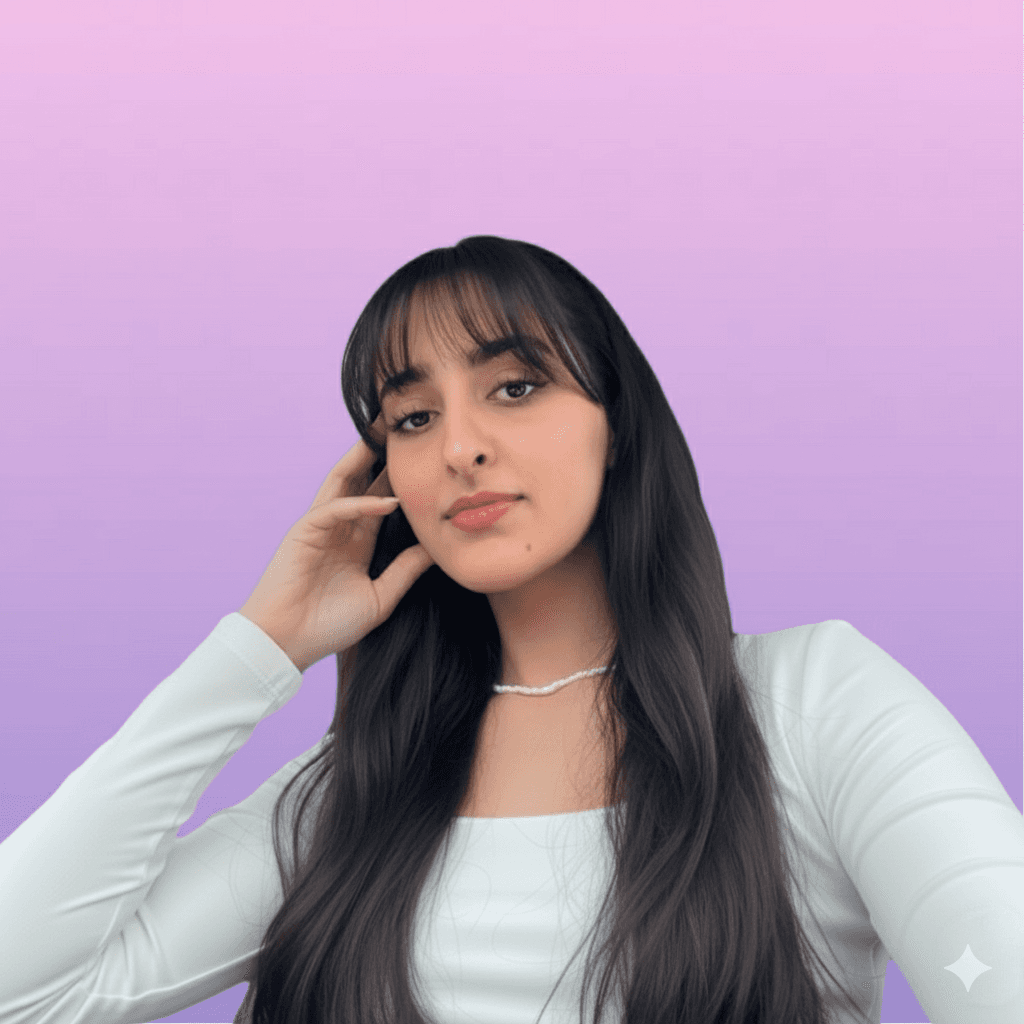
Your LinkedIn banner is basically your digital billboard.
It’s the first thing people notice when they visit your profile, and it quickly shapes their impression of you, whether they are recruiters, potential clients, or collaborators.
A strong banner shows professionalism, fits your industry, and can reflect your personality.
If you haven’t updated this part of your profile, now is a great time to do it.
Why Your LinkedIn Banner Actually Matters
Think of your banner as a visual headline.
Before anyone reads your About section or scrolls through your experience, they see the large image behind your profile picture.
A well-designed banner helps you look intentional and consistent, and it makes clear who you are. It sets the tone for your personal brand right from the start.
Remember, your banner is your digital billboard.
It’s the first thing people see when they visit your profile, and it sets the tone for your brand.
In short, a great banner quickly shows your audience and potential leads that you are professional, relevant in your industry, and gives them a glimpse of your personality.
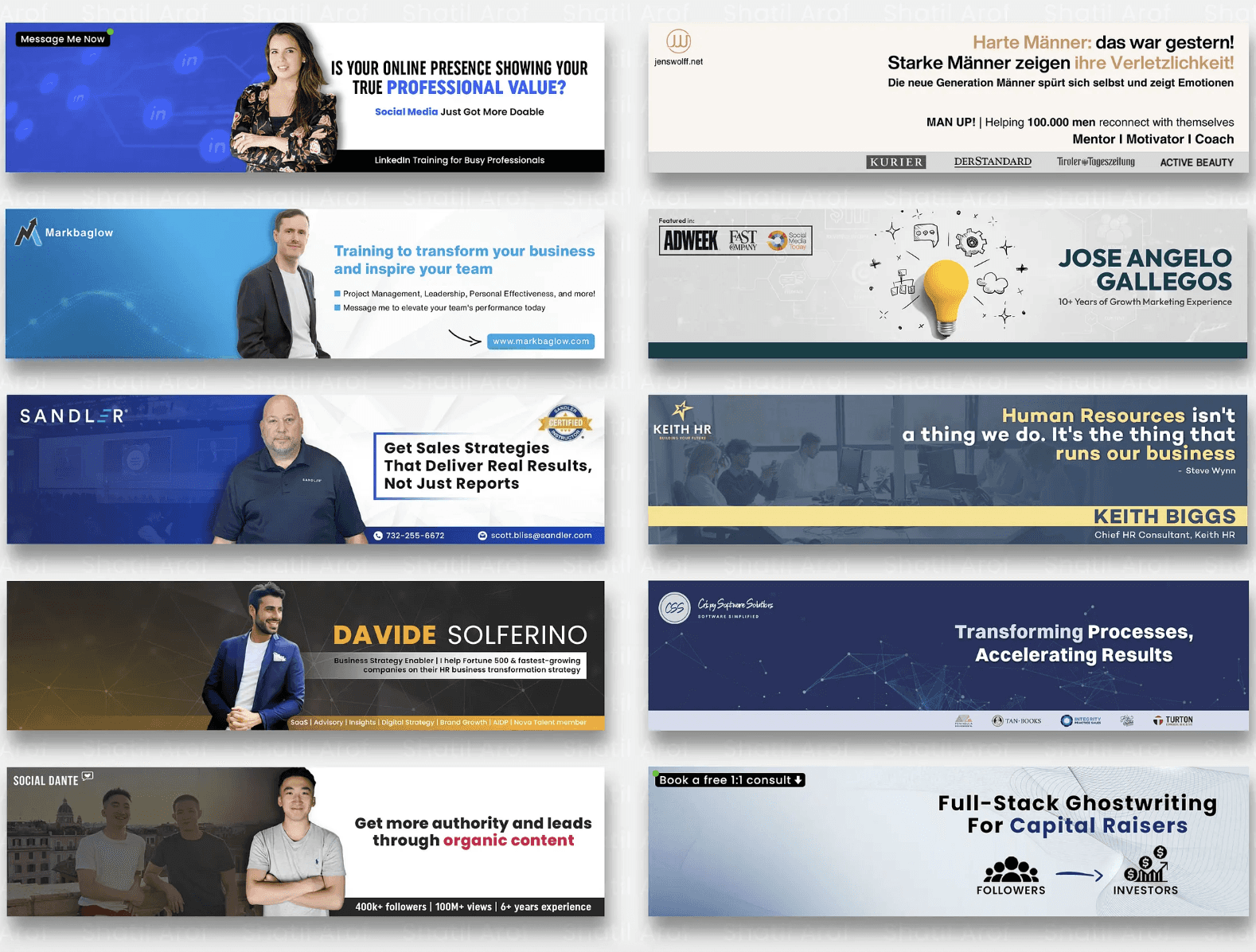
What Makes a Great LinkedIn Banner
Now that you know why your banner matters, what makes one stand out?
Well, a perfect LinkedIn banner always has a clear message!
This message could be your personal tagline, your mission statement, or a short sentence that sums up what you do.
The goal is to explain what you do in the fewest words possible.
You can also use visuals that fit your industry.
For example, if you work in tech, yo
ur banner could include IT symbols or a technology theme.
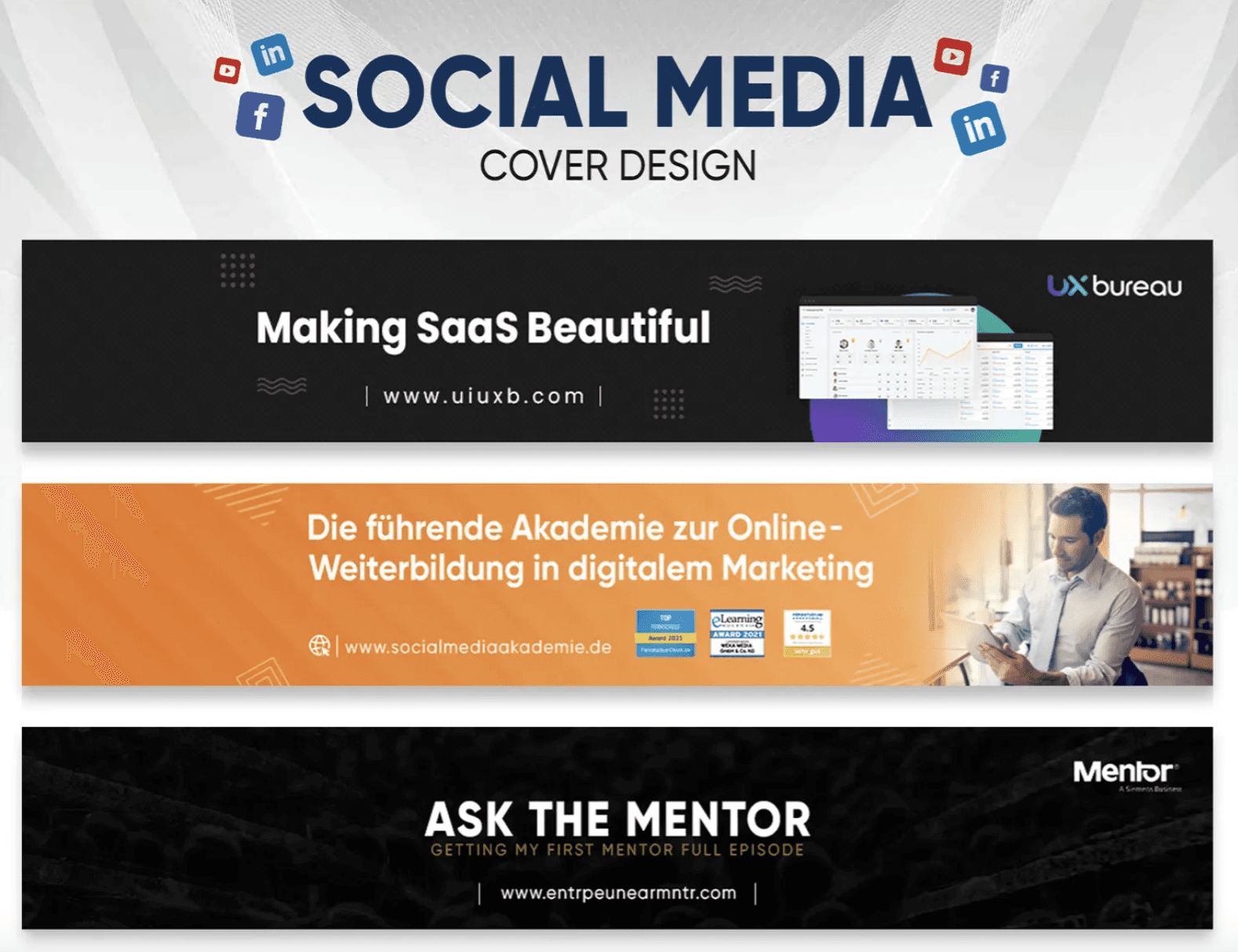
If you’re in marketing, your images should look modern and creative. Everything you add should help tell your professional story.
Color consistency matters too. When your banner matches your profile photo, brand colors, or the style of your content, your profile looks cleaner and more professional.
If you run a business, freelance, or offer services, adding a small call to action can make a huge difference.
You can add your website, email, or a simple invitation like “Let’s connect.” This turns your banner into a subtle marketing tool.
Finally, always use the correct dimensions. LinkedIn recommends 1584 by 384 pixels. The right size prevents awkward cropping or pixelation.
How to Create Your LinkedIn Banner
If you’re a designer or an artist, good for you!
But if you can’t design to save your own life, then Canva is your guy.
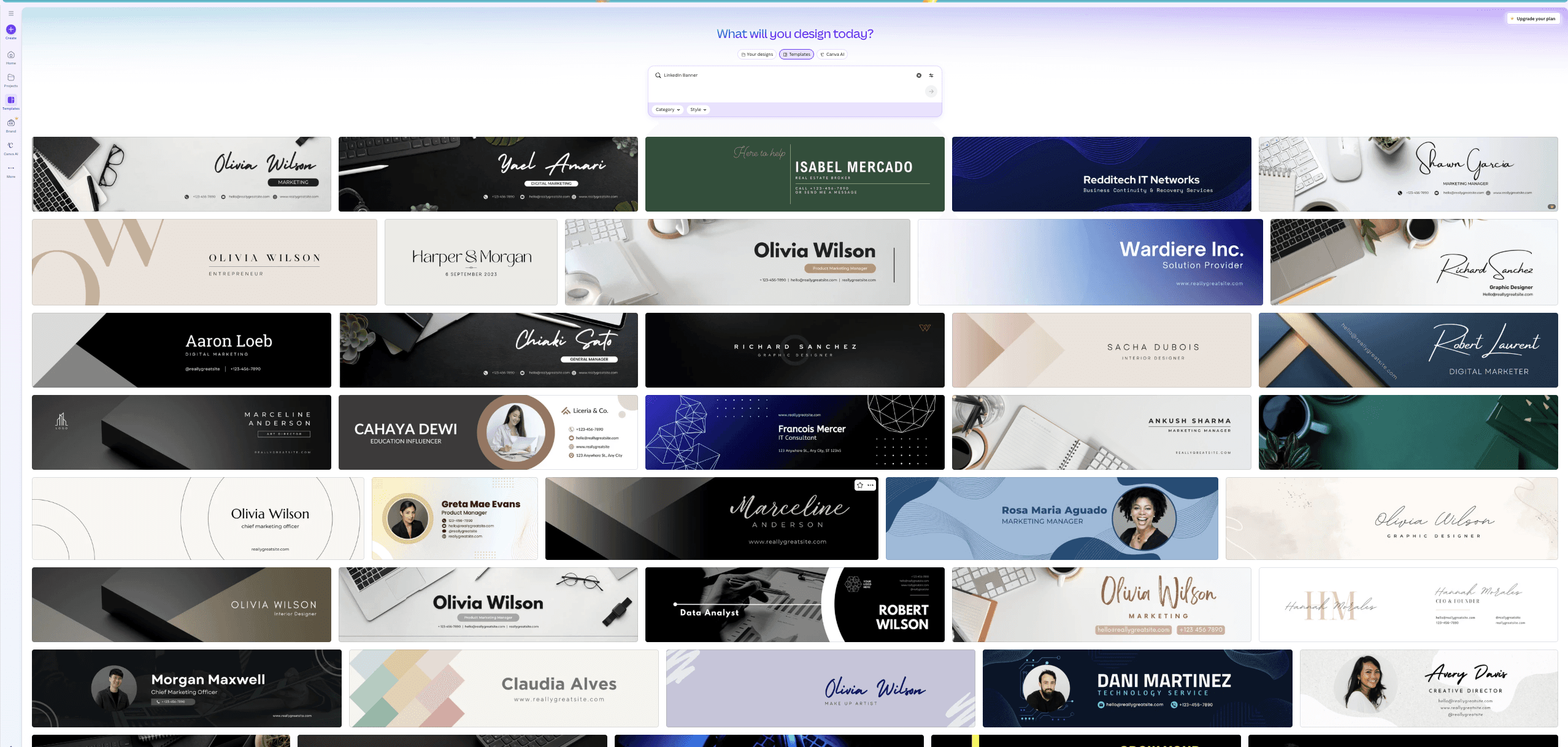
When you open Canva and search for “LinkedIn banner,” you will get suggestions for endless amounts of templates you could choose from, or customize to your liking.
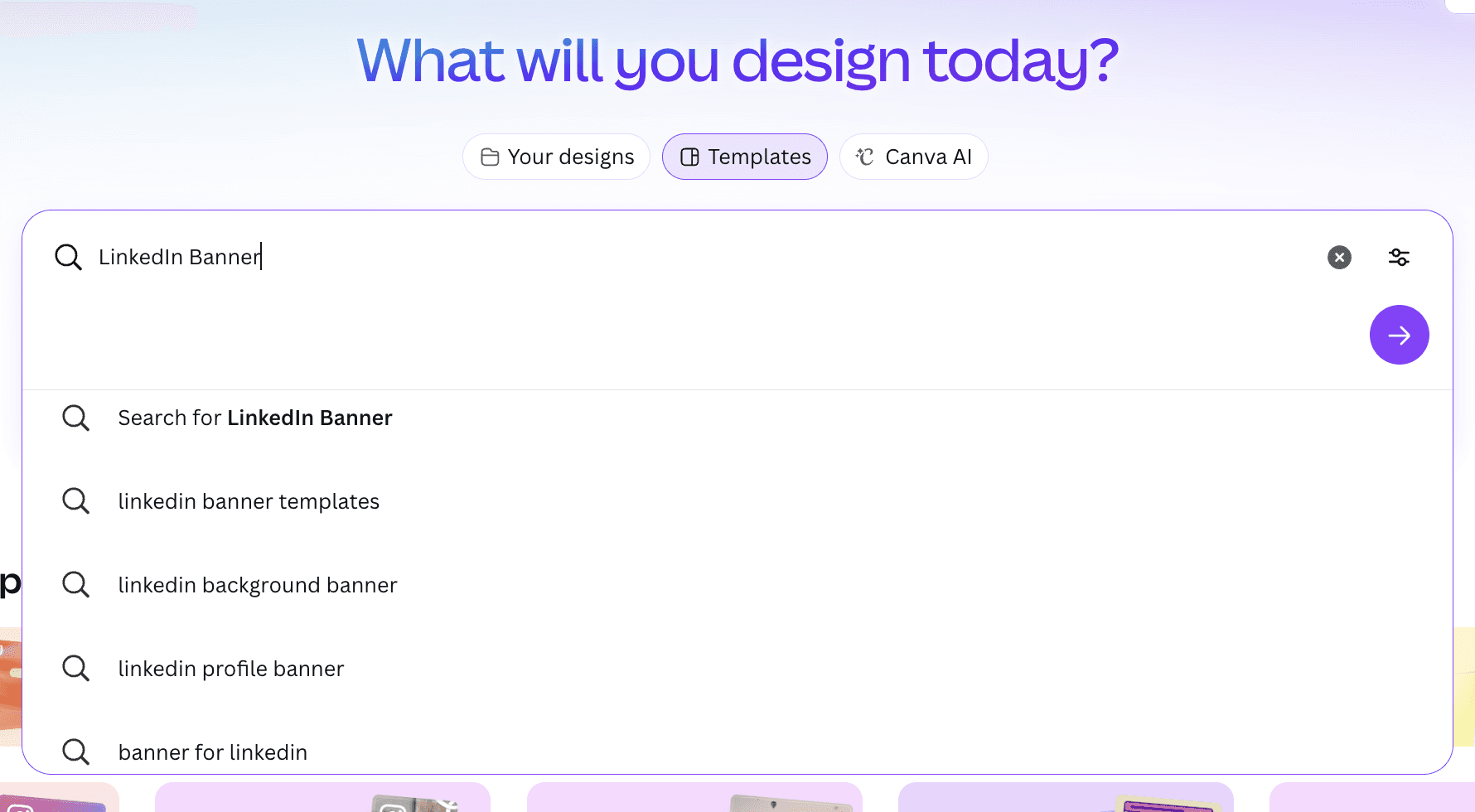
These templates are already the right size for LinkedIn and are optimized for the platform.
All you need to do is pick a layout, add your name, tagline, website, or anything else you want, and adjust the colors to match your branding.
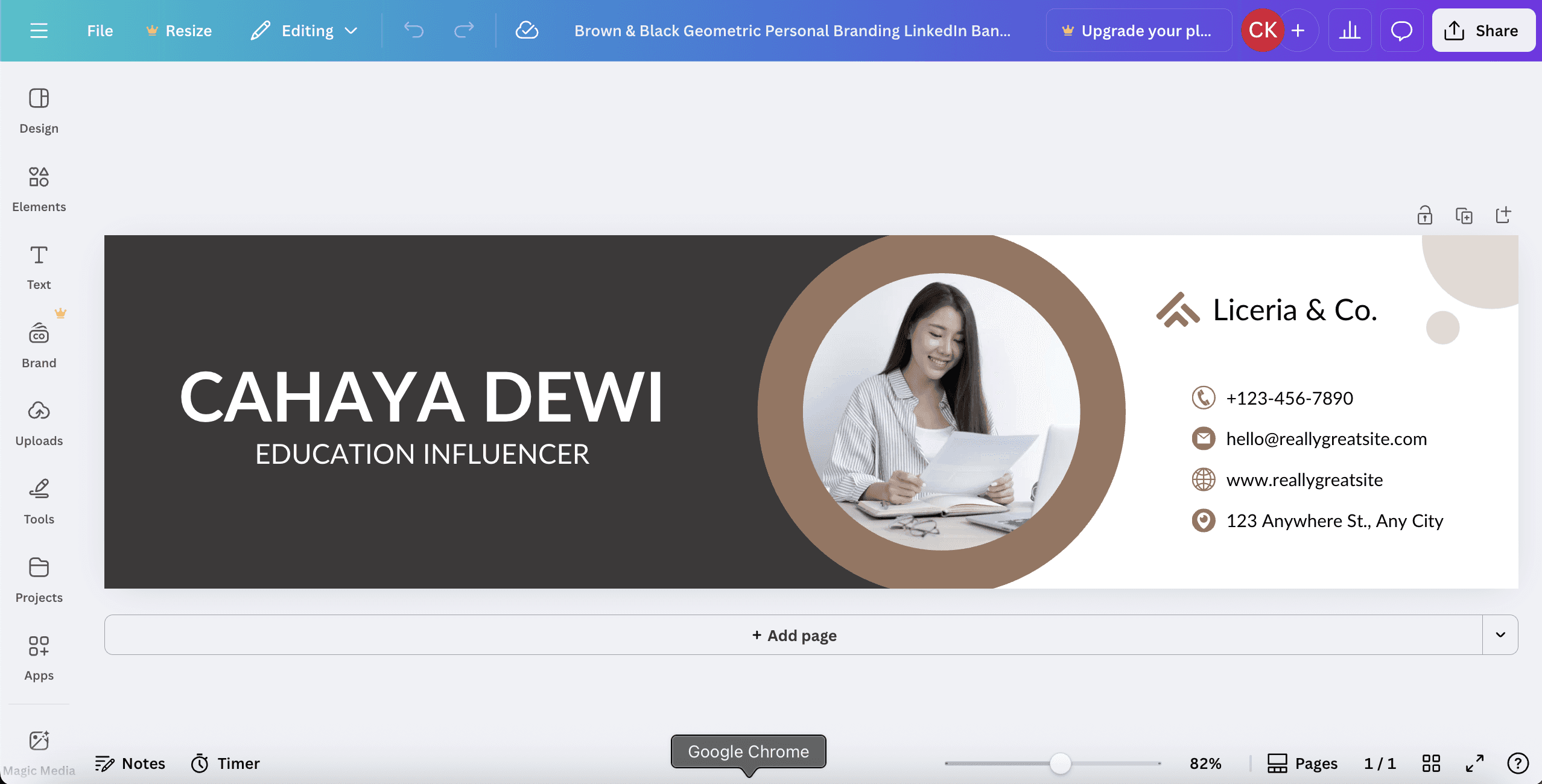
You can change your photo, name, design shapes, text, add a logo or call-to-action, and choose from many colors using the gradient option.
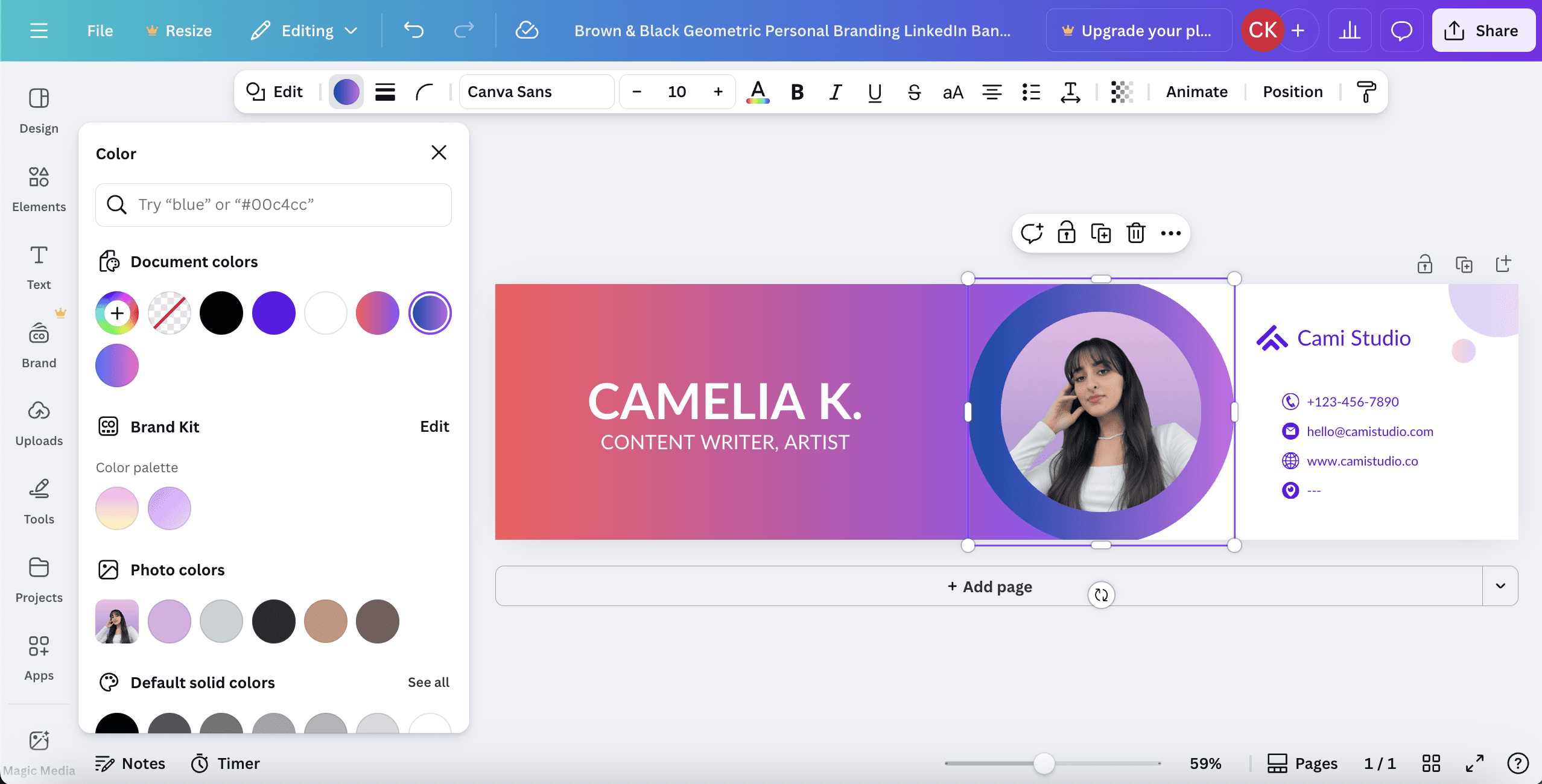
When you’re finished, just download your design and upload it to your LinkedIn banner section.
How to Change Your LinkedIn Banner on Your Profile
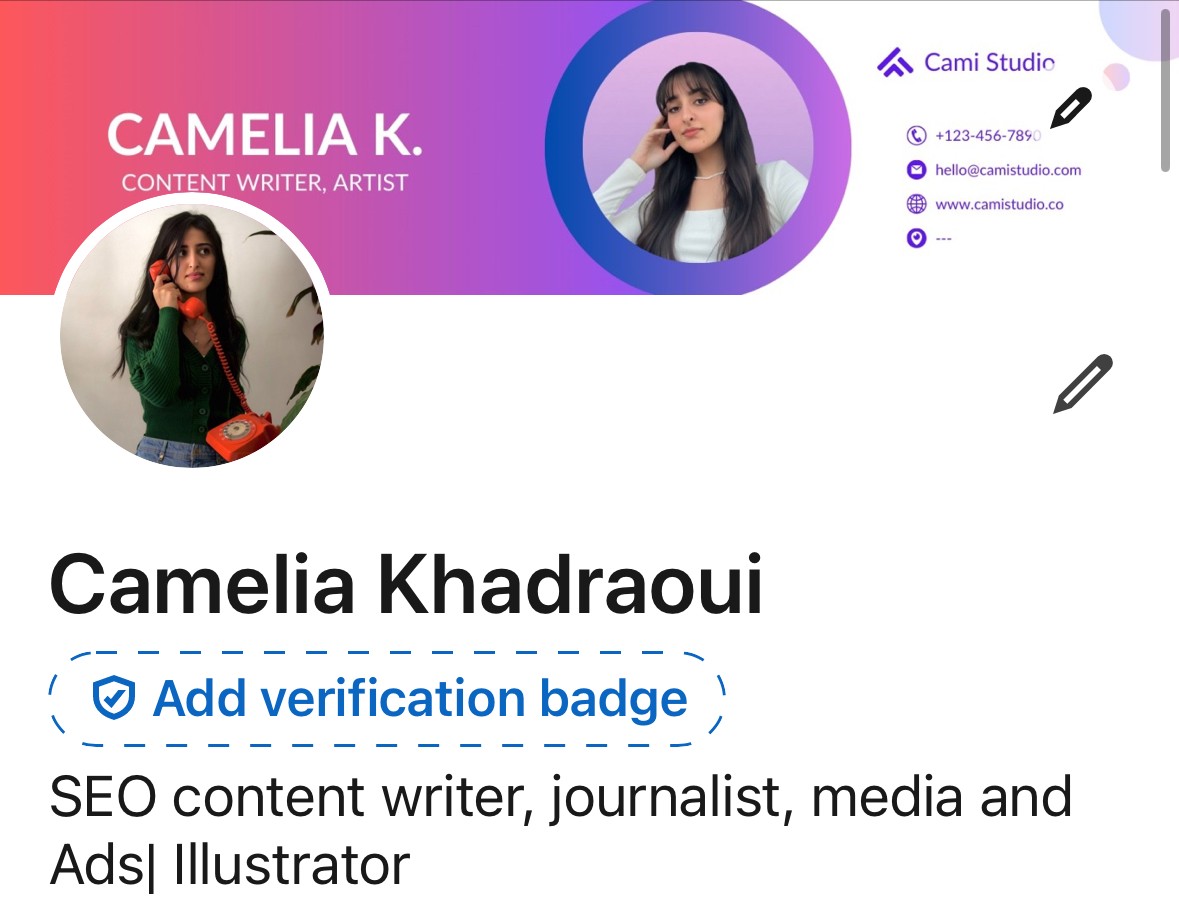
On Smartphone:
Go to your LinkedIn profile.
Tap the camera or edit icon at the top of your banner area and upload your new image.
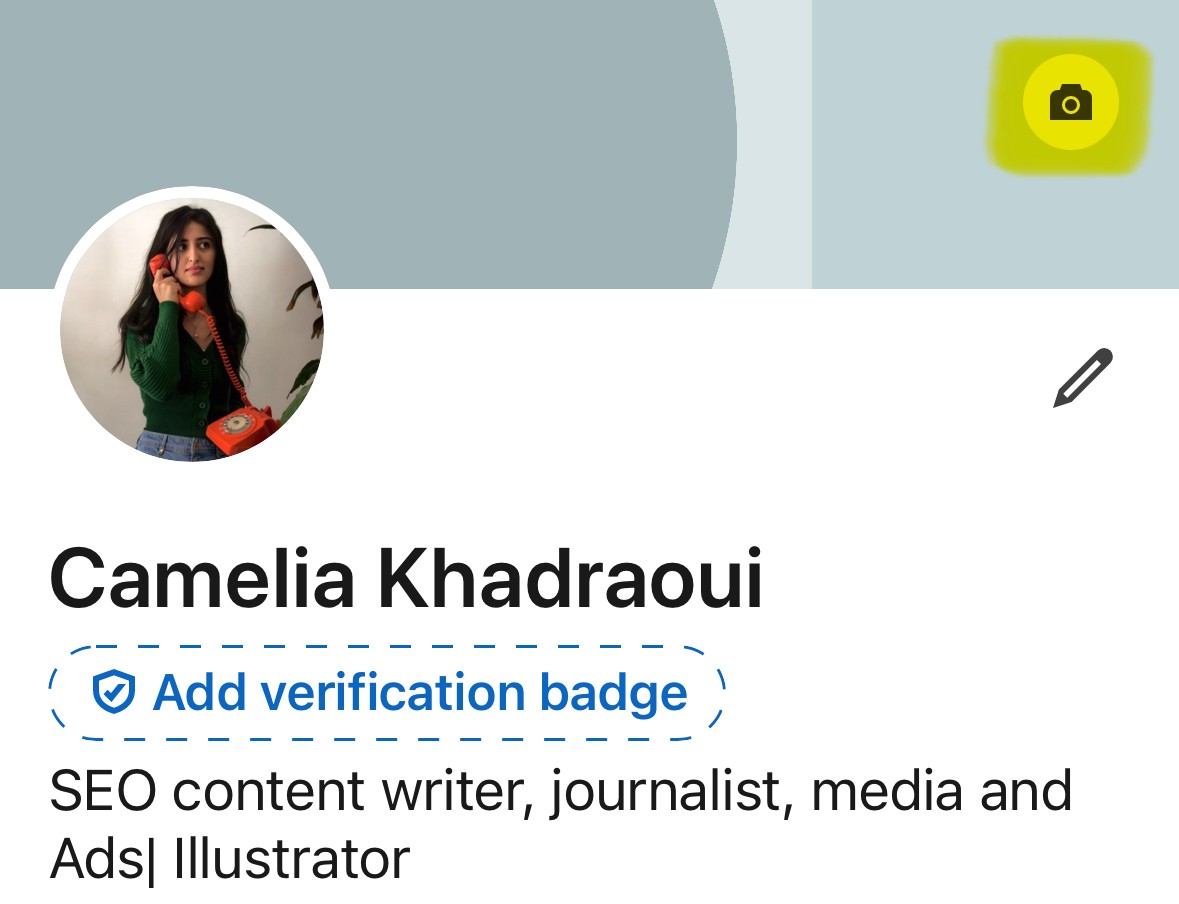
LinkedIn lets you reposition or crop it if needed. Once it looks good, hit Save, and your profile gets an instant visual upgrade.
On desktop:
Click the Me icon at the top of your LinkedIn homepage.
Click View Profile.
Click the Camera icon in the upper-right corner of your introduction section.
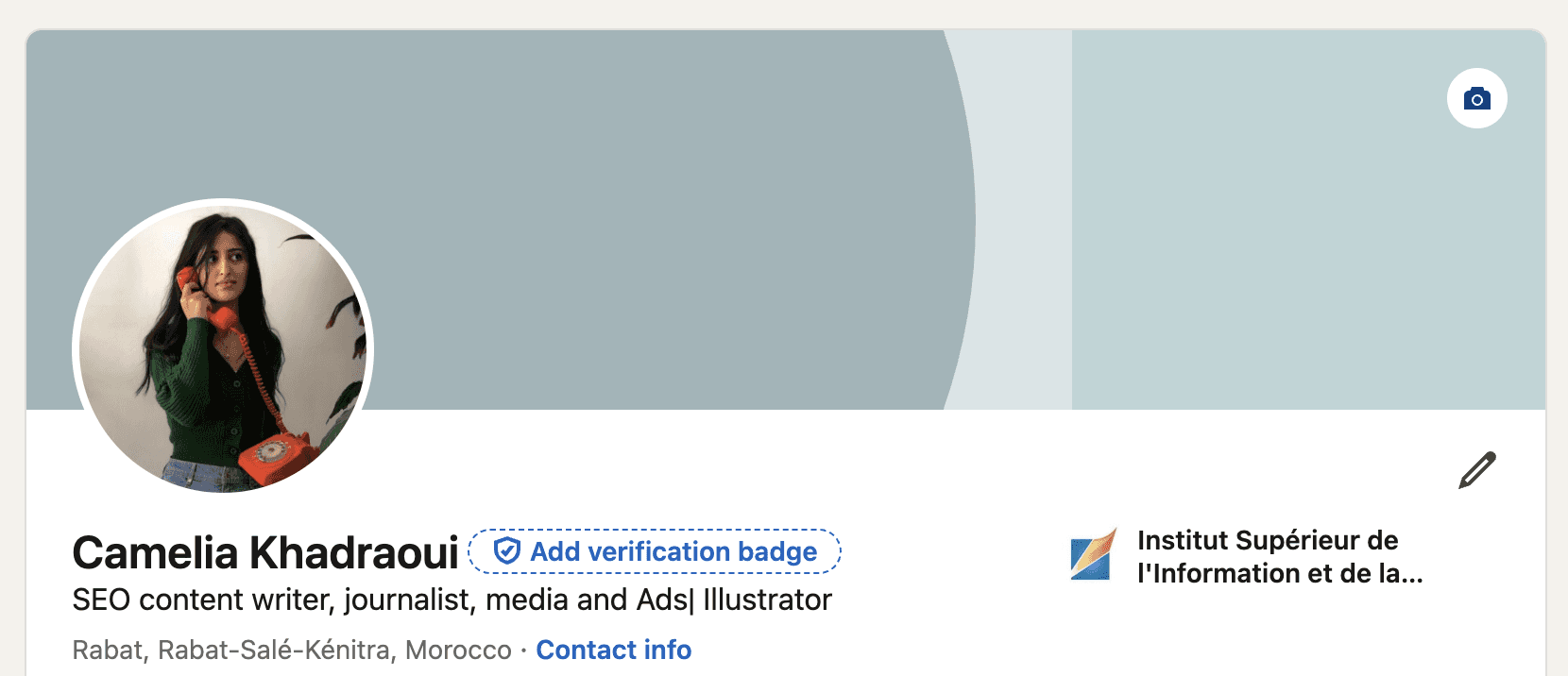
From the "Add a cover image" pop-up, you can:
Upload a single photo
Create Slideshow
Choose an image
After uploading or creating a slideshow, you can:
Edit cover image: Crop the photo, use photo filters, adjust, change the position and size, or rotate your cover image
Change cover image: Click Change photo and follow prompts to change your cover image
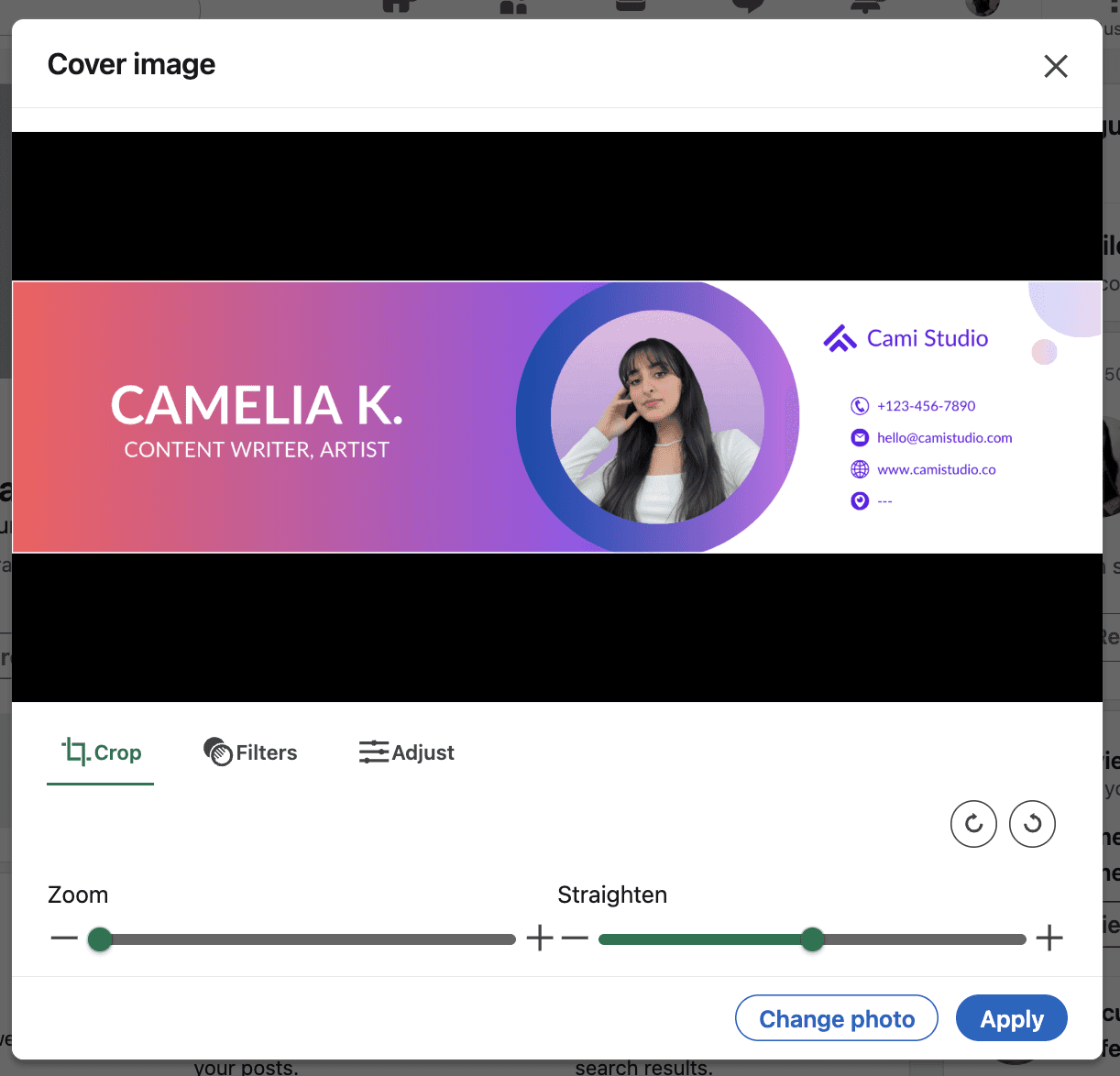
Click "Apply," and the image will upload automatically.
To reposition, delete, or change a cover image:
Click the Me icon at the top of your LinkedIn homepage.
Click View Profile.
Click the Edit icon on the upper-right corner of the cover image in the introduction section.
From here, you can Edit, Crop the photo, use photo filters, adjust, change the position and size, or rotate your cover image, or Delete it.
Now that you have upgraded your banner in only a few clicks, congratulations are in order; your profile is no longer that of an amateur!
Common Mistakes to Avoid
Obviously, low-quality or blurry images instantly make your profile look unprofessional, so always export your banner in high resolution.
Another common mistake is adding too much text. Your banner isn’t your CV—one short message is enough.
Poor color contrast is another issue.
If people can’t read your name or tagline because the text blends into the background, the design doesn’t work. Make sure your text stands out clearly.
Final tip: Avoid designs that don’t match the rest of your profile. Your banner, profile photo, and brand identity should all feel connected.
Following these steps doesn’t guarantee your final design will be beautiful.
It’s important to ask your friends or colleagues about their opinion on your creation.