" height="26.80529977783203px" id="tymKb8bqC" width="128.00300311279295px"/><path d="M 0 2.417 L 0 0 L 12.909 0 L 12.909 2.417 Z" fill="rgb(126, 78, 253)" height="2.417099999999998px" id="aYr4em6zK" transform="translate(128.341 22.325)" width="12.908999999999992px"/></svg>)

"/><stop offset="1" stop-color="rgb(118, 37, 250)"/></linearGradient></defs><g d="M 19.242 21.22 L 19.362 6.204 L 19.272 6.204 L 13.757 21.22 L 10.161 21.22 L 4.796 6.204 L 4.706 6.204 L 4.825 21.22 L 0 21.22 L 0 0 L 7.283 0 L 12.109 13.607 L 12.229 13.607 L 16.844 0 L 24.247 0 L 24.247 21.22 Z M 26.421 26.113 L 26.421 23.445 L 41.407 23.445 L 41.407 26.113 Z" fill="transparent" height="26.112508199679183px" id="DvfaAIHYn" width="41.40731898311435px"><path d="M 19.242 21.22 L 19.362 6.204 L 19.272 6.204 L 13.757 21.22 L 10.161 21.22 L 4.796 6.204 L 4.706 6.204 L 4.825 21.22 L 0 21.22 L 0 0 L 7.283 0 L 12.109 13.607 L 12.229 13.607 L 16.844 0 L 24.247 0 L 24.247 21.22 Z" fill="rgb(46, 46, 46)" height="21.220180016149442px" id="pLsxRCobd" width="24.247352589074694px"/><path d="M 0 2.668 L 0 0 L 14.986 0 L 14.986 2.668 Z" fill="url(%23yD9d4I5GR-3279285344-linear-gradient)" height="2.6675085048549647px" id="yD9d4I5GR" transform="translate(26.421 23.445)" width="14.986002836263765px"/></g></svg>)

Alice Malby
Publishing a post with a typo, a broken link, or missing context is frustrating, but it's fixable. If you’re wondering whether you can edit a LinkedIn post, the answer is yes—you can.
However, the bad news is that editing isn't free. Every time you modify a published post, LinkedIn's algorithm re-evaluates it, which can temporarily limit distribution and reset some of your early engagement momentum.
Understanding that trade-off is what makes the difference between a smart edit and an unnecessary one.
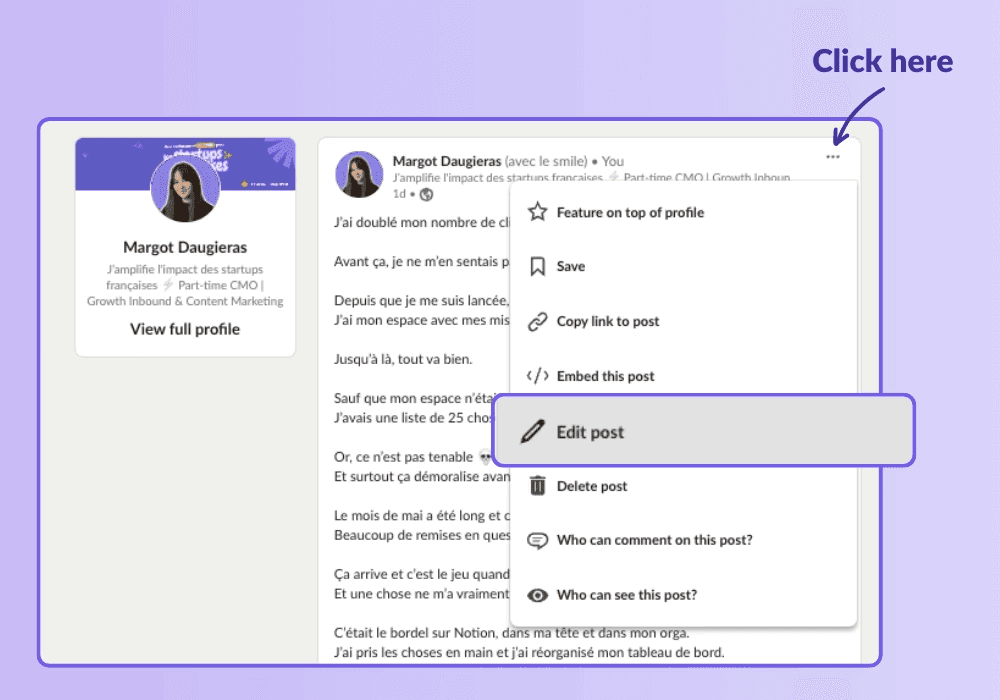
Yes. Click the three dots in the top-right corner of any post you've published and select “Edit.” Make your changes and click “Done.”
The trade-off is that every edit triggers LinkedIn’s algorithm to re-evaluate the post, which can temporarily reduce reach and adds an “Edited” label next to the timestamp.
For minor typos, it's usually worth it. For major rewrites, consider whether deleting and reposting makes more sense.
How to Edit a LinkedIn Post
The process of editing LinkedIn posts is the same on desktop and mobile.
Find the post you want to edit. If it’s recent, it should be near the top of your feed. For older posts, go to your profile, scroll to the “Activity” section, and click “Show all posts.”
Click the three dots (...) in the top-right corner of the post.
Select “Edit post” from the drop-down menu.
Make your changes directly in the post body: text, hashtags, links, or media.
Click “Done” to save.
❓ What You Can Edit: Text, hashtags, and links can all be changed after publishing. However, you can’t edit or replace attached images or videos after they’re live. To change media, you need to delete the post and republish it.



How to Edit a Scheduled LinkedIn Post
If you’ve scheduled a LinkedIn post and need to make changes before it goes live, LinkedIn lets you edit it through the scheduling interface:
Click the clock icon or go to your scheduled posts queue.
Find the post you want to change.
Click “Edit” to open the composer.
Make your changes and save.
Scheduled posts can be edited freely before they are published; there's no algorithm impact since the post hasn't gone live yet. This is one of the strongest arguments for scheduling in advance: it gives you a review window before anything is public.
What Happens When You Edit a Published LinkedIn Post?
Editing a published post has three consequences worth knowing about:
1. LinkedIn Temporarily Limits Distribution
When you edit a published post, LinkedIn's algorithm treats it as content that needs reassessment.
It typically sends the edited post to a smaller initial audience to re-evaluate its relevance, which means you may see a dip in impressions and engagement immediately after editing.
How severe this is depends on how quickly you edit. Editing within the first hour (while the algorithm is still in its initial distribution phase) tends to have the most disruptive effect. Editing a post that has already run its course causes less damage.
💡 Pro Tip: If you notice an error right after publishing, wait at least a few hours before editing if the issue isn't critical. This allows the algorithm to complete its initial assessment and reduces the reach penalty from re-evaluation.
2. The Algorithm Re-evaluates the Content
Every edit triggers a fresh relevance check. LinkedIn assesses whether the updated post still deserves the distribution it was receiving based on engagement signals (likes, comments, saves, and dwell time). If early engagement was strong before you edited, the re-evaluation may interrupt that momentum.
The flip side is that if a post was performing poorly and you make a meaningful improvement to the hook or clarity, a re-evaluation can occasionally work in your favour. But this is the exception, not the rule.
3. The "Edited" Label Appears
Once you edit a published post, a small "Edited" label appears next to the timestamp and stays there permanently.
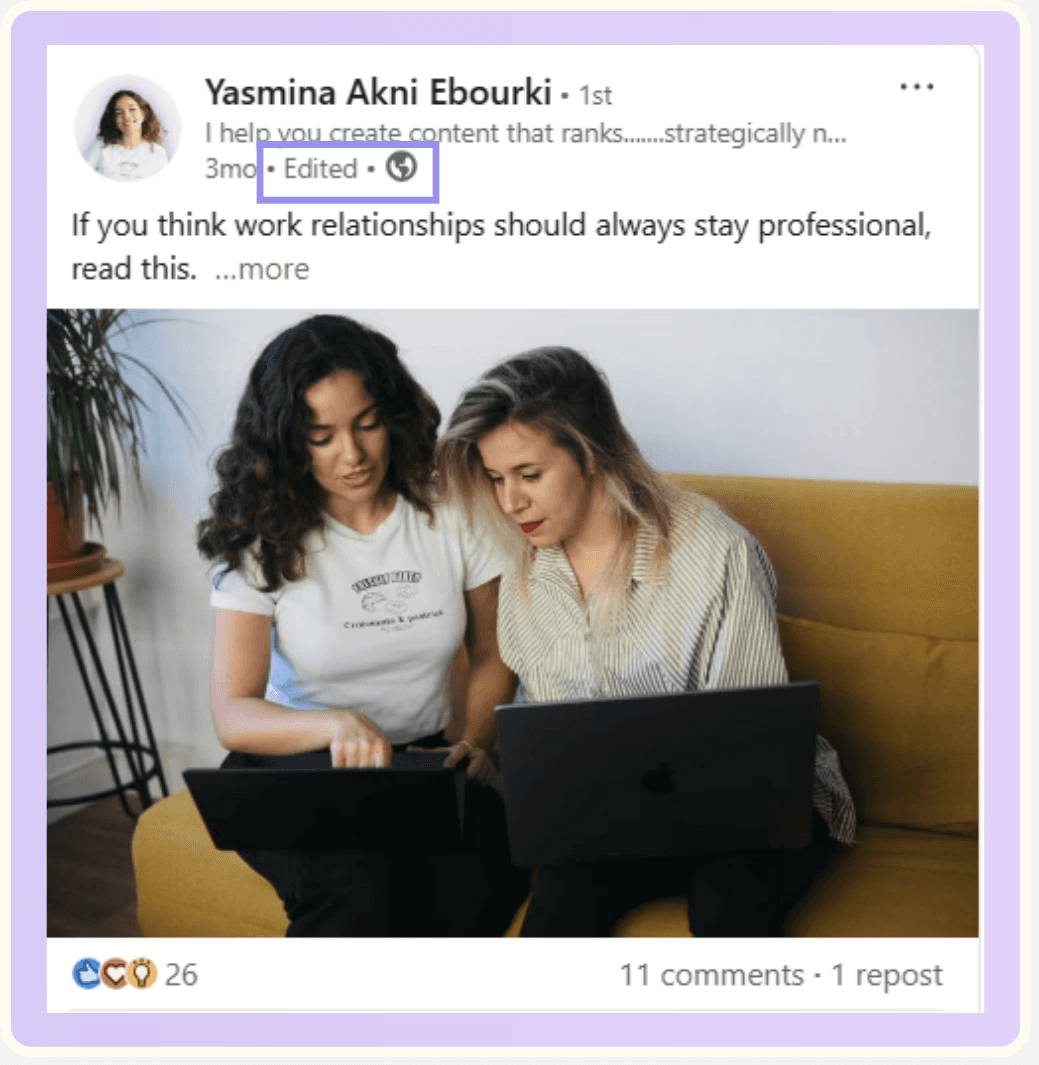
Most readers don't notice or care about a single edited post. However, if someone visits your profile and sees that every post has been edited multiple times, it can undermine the impression of polished, well-prepared content.
⚠️ Important: Editing a post multiple times compounds the algorithm impact; each edit triggers another re-evaluation cycle. If you need to make several changes, do them all in one editing session rather than returning to the post repeatedly.
When to Edit vs. When to Delete and Repost on LinkedIn
Not every mistake needs the same response. Here’s a simple framework:
Edit when: the error is minor (typo, missing word, broken link, small factual correction) and the post is already performing reasonably well. The fix improves the post without changing its substance.
Delete and repost when: the post has a fundamental structural problem, the hook is off, or a significant factual error makes the post misleading. If the post is performing poorly anyway, reposting a corrected version costs you nothing.
Leave it when: the error is cosmetic and the post is performing well. A minor imperfection in a high-engagement post isn’t worth triggering a reassessment that could interrupt its momentum.
💡 Pro Tip: Before editing, ask if this change is meaningful enough to justify the algorithm penalty. A small wording preference is almost never worth it, but a factual correction or a hook that makes the post confusing usually is.
Editing Mistakes That Hurt LinkedIn Post Performance
These are mistakes you should never make if you want to keep your posts performing well.
❌ Editing in the first hour: This is when the algorithm is most actively distributing your post. Interrupting the initial distribution phase with an edit has the highest potential cost.
❌ Editing multiple times: Each edit triggers a fresh re-evaluation. Batch all your changes into a single editing session.
❌ Removing content that was driving engagement: If a specific line or section is generating comments, think carefully before removing it, even if you don’t love it stylistically.
❌ Making edits that change the meaning significantly: If people have already commented based on what the original post said, changing the substance can make those comments appear out of context and confuse later readers.
❌ Editing as a substitute for proofreading: The best approach is always to catch errors before publishing. A post previewer and reading aloud before hitting publish will catch most issues that lead to post-publication edits.
Catch Errors Before They Go Live
The cleanest way to avoid editing penalties is to get the post right before it is published. MagicPost's free post previewer shows you exactly how your post will appear on desktop and mobile, including where the "See more" cutoff appears, before you publish.
Tired of catching mistakes after you hit publish? Schedule your posts in advance, review them before they go live, and never edit under algorithmic pressure again. Try MagicPost for free; no credit card required.
Frequently Asked Questions
Can you edit a LinkedIn post after publishing?
Yes. Click the three dots in the top-right corner of any post you’ve published and select “Edit post.” Make your changes and click “Done.” The edit is saved immediately.
Please note that editing triggers an algorithm re-evaluation that can temporarily reduce reach, and an ‘Edited’ label will appear next to the timestamp.
Does editing a LinkedIn post affect its reach?
Yes. Every edit triggers LinkedIn's algorithm to re-evaluate the post's relevance, which can temporarily limit distribution and reduce impressions. The impact is greatest when you edit early (within the first hour of publishing, while the algorithm is actively distributing the post).
Edits to older posts that have already completed their distribution cycle cause less disruption.
Can you edit a LinkedIn post image after posting?
No. Images and videos attached to a LinkedIn post can’t be edited, replaced, or removed after publishing. If you need to change the media, you have to delete the original post and republish it with the correct image or video.
Will editing a LinkedIn post repost it?
No. Editing a post doesn’t repost it or reset its timestamp. The post stays in its original position in the feed with the same publication date, but an 'Edited' label appears next to the timestamp.
How do I edit a scheduled LinkedIn post?
Go to your scheduled posts queue, find the post you want to edit, and click “Edit” to open the composer. Make your changes and save.
Scheduled posts can be edited freely before they go live; there’s no impact on the algorithm since the post hasn’t been published yet.
Is it better to edit a LinkedIn post or delete and repost?
It depends on how serious the issue is. For minor errors (typos, broken links, small corrections), edit it, especially if the post is already performing well.
For significant problems (a misleading hook, a major factual error, or structural issues that make the post confusing), deleting and reposting a corrected version is usually better, particularly if the post is performing poorly anyway.
LinkedIn Post Size: Complete Formats and Dimensions Guide
Explore the perfect LinkedIn post size for your updates, videos, carousels, and documents to improve your content strategy and boost engagement.
How to Preview Your LinkedIn Post Before Publishing (2026)
LinkedIn does not support previewing your posts natively. Here’s how you can catch broken hooks, cropped images, and errors before publishing. A free tool is included.
Can You Edit a LinkedIn Post? (Yes, Here’s What to Know)
Yes, you can edit a LinkedIn post after publishing, but each edit triggers an algorithm re-evaluation that can temporarily reduce reach. Here’s how to do it.