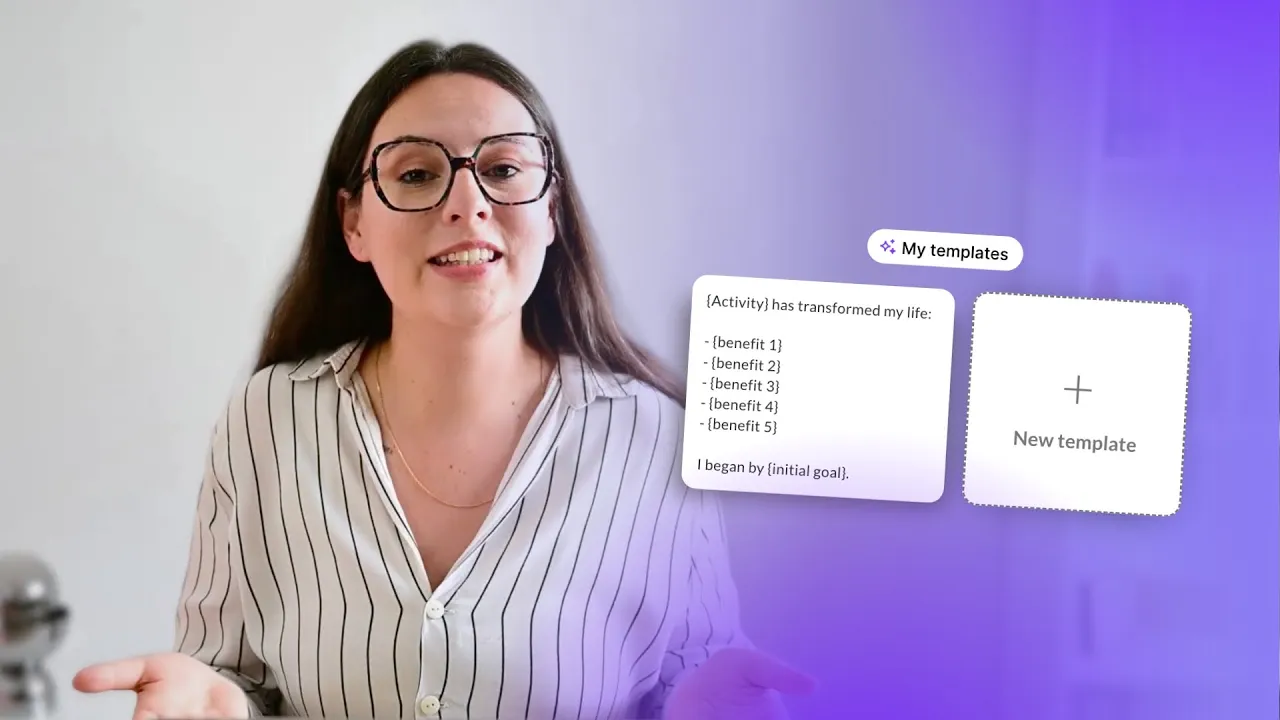
How to use Template mode?
Create a template on MagicPost
To save time and ensure the consistency of your posts, MagicPost allows you to create and use custom templates. Here’s how to do it:
Go to the New Post page on MagicPost.
Click on Template Mode.
Select Choose a template, then Import a template.
Paste the content of one of your old posts or a post whose structure you appreciate in the designated field.
Click on Import this template to add it to your library.
Generate a post from a template
After importing your template, select it to create a new post.
Indicate the new topic of your post. For example: “Stop waging war on influencers”.
Choose the desired level of similarity with the template (ideal for sharing a podcast, an article, or for recurring posts).
Check and adjust the style settings according to your preferences (conversational tone, use of emojis, etc.).
Edit the content as necessary, then confirm the generation of your post.
Best practices and use cases
You can import your own old posts to turn them into templates.
It’s also possible to use the structure of other creators’ posts if you like their format.
Templates are particularly useful for recurring publications like announcing a new podcast episode or a job offer.
Adapt and customize your templates according to your needs to gain efficiency while maintaining your authenticity!
How to generate a post based on a topic?
How to generate a LinkedIn post via a URL?
How to use Template mode?
How to customize your generated post?
Where should I manage my posts?
How to program a LinkedIn post?
How to add your offers and persona to personalize the AI?
Easily find inspiration with MagicPost
How to use the idea generator?
How to use the hook generator?
Metrics on MagicPost
The Types and Categories of posts