" height="26.80529977783203px" id="tymKb8bqC" width="128.00300311279295px"/><path d="M 0 2.417 L 0 0 L 12.909 0 L 12.909 2.417 Z" fill="rgb(126, 78, 253)" height="2.417099999999998px" id="aYr4em6zK" transform="translate(128.341 22.325)" width="12.908999999999992px"/></svg>)

"/><stop offset="1" stop-color="rgb(118, 37, 250)"/></linearGradient></defs><g d="M 19.242 21.22 L 19.362 6.204 L 19.272 6.204 L 13.757 21.22 L 10.161 21.22 L 4.796 6.204 L 4.706 6.204 L 4.825 21.22 L 0 21.22 L 0 0 L 7.283 0 L 12.109 13.607 L 12.229 13.607 L 16.844 0 L 24.247 0 L 24.247 21.22 Z M 26.421 26.113 L 26.421 23.445 L 41.407 23.445 L 41.407 26.113 Z" fill="transparent" height="26.112508199679183px" id="DvfaAIHYn" width="41.40731898311435px"><path d="M 19.242 21.22 L 19.362 6.204 L 19.272 6.204 L 13.757 21.22 L 10.161 21.22 L 4.796 6.204 L 4.706 6.204 L 4.825 21.22 L 0 21.22 L 0 0 L 7.283 0 L 12.109 13.607 L 12.229 13.607 L 16.844 0 L 24.247 0 L 24.247 21.22 Z" fill="rgb(46, 46, 46)" height="21.220180016149442px" id="pLsxRCobd" width="24.247352589074694px"/><path d="M 0 2.668 L 0 0 L 14.986 0 L 14.986 2.668 Z" fill="url(%23yD9d4I5GR-3279285344-linear-gradient)" height="2.6675085048549647px" id="yD9d4I5GR" transform="translate(26.421 23.445)" width="14.986002836263765px"/></g></svg>)

Yasmina Akni Ebourki
A text post on LinkedIn stands alone. An attachment, be it a document, a carousel, a well-chosen image, or a short video, gives people a reason to stop, interact, and come back.
Each swipe through a carousel and each click on a document count as an engagement signal, which is part of why attachment-based posts consistently outperform plain text in search.
LinkedIn supports three types of attachments: documents, images, and video. Each has its own flow, file requirements, and strategic use case. Here’s exactly how to add attachments in a LinkedIn post.
Short Answer: LinkedIn supports three types of attachments: documents (displayed as swipeable carousels), images (up to 20 per post), and native video (up to 10 minutes long). Each type has its own upload process; click on the plus icon or the relevant media icon in the post composer to begin. Always upload videos natively instead of linking to YouTube; external links are penalized by the algorithm.
LinkedIn Attachment Types at a Glance
Before the step-by-step, here’s a quick reference for file formats and limits across all attachment types:
Type | Desktop Formats | +iOS Formats | +Android Formats | Size Limit | Max Length |
|---|---|---|---|---|---|
Document / Carousel | PDF, DOC, DOCX, PPT, PPTX, PPSX | — | — | 100 MB | 300 pages |
Image | GIF, JPEG, PNG | HEIF/HEIC | WEBP | 8 MB | 20 images |
Video | MP4, MOV, AVI, WEBM, MKV, WMV, VC1, MPEG, MPEG2, MPEG1VIDEO, DVVIDEO, QTRLE, TSCC2 | — | — | 5 GB | 10 minutes |
⚠️ Note: LinkedIn’s help center states that ODT and ODS are supported document/carousel types. However, our testing found that these files are, in fact, not supported. Note that the same may apply to video files; LinkedIn may stop supporting less-used formats at any time without notice.



कैसे एक दस्तावेज़ को LinkedIn पोस्ट में जोड़ें
दस्तावेज़ LinkedIn के सबसे उच्च प्रदर्शन करने वाले अटैचमेंट प्रकार हैं। एक दस्तावेज़ के रूप में अपलोड की गई PDF एक कैरसेल के रूप में प्रदर्शित होती है, एक स्वाइपे करने योग्य, साइड-बाय-साइड LinkedIn पोस्ट प्रारूप जो पाठकों को आपके पोस्ट पर लगभग किसी भी अन्य सामग्री प्रकार की तुलना में अधिक समय तक रखता है।
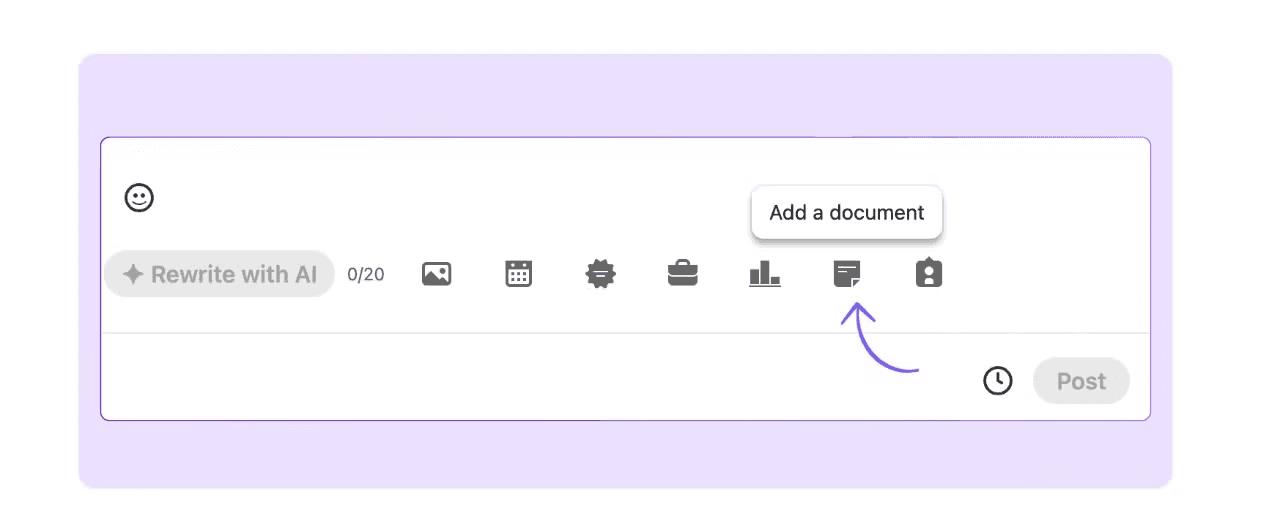
यहाँ एक संलग्नक जोड़ने का तरीका बताया गया है:
अपने LinkedIn होमपेज पर जाएं और साझा बॉक्स पर क्लिक करें जहाँ लिखा है “एक पोस्ट शुरू करें”।
अटैचमेंट विकल्पों को विस्तार करने के लिए पोस्ट लेखक के नीचे प्लस आइकन पर क्लिक करें "एक अवसर का जश्न मनाएं" के बगल में।
दस्तावेज़ आइकन पर क्लिक करें (विस्तारित मेनू में दूसरा से आखिरी)। आपका फ़ाइल ब्राउज़र खुलेगा।
अपनी फ़ाइल का चयन करें। दस्तावेज़ का एक पूर्वावलोकन आपके पोस्ट टेक्स्ट के नीचे दिखाई देगा, यह दिखा रहा है कि यह फ़ीड में कैसे प्रदर्शित होगा।
दस्तावेज़ का शीर्षक जोड़ें। यह आवश्यक है इससे पहले कि LinkedIn आपको आगे बढ़ने दे। यह फ़ाइल नाम से मेल खाने की आवश्यकता नहीं है; दस्तावेज़ का वास्तविक शीर्षक उपयोग करें जैसा कि पाठक इसे देखेंगे।
समाप्त पर क्लिक करें, फिर तुरंत प्रकाशित करें या पोस्ट शेड्यूल करने के लिए घड़ी के आइकन का उपयोग करें।
💡 प्रो टिप: दस्तावेज़ों के लिए PDF प्रारूप का उपयोग करें। LinkedIn PDF को सबसे अधिक विश्वसनीयता के साथ स्वाइपे करने योग्य कैरसेल के रूप में प्रदर्शित करता है। वर्ड दस्तावेज़ और PowerPoint फ़ाइलें स्वीकार की जाती हैं लेकिन सभी डिवाइस में उतनी साफ़ नहीं दिख सकतीं।
❌ क्या मैं एक पोस्ट में कई दस्तावेज़ संलग्न कर सकता हूँ? नहीं। LinkedIn एक पोस्ट में केवल एक दस्तावेज़ की अनुमति देता है। यदि आपकी सामग्री कई फ़ाइलों में फैली हुई है, तो उन्हें अपलोड करने से पहले एक ही PDF में मिलाकर करें। यदि विषय वास्तव में अलग हैं, तो उन्हें अलग-अलग पोस्ट में विभाजित करें। एक फोकस्ड पोस्ट जिसमें एक मजबूत अटैचमेंट होता है, लगभग हमेशा एक ओवरलोडेड पोस्ट की तुलना में बेहतर प्रदर्शन करता है।
कैसे LinkedIn पोस्ट में एक छवि जोड़ें?
छवियाँ सबसे सीधी अटैचमेंट प्रकार हैं। LinkedIn GIF, JPEG, और PNG (साथ ही HEIF/HEIC iOS पर और WebP Android पर) फ़ाइलों का समर्थन करता है, जो 8 MB प्रत्येक तक की होती हैं। आप एक ही पोस्ट में एक मल्टी-इमेज गैलरी के रूप में 20 छवियाँ तक जोड़ सकते हैं।
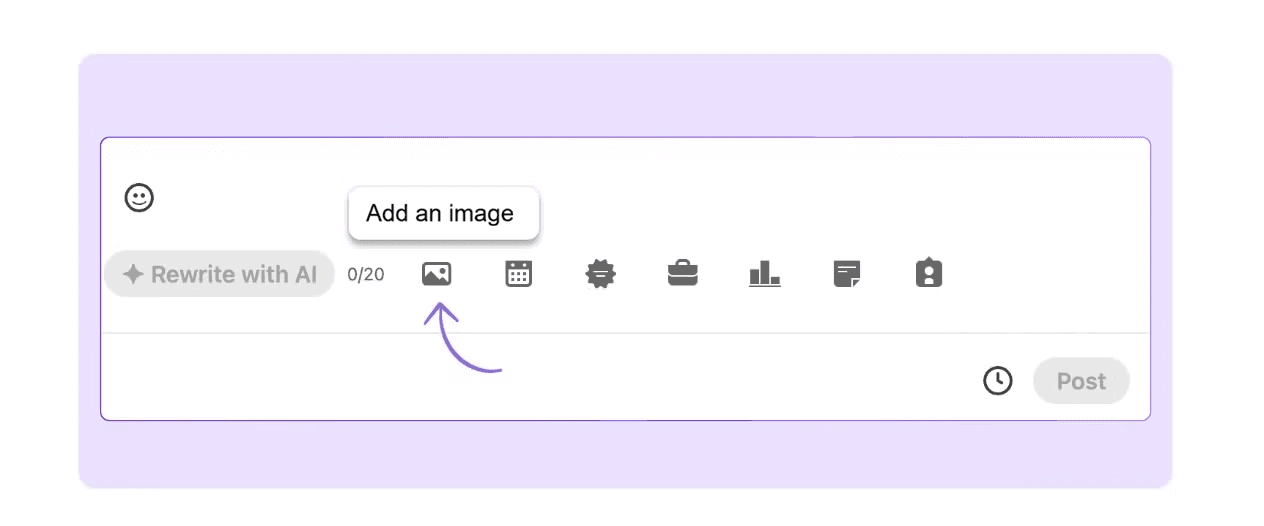
यहाँ बताया गया है:
पोस्ट कंपोजर खोलने के लिए शेयर बॉक्स पर क्लिक करें।
कंपोजर के नीचे अटैचमेंट पंक्ति में फोटो आइकन पर क्लिक करें (यह एक छोटे परिदृश्य छवि की तरह दिखता है)।
अपने फ़ाइल ब्राउज़र से एक या अधिक छवियाँ चुनें। चयनित छवियाँ आपके पोस्ट टेक्स्ट के नीचे थंबनेल के रूप में दिखाई देंगी।
ऐच्छिक रूप से, प्रत्येक छवि पर संपादित (पेंसिल) आइकन पर क्लिक करें ताकि वैकल्पिक पाठ जोड़ सकें। यह पहुंच के लिए उपयोगी है और LinkedIn के एल्गोरिदम को छवि सामग्री को समझने में मदद करता है।
पूर्ण हुआ पर क्लिक करें, फिर प्रकाशित करें या अनुसूची बनाएं।
💡 प्रो टिप: सबसे अच्छे फ़ीड प्रदर्शन के लिए, 1:1 स्कायर अनुपात (1080 x 1080 पिक्सेल) या 1.91:1 परिदृश्य अनुपात (1200 x 627 पिक्सेल) का उपयोग करें। पोर्ट्रेट इमेजेज (1080 x 1350 पिक्सेल) फ़ीड में अधिक लंब verticle स्थान लेते हैं और मोबाइल पर अच्छा प्रदर्शन करते हैं। हमेशा प्रकाशन से पहले पोस्ट प्रीव्यूअर का उपयोग करके यह चेक करें कि आपकी छवि कैसे दिखाई देती है।
How to Add a Video to a LinkedIn Post
Native video, uploaded directly to LinkedIn rather than linked from YouTube or Vimeo, has significantly better reach. LinkedIn’s algorithm favors content that keeps users on the platform, and a native video performs better than an external link.
Click the video icon in the attachment row (it looks like a play button) underneath the “Start a post” box.
Select your video file. Supported formats include MP4, MOV, AVI, MKV, and others. The maximum file size is 5 GB, while the maximum length is 10 minutes.
While the video uploads, add your post text. LinkedIn will display a progress indicator.
Once uploaded, you can add a title and description to the video. This helps with discoverability in searches.
Click Done, then publish or schedule.
⚠️ Important: Never link to an external video (YouTube, Vimeo, etc.) if you want reach. External links are penalized by LinkedIn's algorithm because they direct users off the platform. Upload the video file directly every time.
💡 Pro Tip: Add captions to your video. LinkedIn videos autoplay without sound in most feeds, and videos with captions get 29% higher engagement and 32% longer viewer retention than those without. LinkedIn has a built-in captioning tool; use it before publishing.
What Is the Difference Between Documents and Carousels in LinkedIn?
On LinkedIn, documents and carousels are the same thing. When you upload a PDF using the document attachment flow, LinkedIn renders it as a carousel (a swipeable series of slides). There's no separate "carousel" upload option. The distinction is really about how you design your PDF.
→ A document designed for downloading (a report, a whitepaper, or a checklist) works fine as a standard PDF upload. A document designed for swiping (with one idea per slide, bold visuals, and a clear narrative arc) is a carousel.
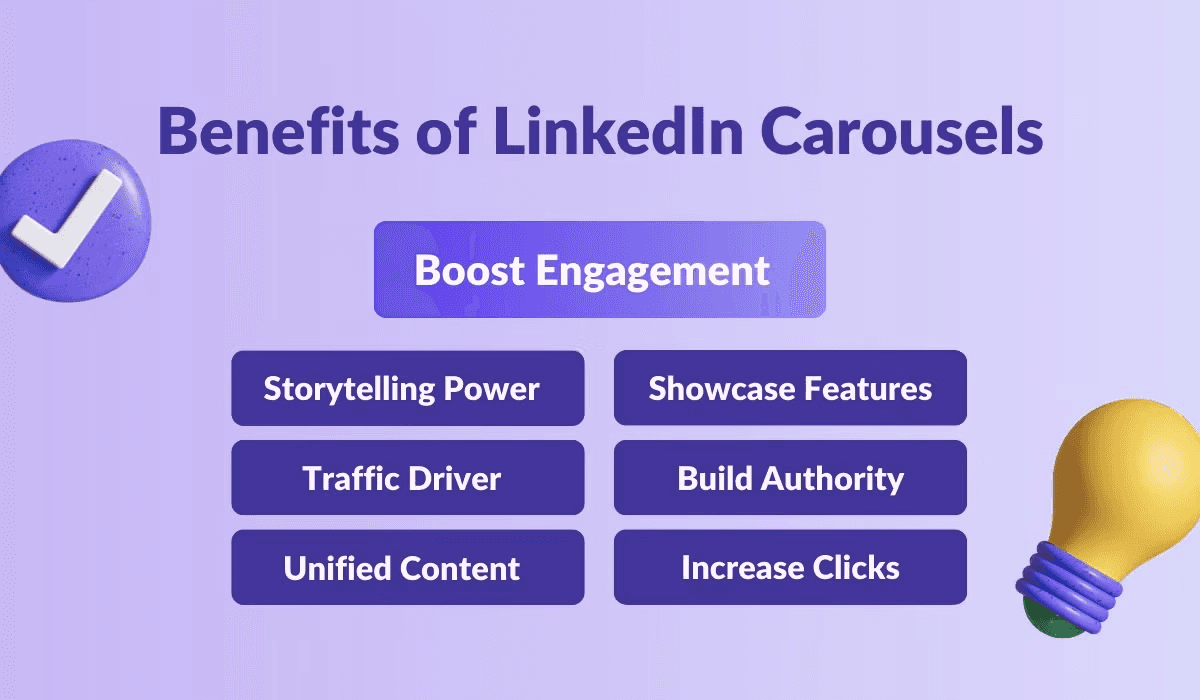
Carousels consistently outperform other formats on LinkedIn:
Each swipe counts as an engagement signal.
Users spend 15 to 20 seconds on carousels versus 8 to 10 seconds on images or text.
Carousels generate 2.5x more shares than standard documents.
If you’re regularly uploading documents, it’s worth designing them with the carousel format in mind.
✅ Carousel Best Practices: 5 to 10 slides is the sweet spot. Lead with a strong cover slide. Use a numbered list structure (e.g., “7 ways to…”). Bold text and white space make slides readable on mobile. End with a clear CTA, either a follow prompt or a link to your full resource.
How to Schedule Posts With Attachments on LinkedIn
LinkedIn’s native scheduler supports all attachment types. After attaching your document, image, or video, click the clock icon in the bottom left of the composer instead of “post.” Select your date and time, and LinkedIn will publish it automatically.
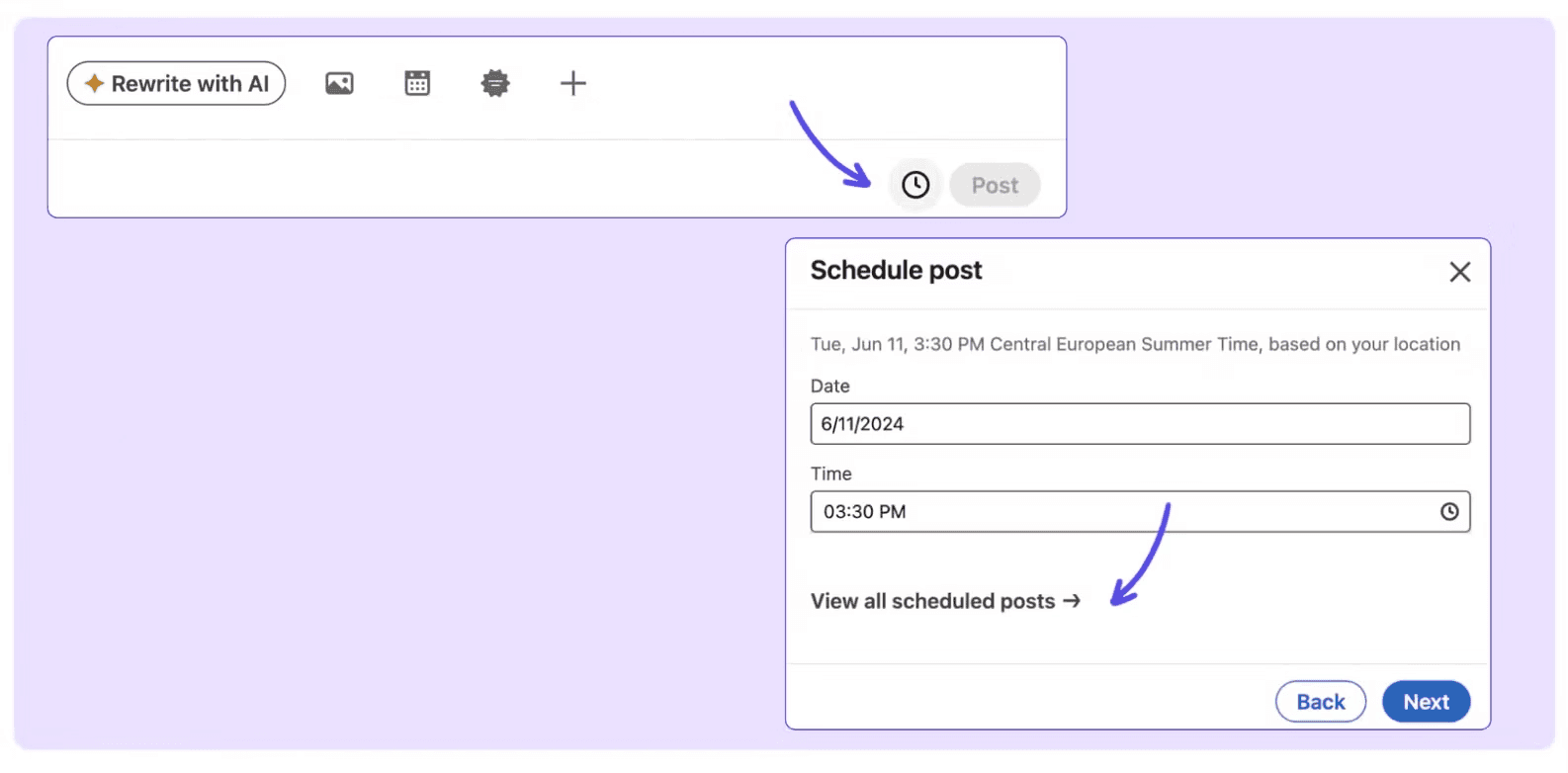
If you’re managing multiple posts across different days, MagicPost’s scheduler gives you a full content calendar view with draft management and post previewing built in so you can see exactly how your attached post will look before it goes live.
Write, Attach, Preview, and Schedule in One Place With MagicPost
Adding attachments is one part of a LinkedIn post workflow. The other parts, including writing the post copy, previewing how it renders on mobile and desktop, and scheduling it at the right time, all matter too.
MagicPost handles the full workflow in one place, including AI writing, a built-in post previewer, and a scheduling calendar. Try it for free today; no credit card is required.
Frequently Asked Questions
How do I add a document to a LinkedIn post?
Click the share box, then click the plus icon next to "Celebrate an occasion" to expand the attachment options. Select the document icon, choose your file, add a title, and click “done.” You can then publish immediately or schedule the post for later.
What file types can I attach to a LinkedIn post?
Documents must be in PDF, DOC, DOCX, PPT, or PPTX format (up to 100 MB, 300 pages maximum).
Images can be in JPG, PNG, GIF, WebP, HEIC, or HEIF formats (up to 8 MB each, up to 20 images per post). Videos can be in MP4, MOV, AVI, MKV, and several other formats (up to 5 GB, 10 minutes maximum).
Can I add multiple attachments to a LinkedIn post?
It depends on the type. You can attach up to 20 images in a single post as a gallery. For documents, only one PDF per post is allowed. For video, only one file per post is allowed. You can’t mix attachment types (a post with a document can’t also have an image attached).
What is a LinkedIn carousel and how is it different from a document?
They are the same thing on LinkedIn. When you upload a PDF using the document attachment flow, LinkedIn displays it as a swipeable carousel. The difference lies in how you design the PDF; a carousel is built with one idea per slide, strong visuals, and a narrative flow designed for swiping rather than downloading.
Should I upload video directly or link to YouTube?
Always upload directly. LinkedIn's algorithm penalizes external links because they send users off the platform. Native video receives significantly more reach than a YouTube link, and LinkedIn's built-in player supports captions, which further improve engagement.
Can I schedule a LinkedIn post that has an attachment?
Yes. LinkedIn's native scheduler supports all attachment types. After adding your attachment, click the clock icon in the composer instead of “post,” and select your publish date and time.
Why can't I add an attachment to my LinkedIn post?
You’re probably trying to mix attachment types (documents and images can't be combined in the same post); you’ve already added one document, and are trying to add another, or your file format isn't supported.
If the icon is greyed out, check whether another attachment type is already active in the composer.
8 Best Employee Advocacy Examples to Follow in 2026
Employee advocacy examples to follow in 2026. See how top companies turn employees into growth channels and drive reach, trust, and pipeline.
LinkedIn Content Strategy Agency: What Do They Actually Do?
Looking for a LinkedIn content strategy agency? Before you hire one, understand what a strategy involves, what agencies do, and when to skip them.
LinkedIn Employee Branding: How to Attract Top Talent (2026)
LinkedIn employee branding is a recruitment strategy. Here's how to turn your team's LinkedIn presence into a measurable talent attraction engine in 2026.
5 Best Shield Analytics Alternatives for LinkedIn (2026)
Shield Analytics is shutting down. Here are the 5 best Shield Analytics alternatives for LinkedIn in 2026, with honest pros, cons, and pricing for each.
Does LinkedIn Show Who Viewed Your Profile? (2026)
Does LinkedIn show who viewed your profile? Learn what others see, how to browse anonymously, and the differences between free and premium accounts.
How to Export LinkedIn Contacts and Connections (2026)
Your connections are an asset. Here’s how to export LinkedIn contacts to CSV in a few clicks, the data you’ll get, and what to do when email addresses are missing.
Taplio Review: Powerful, But Are You Overpaying? (2026 Update)
Taplio provides AI posts, scheduling, and lead generation all in one place, but is it worth it in 2026? This Taplio review will assist you in determining if it fits your workflow.