LinkedIn is public by default. Recruiters, competitors, strangers, and anyone with a search engine can see your career history, connections, recent activity, and often your contact details, unless you tell it otherwise.
There are plenty of reasons to want more control over that. You might be job-hunting while still employed or you want to keep competitors from quietly monitoring your moves.
This guide walks you through every privacy setting in LinkedIn offers in 2026, from basic profile visibility to advanced controls most people never find.
How to Access LinkedIn Privacy Settings
All LinkedIn privacy controls live in the same place. Here’s how to get there:
Click your profile picture in the top-right corner of the LinkedIn homepage.
Select “Settings & Privacy” from the dropdown menu.
Navigate to the Visibility tab. This is your control center for profile information, activity, and connections.
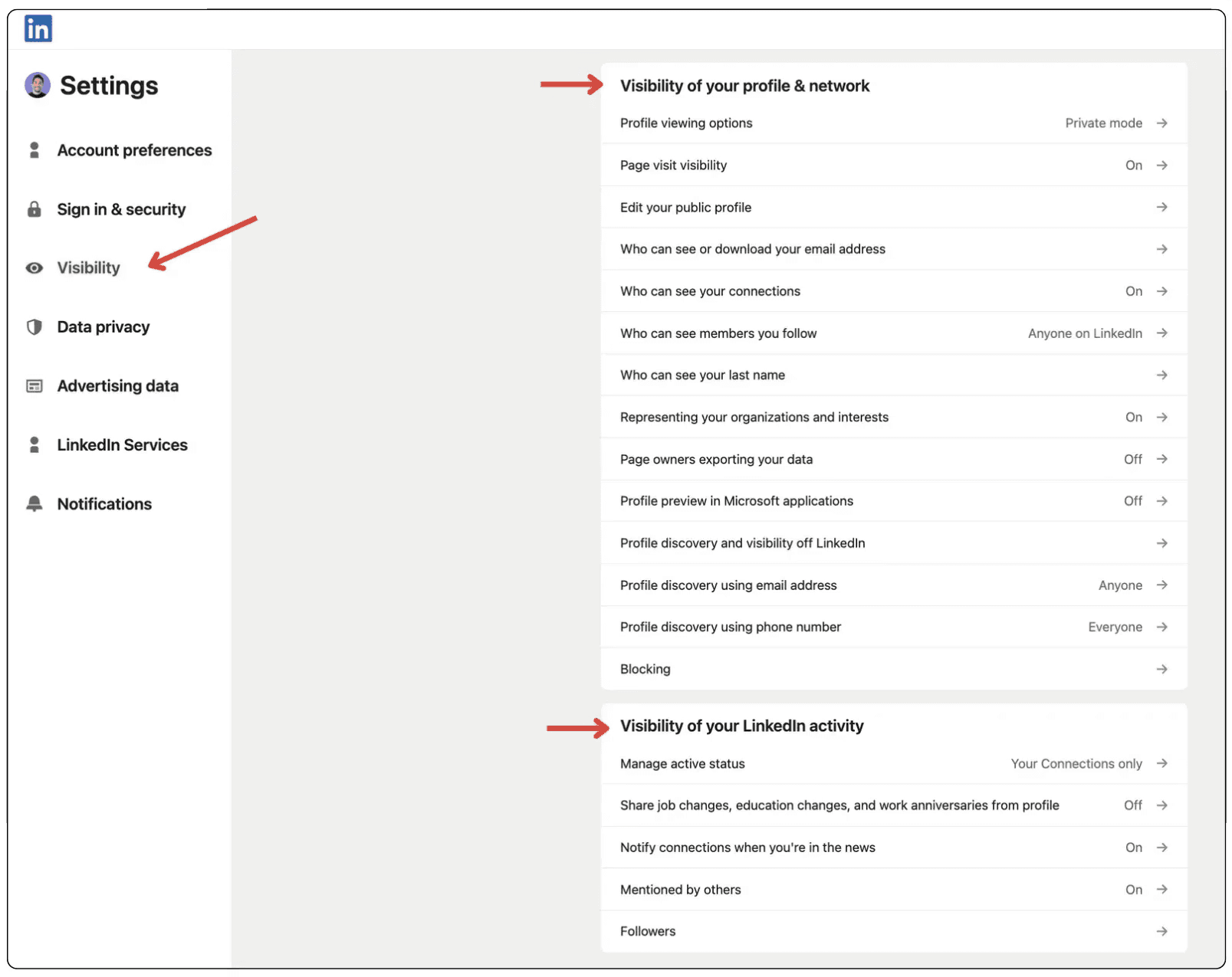
All the steps in this guide start from this Visibility tab unless otherwise noted.
Step 1: Turn On Private Mode for Anonymous Browsing
When you view someone’s profile on LinkedIn, they normally receive a notification showing your name and headline. Private Mode stops that; you become an anonymous visitor. Here’s how to turn it on:
Inside the Visibility tab, find “Profile Viewing Options.”
Select “Private Mode.”
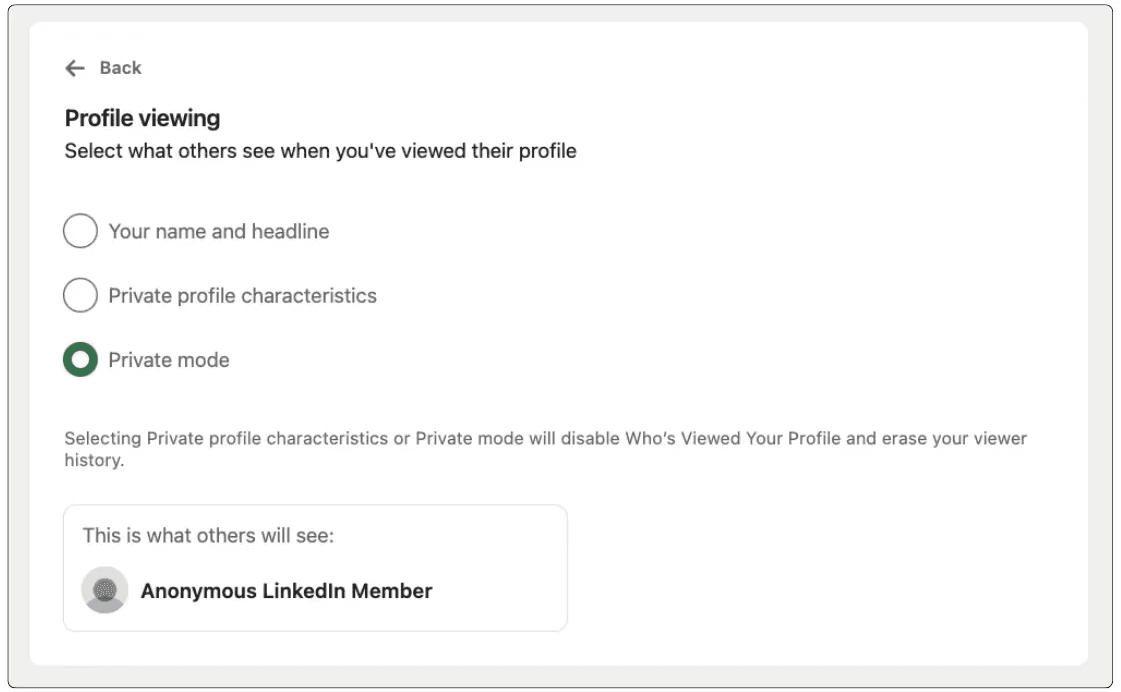
⚠️ Note: Private Mode comes with a trade-off: once enabled, you can no longer see who has viewed your own profile. If you use LinkedIn premium and track profile views, you’ll lose that visibility for the duration of Private Mode.
💡 Pro Tip: Use Private Mode when you’re researching competitors, scoping out a company before an interview, or doing any browsing you’d rather keep discreet. Turn it off again when you’re actively networking and want profile visitors to see who you are.
Step 2: Control What the Public Sees on Your Profile
Your public profile is what non-connections (and search engines) can see. By default, most of it is visible. Here’s how to restrict it:
From your LinkedIn profile page, click “Public Profile & URL” (it’s on the right side of the screen).
In the Edit Visibility panel on the right, you’ll see toggles for each section of your profile: photo, headline, summary, experience, education, skills, and more.
Toggle off any sections you want to hide from public view.
To remove your profile from Google and other search engines entirely, toggle off the top-level “Your Profile’s Public Visibility” option.
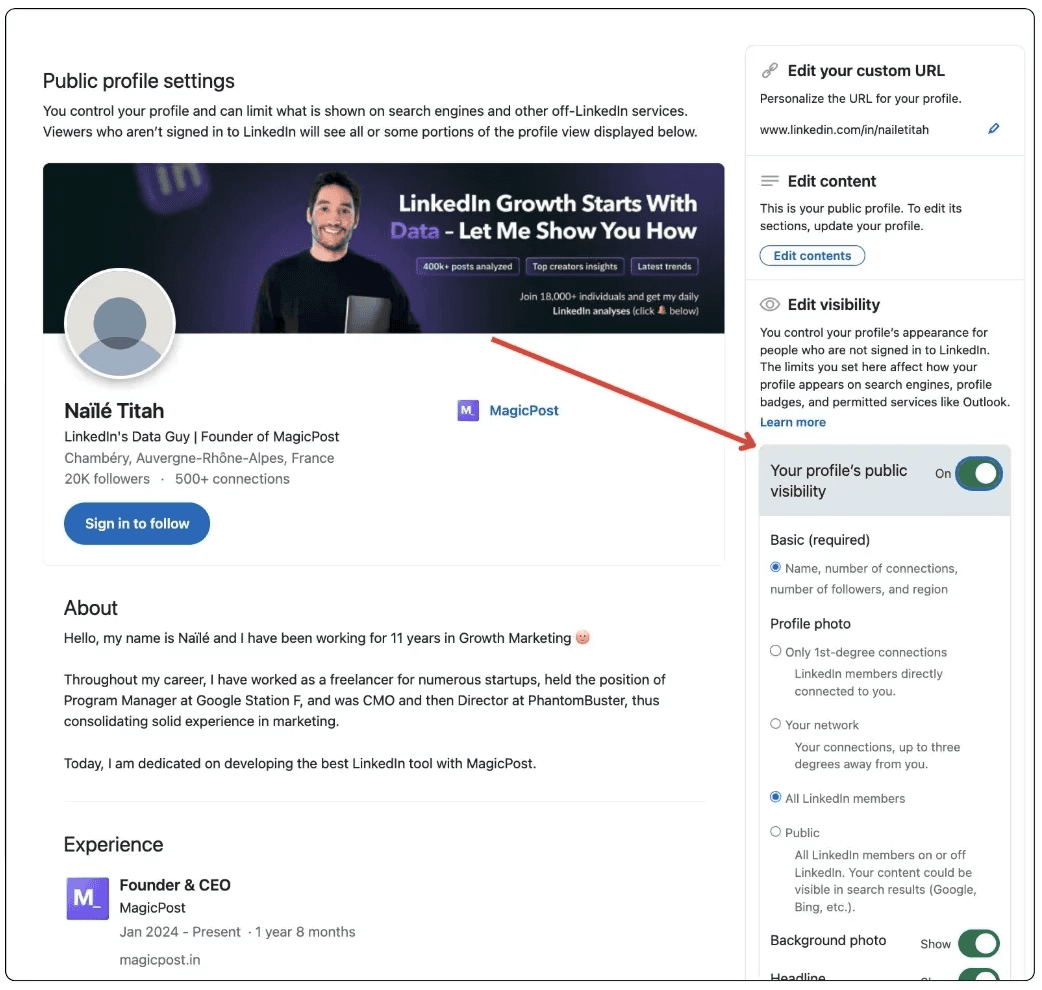
You can be selective here. Keeping your headline and summary visible helps recruiters and potential clients find you while hiding the details you’d rather keep private. A fully hidden profile makes you harder to discover by the people you actually want to reach.
Step 3: Check What Others Actually See
Before adjusting privacy settings, it’s worth checking what your profile currently looks like to the outside world. Surprisingly, LinkedIn doesn’t make this easy; there’s no clean “view as stranger” button, so you have to simulate it yourself:
Click “Me” in the top navigation, then “View Profile.”
Find your profile URL in the “Public Profile & URL” card and copy it.
Open a new Incognito (Chrome) or Private (Firefox/Safari) window, one where you’re not logged into LinkedIn and your experience isn’t affected by cookies.
Paste your profile URL and hit enter.
What you see is exactly what a recruiter, competitor, or search engine visitor would find. It also confirms whether your profile still appears publicly after you’ve disabled visibility settings, since LinkedIn can take a little time to apply changes across all surfaces.
Should You Go Fully Private on LinkedIn?
Going fully private isn't always the right move. LinkedIn's value is discoverability; the more visible you are to the right people, the more opportunities reach you. The goal is to be selectively visible, not completely disappear.
Here’s practical approach for most situations:
Keep public: Your name, headline, and a brief summary. These are the signals that help the right people find you.
Restrict to connections: Your full work history, contact information, and connections list.
Hide entirely: Your activity feed, phone number, and personal email if you're getting spam or unwanted outreach.
If you're actively job-hunting while employed, the “Recruiters Only” setting on “Open to Work” combined with a restricted public profile gives you meaningful privacy without vanishing from the platform entirely.
4 Advanced LinkedIn Privacy Settings Worth Knowing
Below, we’ll cover some privacy tricks most people never find.
1. Hide Your Connections List
By default, anyone who views your profile can see who you're connected with. For most people this is fine, but if you work in a competitive industry and don't want others mapping your network, restrict it. Here’s how:
Go to “Settings & Privacy”
Navigate to “Visibility”
Click “Who can see your connections”
Turn “Connections Visibility” off.
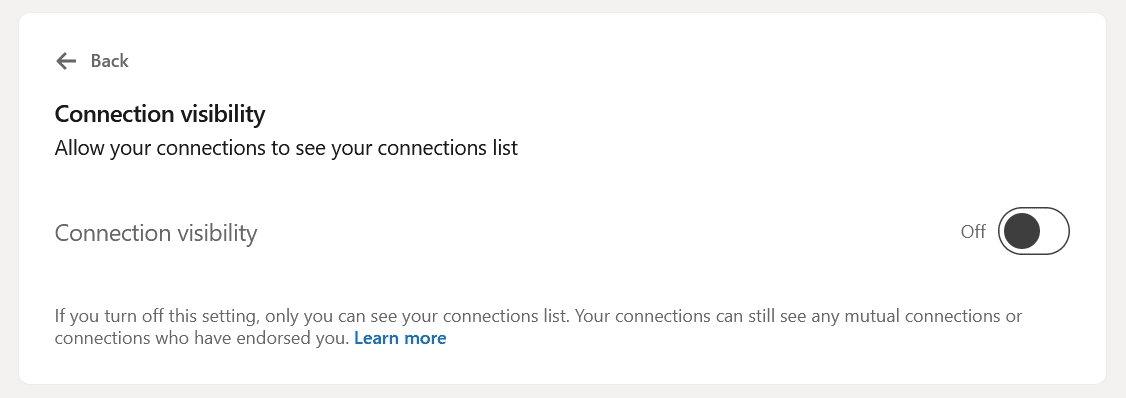
Your connections will still be able to see each other as mutual connections; this setting only prevents others from browsing your full list.
2. Hide Your Contact Information
Your phone number and email are visible to connections by default. If you’re receiving unwanted messages or cold outreach, do the following:
Go to “Settings & Privacy”
Navigate to “Visibility”
Click “Who can see or download your email address”
Set to “Only visible to me”
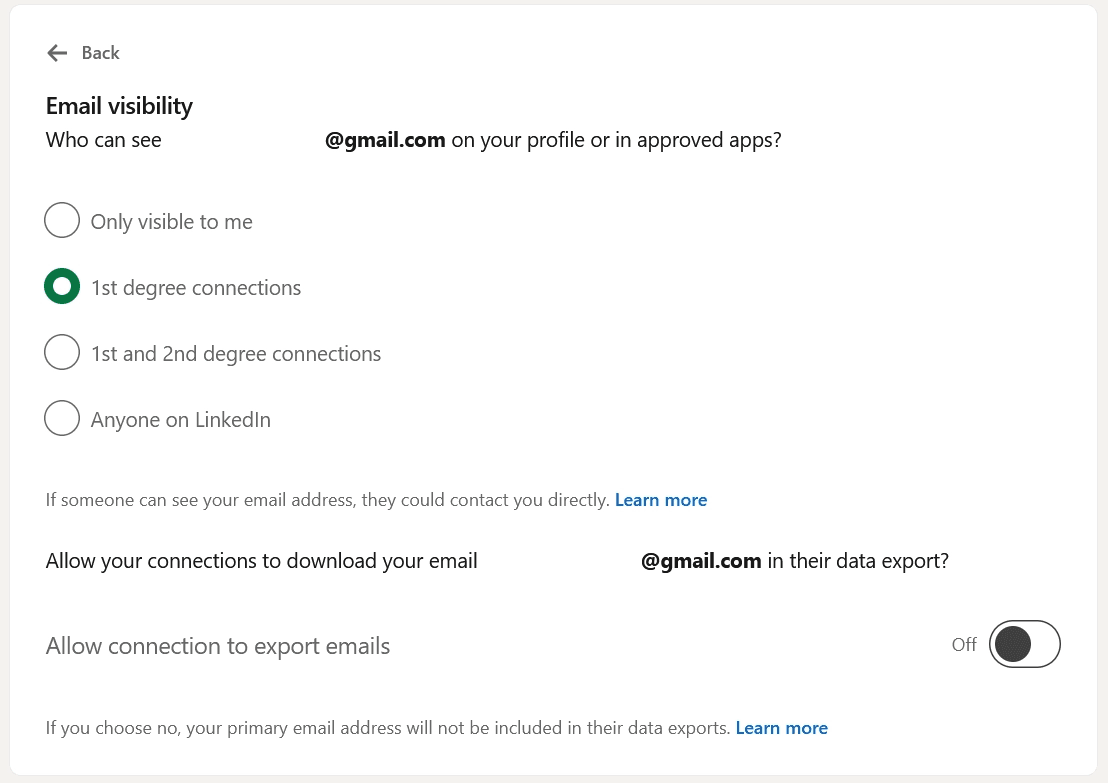
⚠️ Note: LinkedIn doesn’t have a separate setting for hiding your phone number. For your peace of mind, we recommend removing it from your contact information.
3. Control Your Post Visibility and Tag Approval
Every post you publish has an audience selector. Make a habit of checking it before you publish. The default is often set to “Anyone,” which means your post goes into the public feed. Switching to Connections Only limits it to your network.
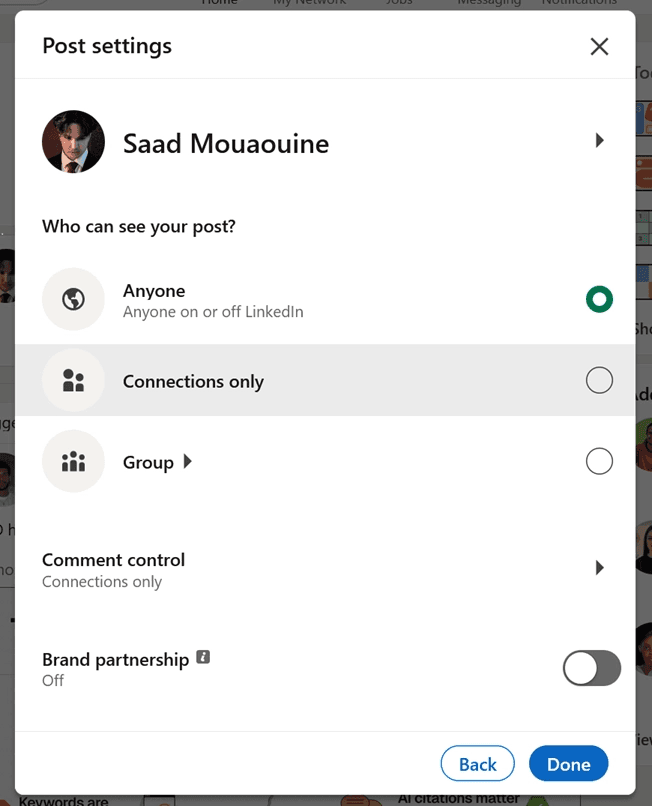
To control when your name gets tagged in other people's posts, do the following:
Navigate to “Settings & Privacy”
Go into the “Visibility Tab”
Click “Mentioned by others”
Switch the setting off
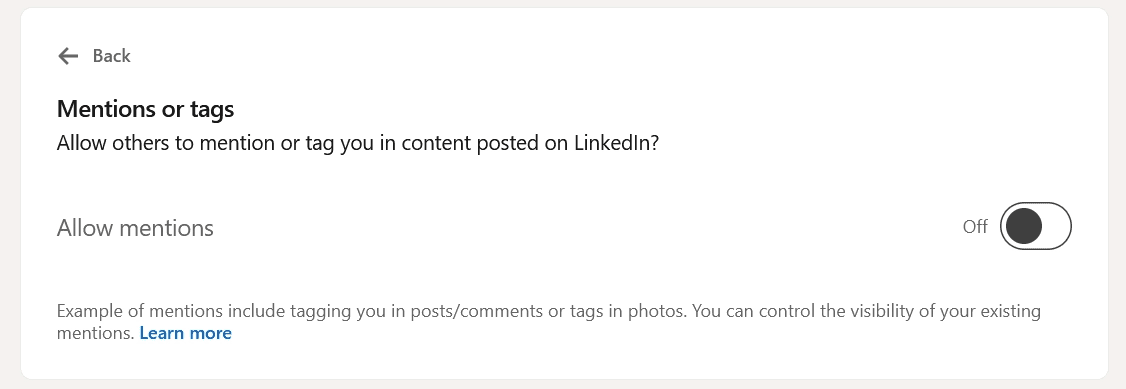
This prevents others from tagging you in content, which includes posts/comments or tags in photos.
4. Control Who Can Reach You
Visibility settings control who can see you. These settings control who can contact you, and they live in a different place.
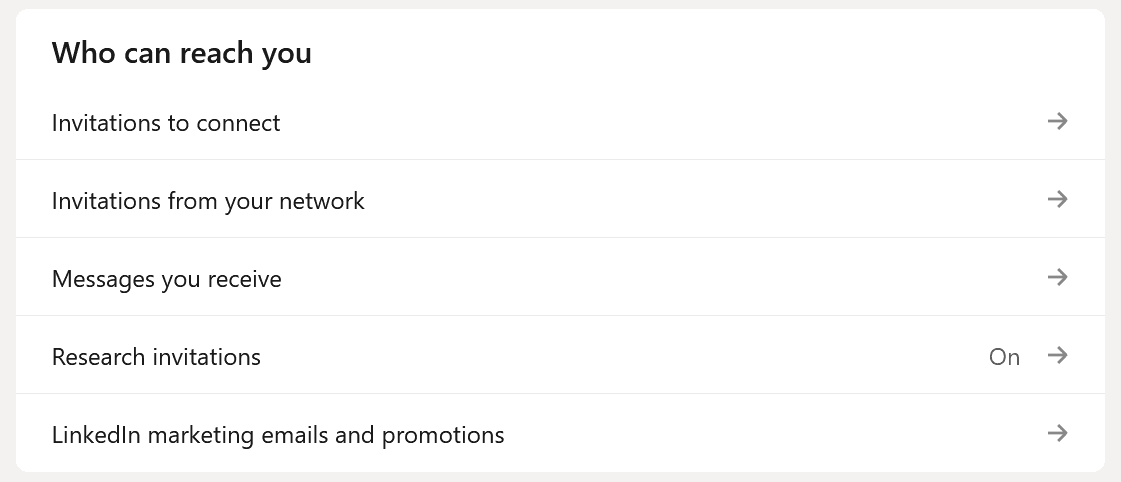
Go to Settings & Privacy > Data Privacy > Who can reach you. You'll find five options:
Invitations to connect: restrict who can send you connection requests
Invitations from your network: control follow-up connection attempts from people you may know
Messages you receive: limit who can send you InMails or messages
Research invitations: LinkedIn occasionally invites members to participate in surveys; turn this off if you don't want them
LinkedIn marketing emails and promotions: disable if you want to reduce emails from LinkedIn itself
If you're getting flooded with cold outreach, recruiter spam, or irrelevant connection requests, this is the section to visit first. Tightening these settings reduces noise without affecting your profile visibility at all.
How to Hide Your LinkedIn Profile From a Specific Person
If you want to become invisible to one specific person without adjusting your global privacy settings, you have two options:
Block them: Go to their profile, click “More,” and select “Report/Block.” Once blocked, they won’t be able to see your profile, send you messages, or interact with your content. They won’t receive a notification that they’ve been blocked.
Remove as a connection: If you’re connected, removing the connection reduces what they can see without the finality of a block. They won’t be notified of the removal, but they’ll lose connection-level access to your profile.
⚠️ Important: Blocking is discreet but not invisible. The blocked person can't see your profile, but mutual connections may still mention you or tag you in shared content. If you need more thorough separation, combining a block with tightened visibility settings gives you the most control.
How to Temporarily Deactivate LinkedIn
If you want to step away from LinkedIn entirely without permanently deleting your account, LinkedIn offers an account hibernation option. Your profile and activity are hidden while hibernated, and you can reactivate at any time without losing your connections, posts, or data.
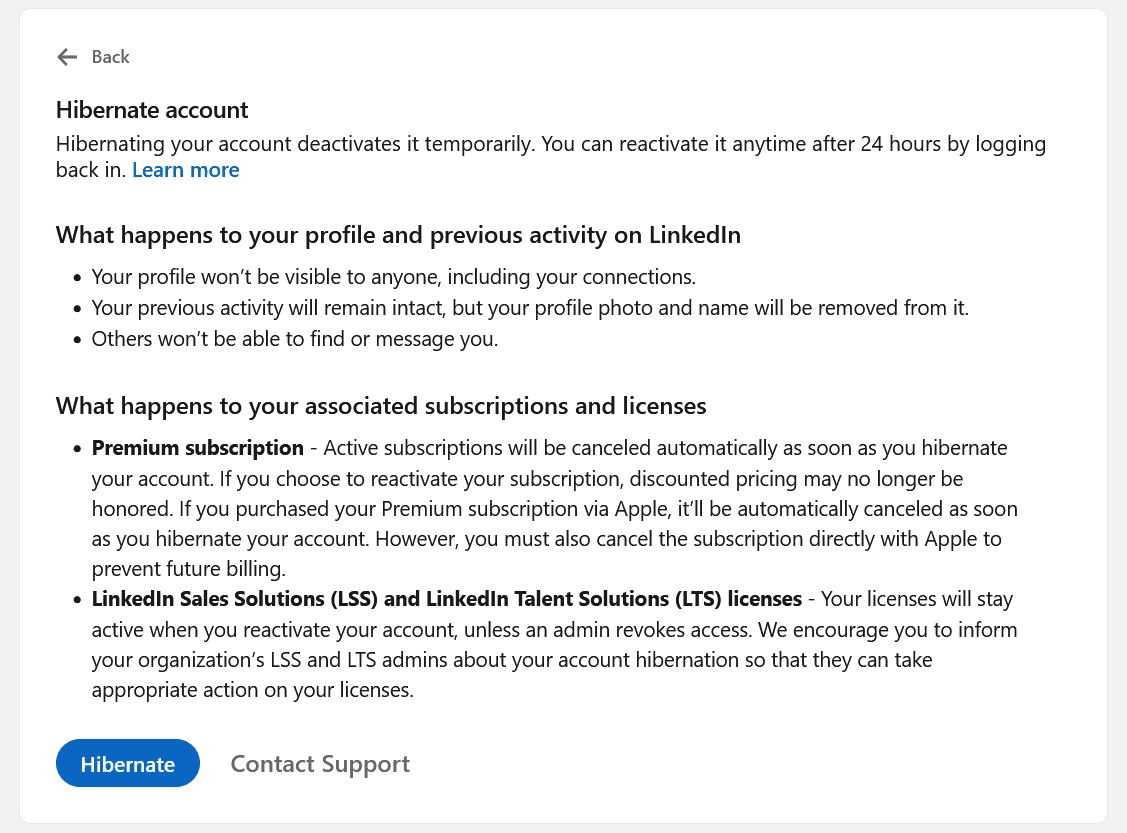
To hibernate, do the following:
Settings & Privacy > Account Preferences > Hibernate Account. LinkedIn will walk you through the steps and confirm before hiding your account.
Go to “Settings & Privacy”
Switch to the “Account Preferences” tab
Click “Hibernate Account” at the bottom
Hibernation is worth considering if you're taking a career break, stepping back from the platform for a few months, or simply overwhelmed by notifications and messages and want a clean break without losing everything you've built.
Take Control of Your LinkedIn Presence
Privacy settings control who sees you, but your content controls what they think when they do. If you're selective about your visibility and want to make sure the posts you do publish land well, you need a different strategy.
MagicPost helps you write in your own voice, preview posts before they go live, and schedule them in advance. Try it for free today; no credit card is required.
FAQ
Can I make my LinkedIn completely invisible?
Not entirely. You can hide almost every section of your profile and disable public visibility, but LinkedIn will still show your name and headline to users you share mutual connections with and in some internal search results. You can get close to invisible, but LinkedIn has no complete opt-out.
Does LinkedIn notify someone if I block them?
No. Blocking is discreet; the person receives no notification or message about it. Your profile will simply disappear from their view, and they'll no longer be able to contact you or interact with your content.
Can I hide my LinkedIn profile from search engines like Google?
Yes. In your privacy settings, click Edit Public Profile & URL and toggle off Your Profile's Public Visibility. This removes your profile from Google, Bing, and other search engine results. It may take a few days for search engines to update their index after you make the change.
What does Private Mode do on LinkedIn?
Private Mode lets you view other people's profiles anonymously. Instead of showing your name and headline when you visit a profile, LinkedIn shows the visitor as "a LinkedIn member" or "someone in the technology industry." The trade-off is that you also lose the ability to see who has viewed your own profile while Private Mode is active.
Can I temporarily deactivate LinkedIn without deleting my account?
Yes. LinkedIn's hibernation feature hides your profile and activity without permanently deleting anything. Your connections, posts, and data are preserved and you can reactivate at any time. Find it under Settings & Privacy > Account Preferences > Hibernate Account.
How do I hide my LinkedIn profile from a specific person without blocking them?
The only way to fully hide your profile from a specific person is to block them. Removing them as a connection reduces what they can see but doesn't hide your profile entirely if it's set to public.
For selective hiding without blocking, tightening your overall public profile visibility is the most practical option.