

LinkedIn is not just a professional networking platform—it's a powerhouse of opportunities to showcase your expertise. And one tool that sets it apart? LinkedIn Documents.
Forget the limitations of other platforms; LinkedIn lets you upload and share PDFs directly. Picture this, transforming your reports, infographics, research, and white papers into attention-grabbing documents that make a real impact on your audience.
Exciting, right? But uploading PDFs on LinkedIn can be a bit tricky. Don't worry, though; we've got you covered.
In this guide, we'll take you through the entire process, from choosing the right content to optimizing it for maximum effect. Now, get ready to level up your LinkedIn game!
What is a PDF on LinkedIn ?
PDFs on LinkedIn make it easy to share knowledge. By uploading documents, you can share your content directly and make it instantly available to your audience.
This means you can share your reports, presentations, and infographics, all kept just as you designed them.
PDFs keep your fonts, colors, and layout intact, so your message always looks the way you intended.
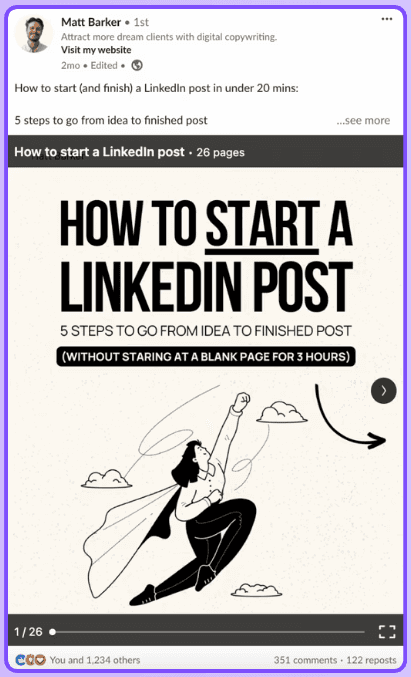
From white papers to eye-catching ads, there are so many possibilities. Add some creativity, and you’re not just sharing content anymore. You’re starting conversations and helping your brand get noticed.
On LinkedIn, these PDFs are known as carousels. They let you flip through your content easily, whether you’re on your phone or computer. It’s a simple way to create a mini interactive experience for your audience.
What Type of PDFs Can be Posted on LinkedIn ?
If you want to make your LinkedIn profile stand out, try turning different types of content into eye-catching PDFs. Here are some examples of documents you can share on the platform:
PDF Type | Purpose | What It Delivers |
|---|---|---|
Research Papers | Deep exploration of industry topics | Detailed findings, data, and expert insights that establish authority |
White Papers | Demonstrate expertise and thought leadership | In-depth reports on trends, best practices, and strategic solutions |
Infographics | Simplify complex information | Visually engaging graphics that make data easy to understand and share |
Presentations | Communicate ideas in a digestible format | Pitch decks, conference slides, or product demos designed for clarity |
News | Keep audiences informed | Summaries of recent developments and their impact on the industry |
Industry Trends & Analysis | Provide strategic perspective | Insights into market shifts, emerging technologies, and consumer behavior |
How-To Guides | Educate and empower readers | Step-by-step instructions and actionable tips for practical application |
Using different types of content helps you create PDFs that both inform and engage your audience. This can help you stand out as a thought leader in your field.
Try out your ideas and see how your LinkedIn presence grows.
Why should you post a PDF on LinkedIn?
Posting a PDF on LinkedIn, also called a document post, is a great way to share valuable content and keep your audience engaged in their feed. Here are five key benefits of sharing PDFs on LinkedIn:
Showcase Your Expertise:
PDFs help you show your industry knowledge through detailed reports, engaging presentations, and informative white papers. Sharing this content can help you get noticed by potential clients, employers, and peers in your field.
Boost Your Visibility:
LinkedIn and its users appreciate rich media content like PDFs. By sharing PDFs regularly, you increase your chances of appearing in more users' feeds, which can lead to more profile views, connection requests, and engagement.
Build Trust and Credibility:
When you share well-prepared and researched PDFs, you build trust with your audience. They see you as a reliable source of information, which helps strengthen your credibility.
Spark Engagement:
PDFs often encourage more engagement from LinkedIn users. People enjoy in-depth content, and PDFs can lead to more likes, comments, and shares as your audience interacts with your material.
Turn Leads into Gold:
By sharing well-designed PDFs, you can turn interested viewers into leads. Include your contact information and clear calls to action to encourage people to visit your website or sign up for your newsletter.
Carousels are the most downloaded and saved type of content on LinkedIn, so it makes sense to use them to your advantage.
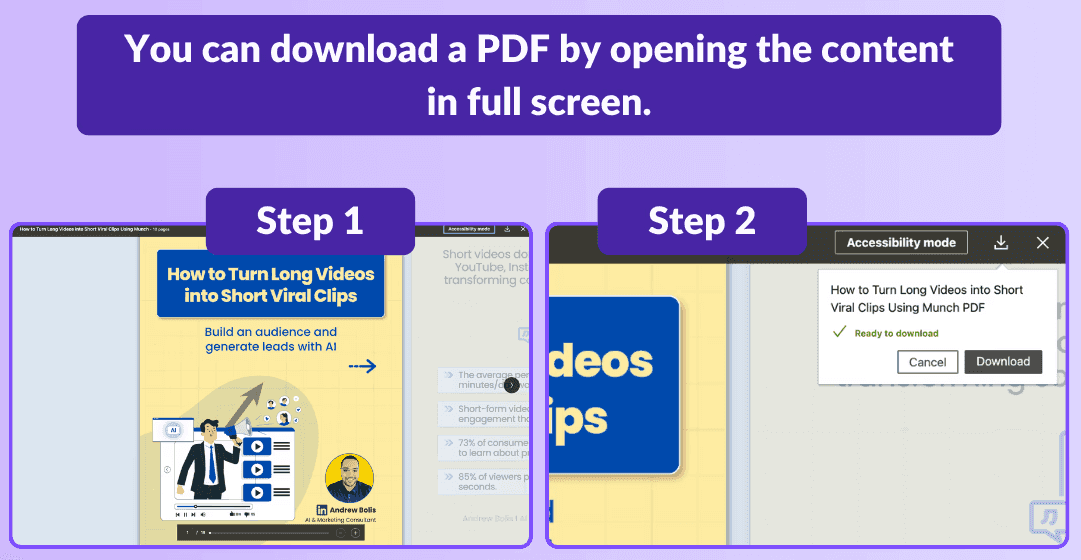
Bonus tip: A recent LinkedIn trends study shows that dynamic content like carousels is becoming more popular. Now is a good time to learn how to create carousels and stand out online.
How do you post a PDF on LinkedIn?
PDFs can perform very well on LinkedIn, but there are a few important things to know before you start sharing them. Like any other content, it helps to learn some best practices. Here are some tips to help you get the most out of posting PDFs:
Repurpose Content with PDFs: Take your longer content and turn it into simple, professional PDFs that are easy for others to share and download.
Keep it Simple: Keep your design simple. Use clean layouts, easy-to-read fonts, and avoid clutter so your message is clear.
Unleash Your Creativity with Visual Power Tools: Try using tools like Canva, Figma, or Adobe Suite to create great-looking LinkedIn documents. These platforms are easy to use and offer plenty of design options, so you can make eye-catching PDFs quickly.
Visuals Speak Louder: Avoid plain PDFs by adding interesting visuals. This helps keep your audience engaged and makes your content easier to read.
Start Strong: Start with a strong first slide to grab your audience’s attention and encourage them to keep reading your document.
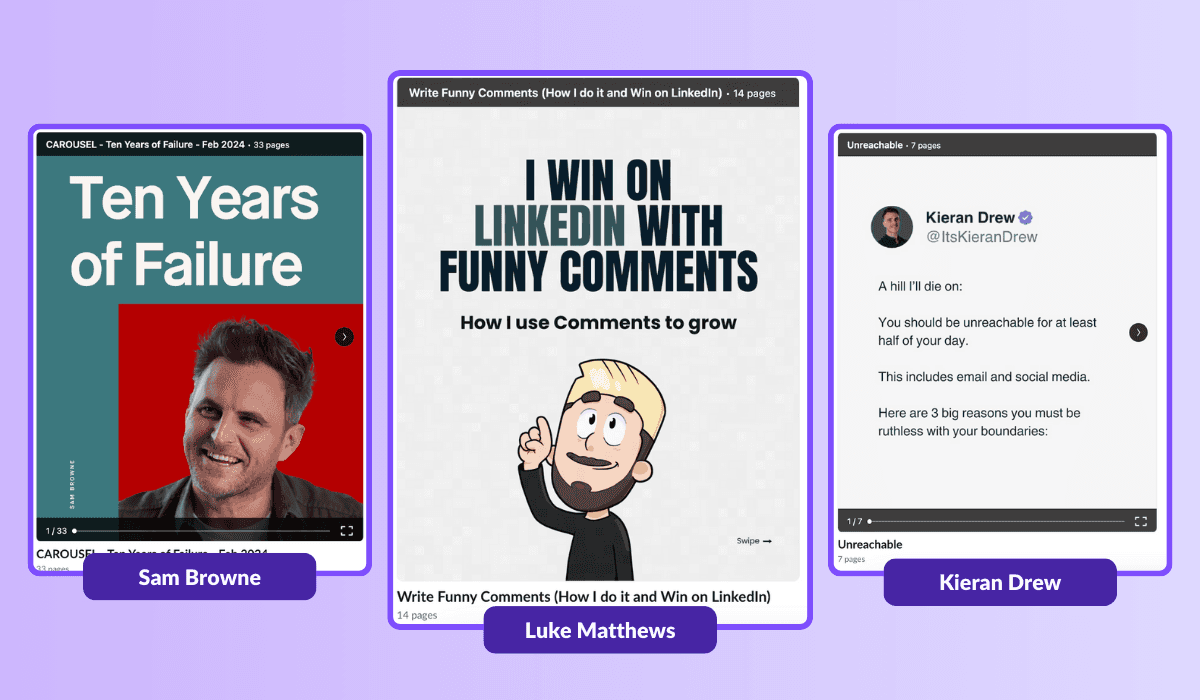
Checklist Before Uploading Your PDF to LinkedIn
If your content is ready, that’s great. Now, make sure it’s set up for LinkedIn by following these key steps:
○ Respect the technical limits
Keep your file under 100MB and no longer than 300 pages.
○ Use a compatible format
Accepted formats: PPT, PPTX, DOC, DOCX, and PDF. PDF is usually the best option.
○ Craft a strong title
You have up to 58 characters—make it clear, engaging, and benefit-driven.
○ Add a concise description
Explain what your document offers and what readers can expect.
○ Use relevant hashtags
Include a few targeted hashtags to help the right audience find your content.
○ Keep it focused and appropriately sized
Avoid making it too long unless the topic truly requires depth.
○ Write in a conversational tone
Use friendly, natural language to keep readers engaged.
○ Don’t overload your pages
Stick to short sentences, clear visuals, and easy-to-digest ideas.
Ultimately, your goal is to make a document that’s easy to scan, loads quickly, and is enjoyable to read. Avoid making it feel like a heavy report.
To Wrap Up
Voilà! With PDFs, you've got the power to dazzle your audience and skyrocket your brand's presence on LinkedIn.
But here's the secret: it's not just about hitting upload, it's about crafting content that sparks genuine connections and stays etched in your audience's minds.
So, unleash your inner creative genius, and let those PDFs work their magic on LinkedIn and their users!