

Your LinkedIn network is a business asset, but if your account ever gets restricted or you need to run outreach outside the platform, that list of connections is stuck behind a login screen.
LinkedIn has a built-in export tool that lets you download your first-degree connections as a CSV. It takes a few minutes and costs nothing. Here’s how to export LinkedIn contacts, what you’ll get, and what to pay attention to.
Why Export Your LinkedIn Contacts?
There are a few situations where having an offline copy of your LinkedIn contacts matters:
Account backup: If your account is ever restricted, suspended, or locked out, you keep your connections.
CRM import: Move contacts into tools like HubSpot or Salesforce for pipeline management and follow-ups.
Multichannel outreach: Reach people via email instead of relying solely on LinkedIn InMails, which have strict limits and a noisy inbox.
Network analysis: Segment your connections by job title, company, or date to prioritize outreach or identify warm leads.
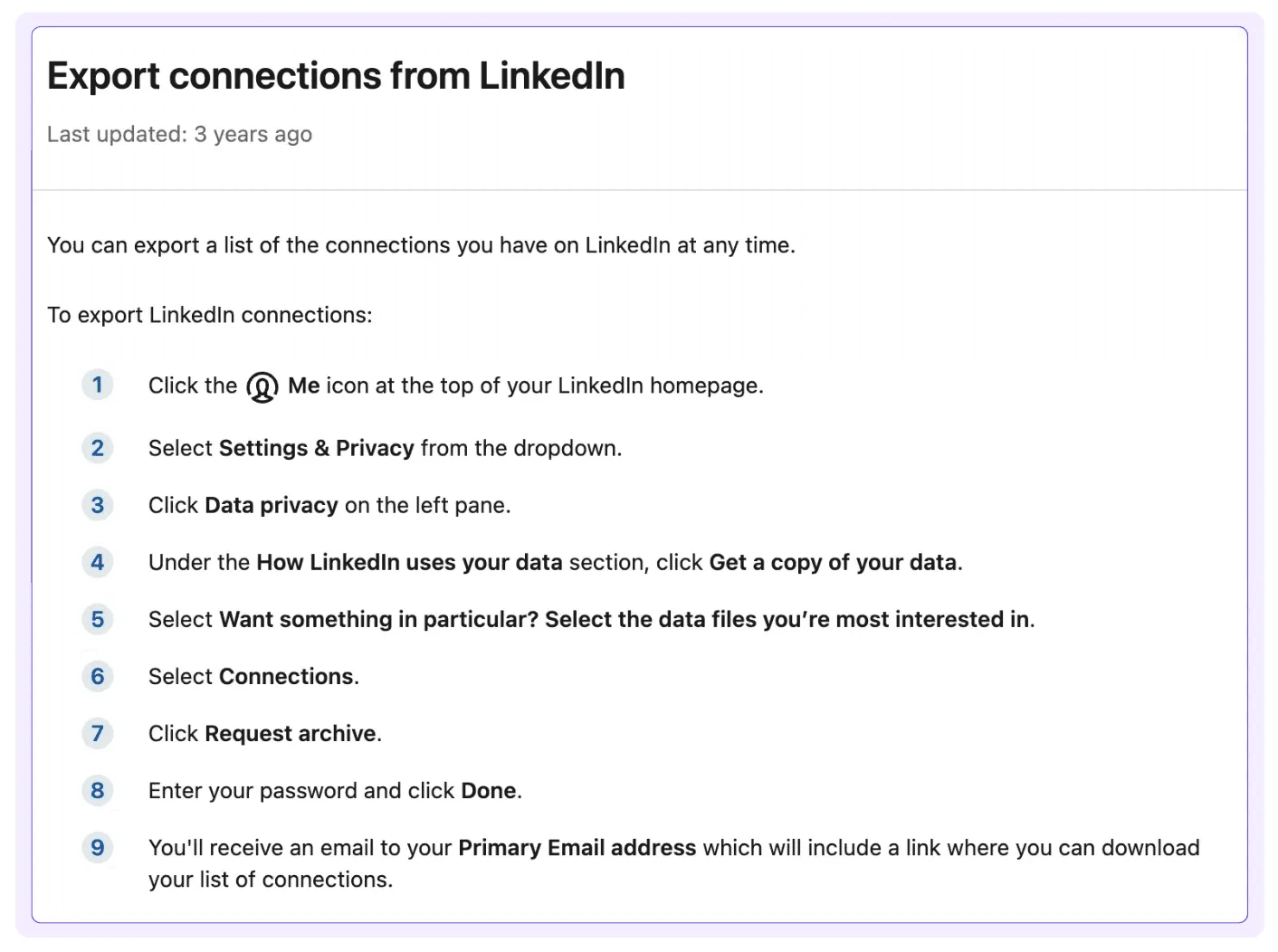
How to Export LinkedIn Contacts: Step-by-Step
This is LinkedIn’s native export method. It’s free, official, and available on all account types, including free ones.
Step 1: Go to Settings & Privacy
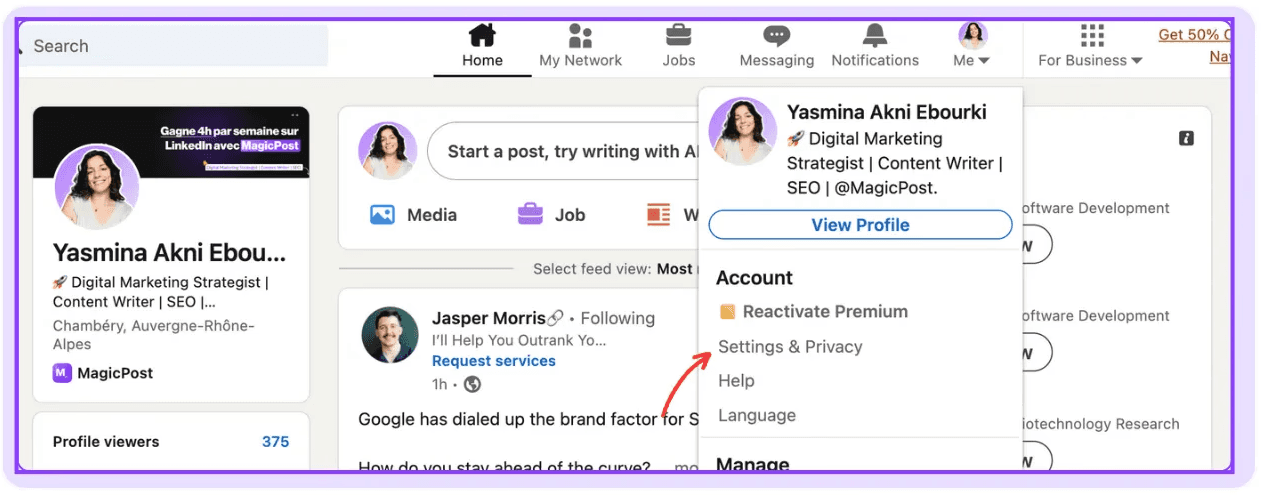
From your LinkedIn homepage, click your profile picture in the top right. Select “Settings & Privacy” from the dropdown menu.
Step 2: Navigate to Data Privacy
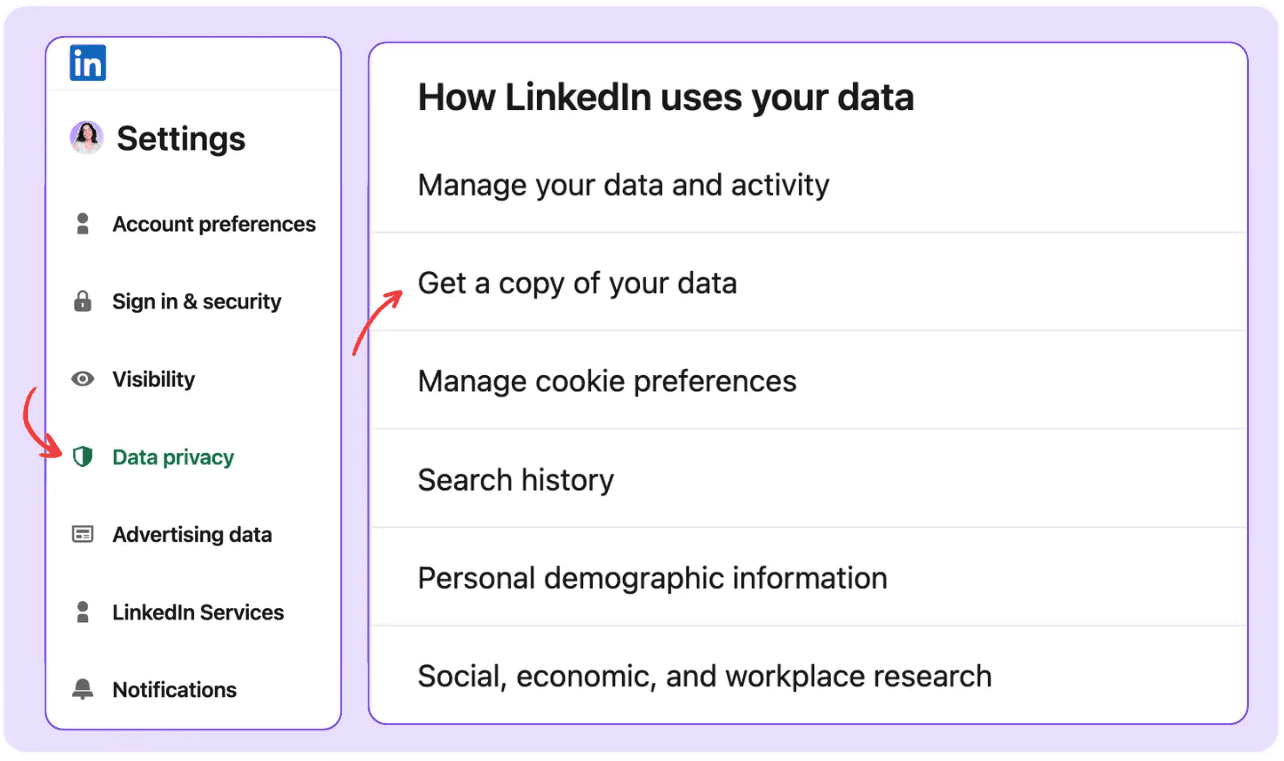
In the left menu, scroll to the data privacy section. Click “Download your data” or “Get a copy of your data.”
❓ Note: This feature isn’t available on mobile. Use a personal computer, not a public one.
Step 3: Make Your Selection
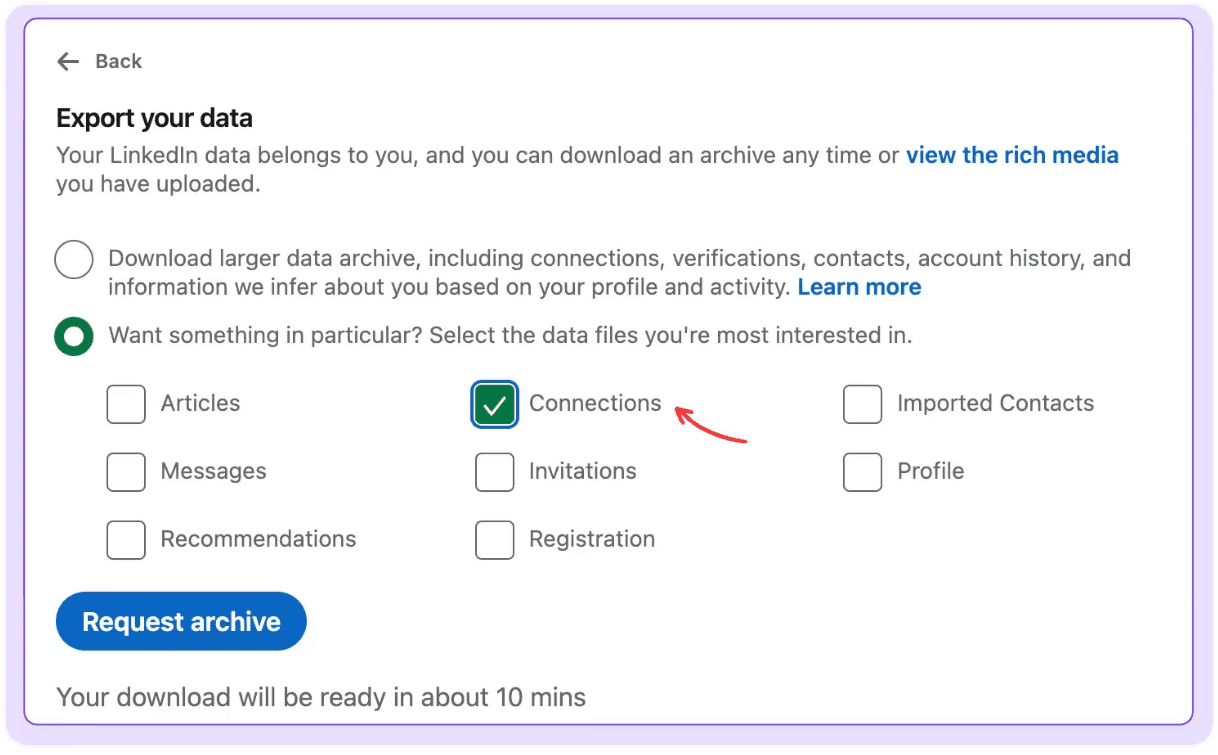
You’ll see two options:
“Download larger data archive,” which includes connections, contacts, account history, verifications, and more. LinkedIn needs up to 24 hours to prepare this ZIP file for you.
“Want something in particular?” lets you select specific data types that are applicable to your account. If you choose this and tick a specific data type, such as articles or profiles, LinkedIn will prepare it for you within 10 minutes.
To export your connections, click “Connections.” If the option isn’t available, simply select the larger data archive.
LinkedIn lists the types of data that can it prepare within 10 minutes and within 48 hours on a dedicated help center page. The data is available for download for 72 hours.
Step 4: Request the Archive
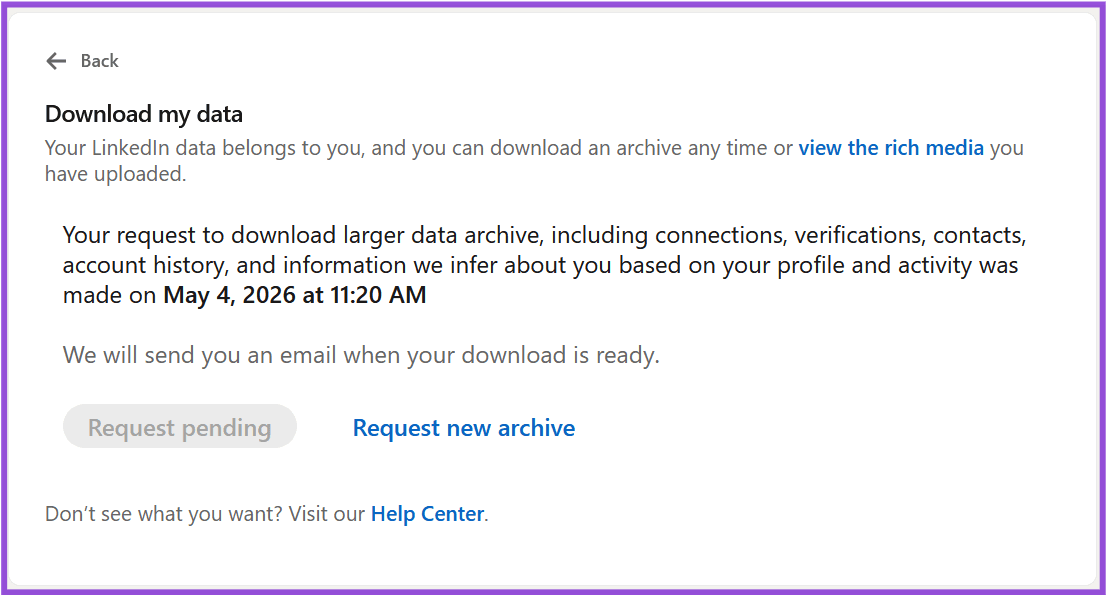
Click “Request archive” to submit. LinkedIn will send you a notification that your data is being prepared.
Next, check your email. If the data you requested belongs to the 10-minute category, you’ll receive it in a few minutes. Otherwise, expect to wait up to 24 hours.
👌 LinkedIn also provides an API program to enable EU/EEA/Switzerland members to access their LinkedIn data programmatically. You can find more details in the Member Portability APIs help center article.
Step 5: Download and Open the CSV
Download the ZIP file and extract it. Look for the Connections.csv and open it in Excel or Google Sheets.
⚠️ The file starts with a few note lines before the actual column headers. If the data looks off, delete those top rows so row 1 is the header. Plus, the CSV and vCard formats don't support all characters. As a result, languages with extended character sets (such as Chinese, Japanese, or Hebrew) aren’t supported.
What Data Does LinkedIn Export Include?
The CSV covers the basics:
What’s Included | What’s Not Included |
|---|---|
First name, last name | Phone numbers |
Job title and company | Notes or tags you’ve added to connections |
Email address (if the contact has enabled sharing) | 2nd or 3rd degree connections |
Date connected | Profile photos |
LinkedIn profile URL | Engagement history, skills, endorsements, or recommendations |
⚠️ Only 10% to 20% of your connections will have an email address in the export. LinkedIn only includes emails for contacts who’ve never explicitly enabled “Allow connections to export my email” in their privacy settings, and that’s off by default. If email outreach is your goal, you’ll need an enrichment tool.
What Are LinkedIn’s Connection Export Limits?
LinkedIn’s native export has no hard cap on the number of connections. You can export your full list in one request.
That said, users with very large networks (5,000+ connections) sometimes report incomplete exports or longer processing times. The native tool works reliably for networks under 2,500 connections.
There’s a short limit on how often you can export, too. You can request a new archive every 2 hours.
❓ The 80-contacts-per-day figure you might see elsewhere refers to tools like PhantomBuster, not the native export. Those tools visit profile pages to find emails, and LinkedIn caps profile visits at around 80/day for free accounts and 150/day with Sales Navigator. That’s a different limitation entirely.
What to Do When LinkedIn Emails Are Missing from Data Exports?
If you need email addresses for LinkedIn outreach and the CSV comes back mostly blank, enrichment tools are your fix. They match your LinkedIn data against external sources to find verified contact details.
A few tools commonly used for this are:
PhantomBuster, which exports LinkedIn data at scale and can send it to email finders. It works within LinkedIn’s profile visit limits.
Dropcontact, which enriches data using first name, last name, and company. It’s GDPR-compliant.
LinkedIn Sales Navigator plus Evaboot. This allows up to 2,500 exports per day with fuller profile data.
Keep in mind that even with enrichment tools, you’re responsible for how you use the data. Any email outreach needs to comply with GDPR, CCPA, and the privacy laws relevant to your contacts’ locations.
Best Practices for Managing Your LinkedIn Exported Contacts
Keep these practices in mind while handling your LinkedIn data; they’ll help you make the most out of it.
Segment Before You Outreach
A flat list of 3,000 connections isn’t useful on its own. Sort by job title, company size, or date connected to identify the contacts worth prioritizing. The ones who connected recently or who match your ICP are your warmest starting point.
Clean the Data Before Importing
LinkedIn’s export sometimes has inconsistencies in capitalization or company names.
Run a quick cleanup pass in Excel before importing into a CRM; otherwise, you end up with duplicate entries and messy segments.
Export on a Schedule
B2B data decays fast: job titles change, people move companies, and emails go stale. A quarterly export keeps your list reasonably current. If you’re actively growing your network, more frequent exports make sense.
Don’t Let the List Replace the Relationship
Exporting contacts is useful for backup and outreach setup. But the actual work of building LinkedIn engagement still happens on the platform. A CSV doesn’t replace a strong profile or consistent content.
LinkedIn Data Privacy and Compliance
LinkedIn’s export only includes data your connections have chosen to share. Email addresses and phone numbers have explicit privacy controls, and LinkedIn enforces them at the export level. These are all based on personal privacy settings.
Once you have the data, you’re responsible for how you use it. Here’s what to keep in mind:
Only contact people through channels they’ve implicitly or explicitly consented to.
GDPR applies to EU contacts regardless of where you’re based.
Avoid sharing exported contact files with third parties without a legal basis.
Don’t use scraped or enriched data to build mass cold email lists without an opt-out mechanism.
Turn Your LinkedIn Presence Into a Content Engine
Exporting your contacts is one piece of the puzzle. The other is staying visible to your network so they remember you when it matters.
MagicPost helps you post consistently, in your voice, without spending an hour a day on it. Try it for free today; no credit card is required.
FAQ
Can I export my LinkedIn followers?
No. LinkedIn’s native export only covers first-degree connections. Followers are not exportable.
Can I export someone else’s connections?
No. You can only export your own first-degree connections. Accessing another user’s connections via scraping or third-party tools violates LinkedIn’s Terms of Service.
Do I need LinkedIn Premium to export contacts?
No. The export feature is available on all account types, including free ones.
Can I transfer contacts to another LinkedIn account?
LinkedIn doesn’t support direct account-to-account transfers. You can export from one account and manually send connection requests from another using the exported data, but the process is slow and must comply with LinkedIn’s account usage policies.
Why are most email addresses blank in the export?
LinkedIn only includes an email if the contact has enabled “Allow connections to export my email” in their privacy settings. It’s off by default. Expect emails for roughly 10% to 20% of your connections.
How often can I export my connections?
LinkedIn allows you to request a new data archive every 2 hours.
What’s the best way to use exported LinkedIn contacts?
Import them into a CRM, segment by job title or connection date, and use an enrichment tool to fill in missing emails if needed. Pair this with a consistent LinkedIn content strategy so that when you do reach out, people already recognize your name.